Need help?
Do you have a question about the Netum DataMatrix pdf417 and is the answer not in the manual?
This document serves as a Quick Start Guide for the NETUM 2D Scanner, a device designed for reading various types of barcodes. The scanner is identified by the brand "NETUM" with the Chinese characters "迅镭" (Xùnléi).
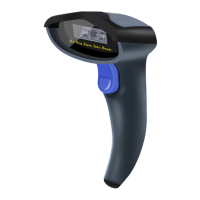
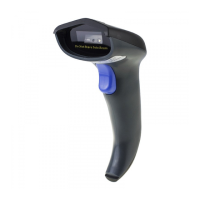
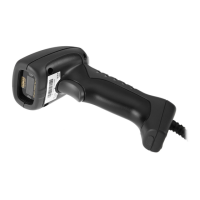
The NETUM 2D Scanner is primarily a barcode scanner capable of reading two-dimensional barcodes. Specifically, it supports QR codes, PDF417 codes, and DataMatrix codes. Its core function is to capture and transmit barcode data to a connected system, acting as an input device for data entry and inventory management.
While the document does not provide a comprehensive list of technical specifications such as scanning speed, resolution, or operating temperature, it details key functional settings and interface options.
Barcode Support:
Interface Settings: The scanner offers flexible connectivity options via USB. It can be configured to operate in two primary USB interface modes:
Keyboard Layouts: The scanner supports various keyboard layouts to accommodate different countries and languages, ensuring compatibility with diverse operating environments. Supported keyboard layouts include:
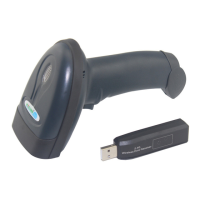
Packing List: The standard package includes:
The Quick Start Guide outlines several user-configurable features that enhance the scanner's usability and adaptability to different operational needs.
Factory Default Settings: The scanner can be reset to its factory default settings. This process involves scanning a sequence of barcodes: "Enter/Exit Setting" -> "Factory Default Settings" -> "Enter/Exit Setting". It's important to note that performing a factory reset does not alter the interface setting (e.g., USB Keyboard mode remains USB Keyboard mode).
Reading Version Number: Users can read the scanner's firmware version number by scanning a specific barcode ("Read the Version Number"). This can be useful for troubleshooting or verifying software updates.
Aimer Setting: The scanner features an aimer, which can be toggled on or off. The aimer helps users target the barcode accurately.
Enter/Line Feed Setting: This feature controls whether an "Enter" (carriage return) or "Line Feed" character is appended to the scanned data. This is crucial for data entry into various applications.
USB Interface Settings (CR and LF): When operating in USB PC or Macintosh Keyboard mode, the scanner can be programmed to add a Carriage Return (CR) and Line Feed (LF) to the scanned data. This is a common requirement for many data entry systems.
Beeper - Good Read: The scanner provides audible feedback to indicate a successful barcode read. This beeper can be enabled or disabled.
Beeper Volume - Good Read: The volume of the good read beeper can be adjusted to suit the environment.
LED Good Read: In addition to audible feedback, the scanner also provides visual feedback via an LED to indicate a successful read.
Data Matrix Code Activation: While the scanner supports DataMatrix codes, there's a specific setting to ensure this function is active. If DataMatrix codes are not scanning, users are instructed to scan the "DATA MATIX CODE" barcode to enable this function.
The document provides information related to troubleshooting and warranty, which can be considered aspects of device maintenance and support.
FAQ (Frequently Asked Questions):
Warranty Information:
Support and Resources:
http://www.gzxlscan.com/downloads/.service@gzxlscan.com.tian@gzxlscan.com.Company Information: Guangzhou NETUM Electronic Technology Co., Ltd. is described as a high-tech enterprise specializing in the development, manufacture, sale, and service of barcode scanning equipment. They offer a range of NETUM brand products, including CCD Barcode Scanners, Laser Barcode Scanners, Anti-static laser Readers, Wireless Laser Barcode Scanners, Omni-directional Scanners, and Data Collection Terminals. The company holds certifications such as Europe Union CE, RoHS, FCC, Laser Safety Test IEC60825-1, and SGS service certification, ISO9001:2008.
 General
| Brand | Netum |
|---|---|
| Model | DataMatrix pdf417 |
| Category | Barcode Reader |
| Language | English |

 To Next Page