EUM/OPS/MAN/14/780549
v1F e-signed, 25 July 2017
Newtec MDM6000 DVB-S2 Receiver EUMETCast Setup Guide
Page 9 of 20
4 RECEIVER CONFIGURATION & MANAGEMENT
4.1 Management IP and Access to the Receiver
In order to configure the MDM6000 a graphical user interface (GUI) is used to access to the
device.
Proceed as follows to open the GUI for your device on your computer:
1. Open a web browser on your computer;
2. Type the management IP address of your device in the address bar of the browser then
enter;
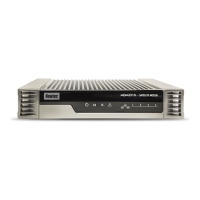
3. Login as expert (the default password is expertexpert).
Notes:
You can find the management IP address of your device via the front panel in the
following menu: MDM6000 -> Mgmt Itf. By default, the IP address is 10.0.0.2/24 on
the MGMT1 interface;
The management and traffic IP address, netmask and gateway can be set from the
front panel;
You must ensure that the network settings of the MDM6000 make it accessible from
the management PC. The management IP address of the MDM6000 and the IP
address of the station must reside on the same subnet, or there must be a route that
connects both of them through a router. You will need to change the IP address of
your management PC to be on the same subnet as the receiver (in this case, change
your PC IP address to: 10.0.0.x/24, where x is not equal to "2" and is different from
the traffic IP if it is on the same subnet);
The receiver Ethernet can be configured from the GUI;
You MUST be logged onto the system as Administrator, for the network settings
function to work properly.
Figure 5 Login as expert
Now you are logged into the receiver and made it to the GUI main screen.


 To Next Page