42
Note: Some LiveSets (e.g., double-box sets) do not support zooming. In such cases, the Zoom Presets and the
Zoom T-Bar are inactive.
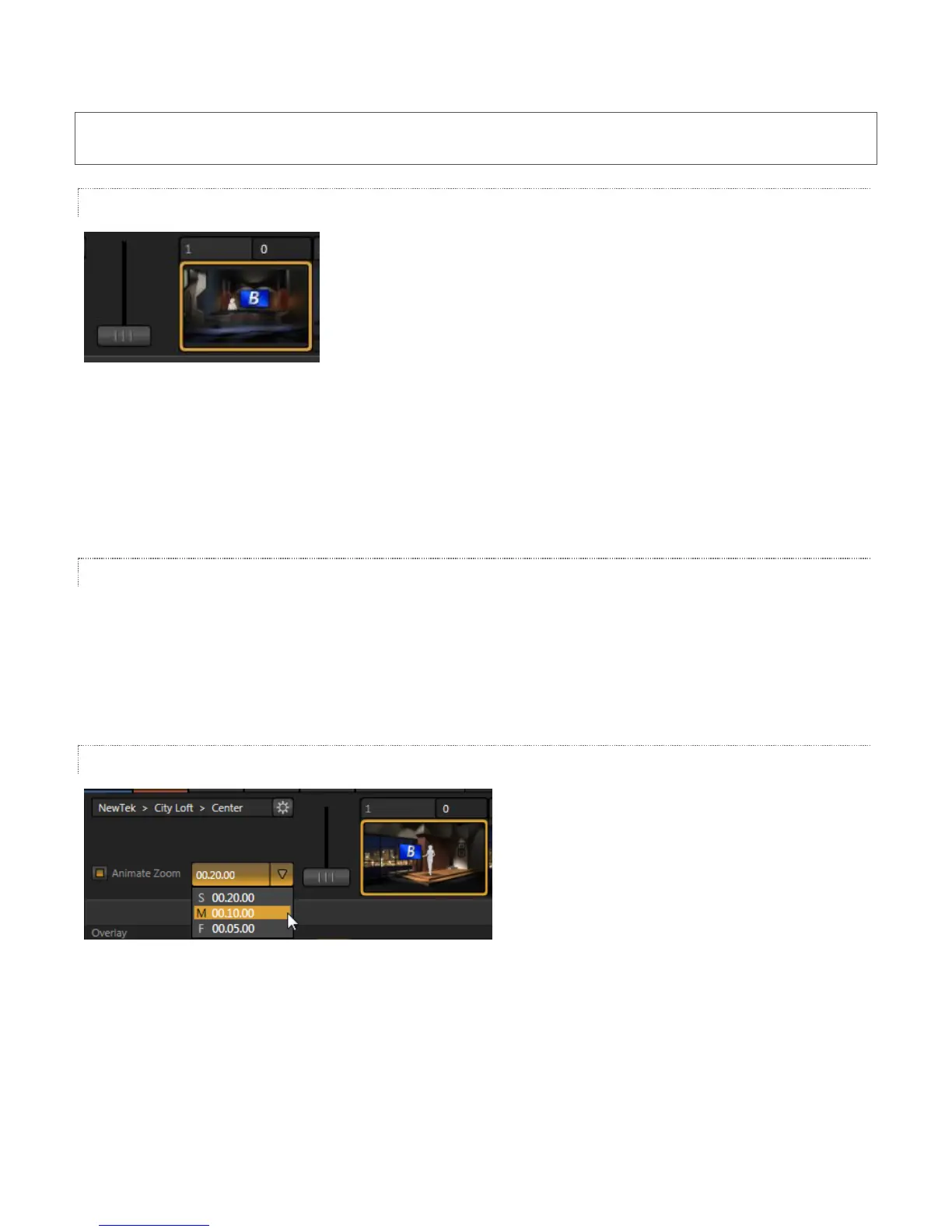
ZOOM T-BAR
Figure 68
The Zoom T-Bar is located beside the Zoom Presets. Dragging it vertically adjusts the virtual ‘camera distance’
for the active LiveSet, between 0-100%. When you click a Zoom Preset, the T-Bar updates to the new zoom level
(displayed numerically above). Conversely though, adjusting the T-Bar does not change the value for a preset.
(When the current T-Bar position does not correspond to any presets, none of them are shown with a white
border.)
INPUT POSITION
We discussed the Position controls for video Inputs A and B back in Section 3.8.1. It’s worth adding here that
these controls, when active, do affect the scale, rotation and position for LiveSet video inputs (this is another
unique advantage of this LiveSet implementation). You will find that you can often use Position controls to
ensure a ‘good fit’ and natural appearance of talent or other source appearing in your virtual sets (greatly
reducing the need to fuss with physical camera positions to do so).
ANIMATE ZOOM
Figure 69
As noted earlier, you can use the Zoom T-Bar to manually zoom in on most LiveSets, even when displayed on
Program Output. The Animate Zoom switch makes it possible to easily perform this realtime zoom automatically
with a single click. With Animate Zoom enabled, simply clicking a preset automatically zooms from the current
position to the virtual camera ‘distance’ represented by the preset. A built-in ease in/out is applied to ensure a
smooth zoom.



 To Next Page