65
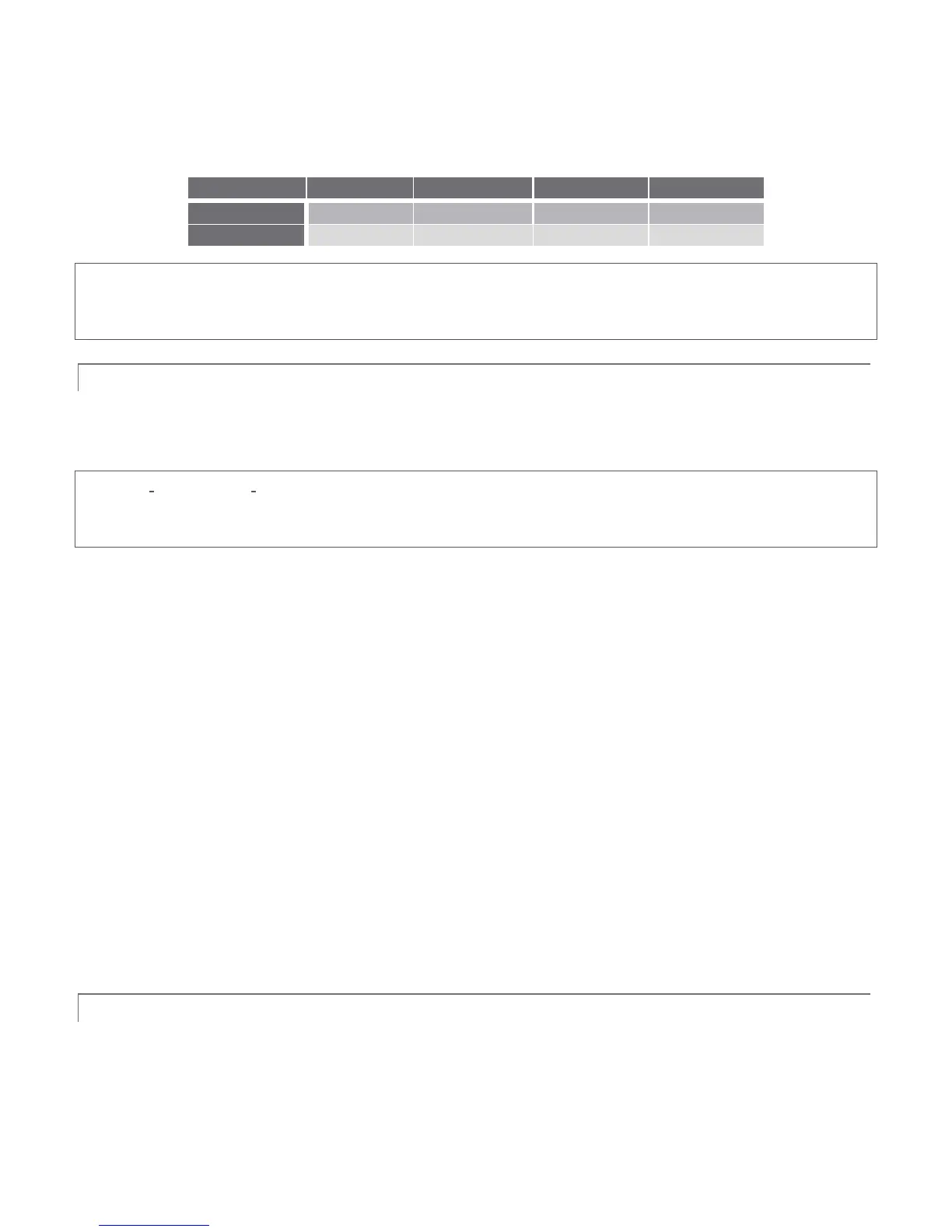
Likewise when the project is SD, the SDI outputs will all be SD. As there are multiple connection options for
analog SD video, please refer to the following table in this case:
Note: It is possible to use LiveText’s File menu to open a project that does not correspond to the current session
settings. TriCaster will attempt to provide video output, but it’s possible that a given monitor may not display it
correctly.
6.1.2 FILES/FILEBIN
LiveText’s file dialogs (for File>Open, File>Add, File>Save and Save As) have pre-configured QuickTabs pointing
to the following default paths for the current session.
Note: the Quicktab links refer to ‘session-dependent’ paths, thus are not permanent. That is, for a given session,
the path the Quicktab refers to is established at launch time. For this reason, the TriCaster version of LiveText
does not support user-added Quicktabs.
LiveText’s File menu has two special items – Send Current Page to Live, and Send All Pages to Live. (These take
the place of other export options appearing in the standalone version of LiveText.) As you would expect, these
functions creates files for use in the Live Desktop, automatically storing them in the correct place(s) for easy
access.
Titles prepared in LiveText can be either still or motion pages. When you send a still page to Live, it becomes a
Title Page file, with the characteristic filename extension “.cgxml”. Title Page files can be edited in the Live
Desktop’s Media Players. Send Current Page to Live will automatically store these files in the
D:Media\Titles\sessionname\projectname folder.
Motion pages (scrolls and crawls) that you send to Live are stored as bitmap animation files (with an .avi file
extension), suitable for playback in Live Desktop’s DDR. These are sent to the session folder inside TriCaster’s
main Clips folders. The content of motion pages cannot be edited in the Live Desktop.
When you select Send All Pages to Live, each page in the project is exported in turn to the appropriate format
and location. This means they are readily accessible in the Live Desktop’s Media Browser afterward, for easy
addition to a Media Player playlist. Title Page icons will appear grouped under their project names in the Media
Browser’s File Pane when you select the session name in the Location List at left.
6.1.3 NAMING STAND-IN IMAGES
Among other things, the Title Editor in TriCaster’s Media Players (DDR, Still and Titles) allows you to substitute a
different image for stand-in (or “placeholder”) images in Title Pages (.cgxml) exported from LiveText.



 To Next Page