Settings
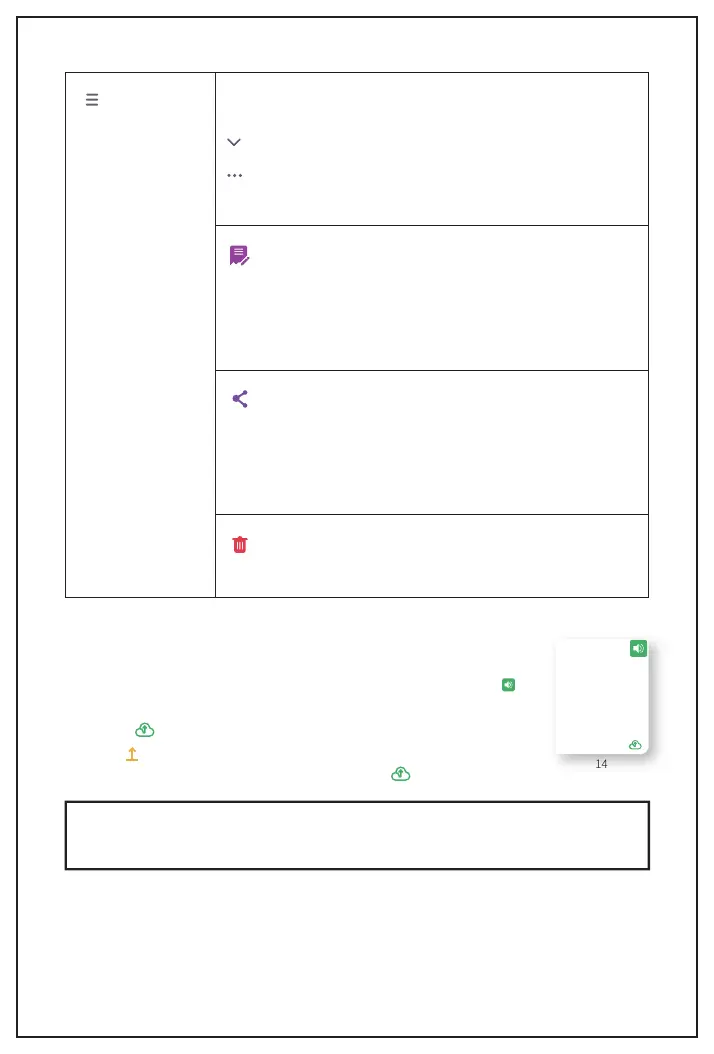
It's a place to play the voice recorded. Please note that it can
only display the notes when recording the voice, it can not
display the notes made before or after the voice recording.
Click the drop-down menu to see the recorded voice list, tap
it, then play it.
Click it, you will see 2 options, Rename and Delete record-
ing. So you can give a new name to this recording or delete it
here.
It's some basic information about your notes. Please note that if
you didn't recognize your writings, the APP would count your
handwriting as an image instead of characters, so if you need to
count all your writing letters, you have to recognize the whole
page.
You can share this video to the listed social media channel or
click More to share it to other apps on your phone. You can also
save this page as an image to your album. Or save the page to
PDF or DOC and share it.
Hit it. It will delete the whole page.
Notes information
Share
Delete
14
#Test#2
Page Icons
• You can sort the pages according to created time or page order. Every
page is named by the page number.
• If you add a voice or several voices to a note, it will have this mark .
• If you add tags to a page, it will be shown on this page, like this #Test#2 .
showing , it means the data is uploading to our cloud to save, it usually
• This icon means the page has been saved to our cloud. When
takes a few seconds to finish and then changes to .
Search for Notes
Note:
The notes are saved to your created account, not the device. So, if you want to change
the device, log into the same account to access your notes.
You can search the notes on either the Notebook interface or Page interface, the results are
the same.
9


 To Next Page