View
• Tap
• Tap image or list to change image view or list view.
Notebook Settings
Method 2: Use the SyncPen 3 to write on our paper directly, a page will be created
automatically, click on the top left, and you will be back to the Notebook interface and
see the notebook just created.
Edit Notebook
The bottom right corner has a number that indicates
the pages of the notebook you're using. Currently,
we have 64, 128, and 160 pages.
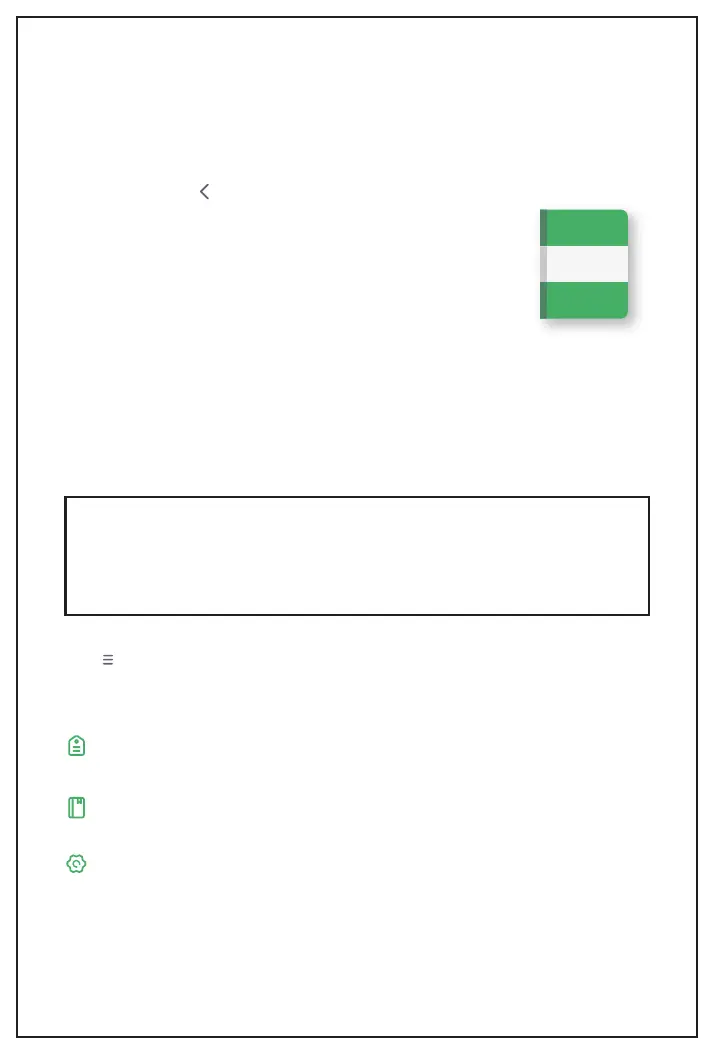
When you long-press the Notebook , you can see the below settings.
• Rename - You can rename the notebook here.
• Delete - Delete the whole notebook.
• Save into PDF - It will save the whole notebook into a PDF file.
• Lock the notes - The pages can not be edited after the notebook is locked. And you can
see a lock icon on the bottom right of the notebook. It's a way to protect your data
won't be accidentally edited.
• If you need to unlock the notebook and edit it again, long-press the notebook icon
again, and you will see the option of Unlock the notes.
Note
64
Note:
By default, the newly created notes will be saved on the first notebook on the interface.
If you need to keep the note in another notebook, you need to open that notebook
first, then use the SyncPen to write on NEWYES paper. Or you can lock other notebooks
and leave only one notebook, and then all the new notes will be saved on the unlocked
notebook.
• Tap Name, you can change the SyncPen's name here.
• Writing formats is a place to set your default pen writing thickness, colors, paper
background, etc.
Default writing format
My tag
My tag You can add or edit a tag here, such as rename or delete.
Help
It's some quick instructions.
Working with Notebooks
Method 1: Tap Create Notebook, give the notebook a name, then tap Finish on the top
right corner.
Create Notebook
5


 To Next Page