It's the page number and the total page quantity. 14/64 means
that now is the 14th page, and this notebook has 64 pages.
Page Number
24/160
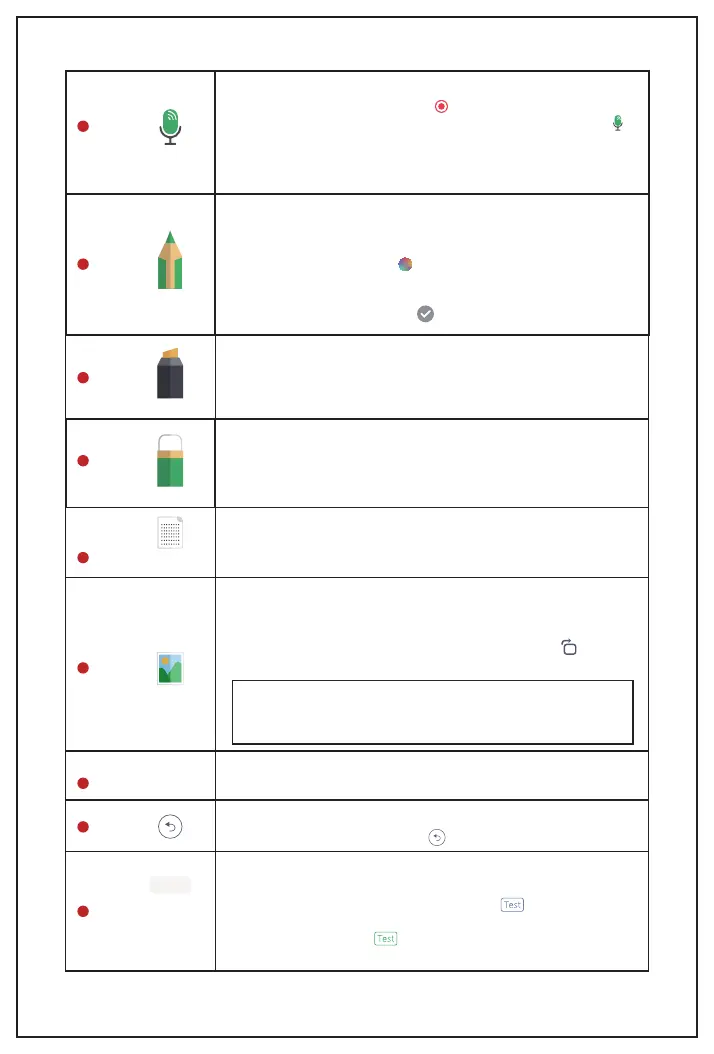
Each time, after clicking the Undo button, it can only reverse
one step, then it will turn grey .
Undo
After tapping the Notebook Title, you will be redirected to a
new page. It's a place to do tags. Tap Enter tags, you can add
a new tag, after typing a tag, it's in blue , if you need to
apply this tag to this note, you will need to tap the tag, then it
will change to green , the hit save on the bottom right.
Now, this note has been tagged.
Notebook Title
Tap this record icon, the phone will record your voice and save
it to the current note. Tap this to stop recording. After the
voice is saved, you will see there's a change of the icon ,
there's "1" on it, which means this note has 1 recording. You
can record multiple times and multiple voices to one note, the
number will show the voice quantity that has been saved.
Record
Tap this icon, you can change the pen colors and thickness.
There're 4 kinds of thickness to choose.
For the colors, there're 6 standard shortcut colors. If you want
other colors, you can tap , shift your finger and choose one
color, and it will show a preview of the color you chose on the
left. If it's not the color you want, slide your finger again. Once
you decide on the color. Tap to apply this color.
Pen
Tap it, you will be able to use the SyncPen as the marker, you
can also use your finger to write directly on the screen. Tap it
again, you will see the color options like the pen section,
choose the color as mentioned above.
Marker
Tap it, and you will be able to use your finger as the eraser.
Slide your finger on the screen, it will erase the content you
slide over. Tap the eraser icon again, you will be able to choose
the eraser size or empty the whole page directly.
Eraser
Tap it, you will see 3 options for the background, dot, line, and
blank. Choose one, then click Finish, the page background
will change accordingly.
Background
Tap this icon, you will be able to insert an image to the note,
choose an image from the album or take a new photo. After
selecting a picture, you can edit it. For example, you can use
two fingers to zoom in or out; change the place; tap to rotate
the image.
Image
Note:
You can only insert 1 image to one page. If you insert a
second image, the new one will replace the old one.
1
Note
7
1
2
3
4
5
6
8
7
9


 To Next Page