4 | ni.com | NI USB-9162 User Guide
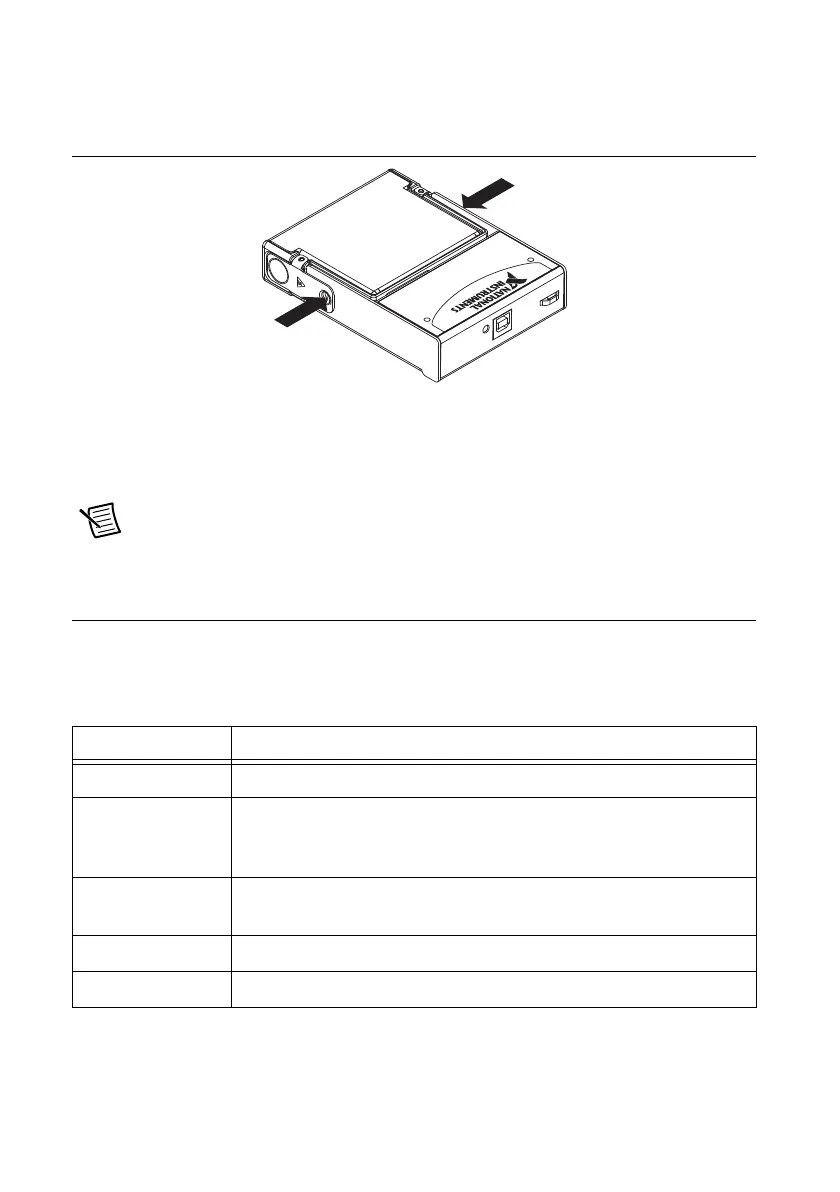
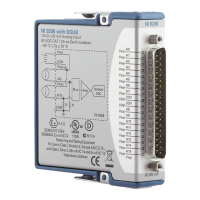
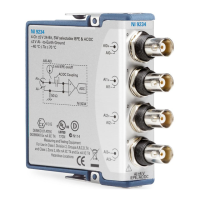
7. Press firmly on the connector side of the C Series I/O module until the latches lock the
module into place, as shown in Figure 4.
Figure 4. Locking Module into Place
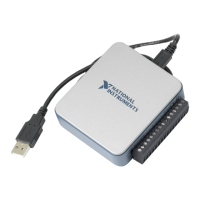
8. Plug one end of the USB cable into the NI USB-9162 and the other end into an available
USB port on the computer. Refer to the NI-DAQmx for USB Devices Getting Started Guide
that shipped with your device, and is also accessible from Start»All Programs»
National Instruments»NI-DAQ, for more information.
Note You can provide strain relief for the USB cable by threading a zip tie through
the strain relief loop and tightening the tie around the looped cable.
LED Indicator
The NI USB-9162 has a green LED next to the USB connector. The LED indicator indicates
device status, as listed in Table 1.
Table 1. LED State/Device Status
LED State Device Status
Not lit Device not connected or in suspend.
On, not blinking Device connected, but no module installed or device not initialized, or
computer might be in standby mode. Make sure that you have the latest
version of NI-DAQmx installed on your computer.
Single-blink Operating normally. The device is initialized and receiving power
from the connection.
Double-blink Operating normally.
Quadruple-blink Device error. Refer to ni.com/support.


 To Next Page