PARK
FIELD
BEACH
GOLDFIELD
Search
Mode
1-Tone
Z-1
12
12
12
-
Z-2
22
22
22
-
Z-2
10
10
10
-
Z-3
19
19
19
-
Z-4
28
28
28
-
Z-1
1
1
1
-
Z-1
1
1
1
-
Z-2
7
7
7
-
Z-3
13
13
13
-
Z-4
19
19
19
-
Z-5
25
25
25
-
Z-6
30
30
30
-
Z-1
1
1
1
-
Z-2
22
22
22
-
Z-1
1
1
1
-
2-Tone 4-Tone 6-Tone 60-Tone
Z-2
22
22
22
-
Z-1
1
1
1
-
P-Tone Pitch
Default Tone Frequencies
This setting allows you to adjust the Tone Frequency for
each tone zone.
This setting enables the users to easily identify targets by audio.
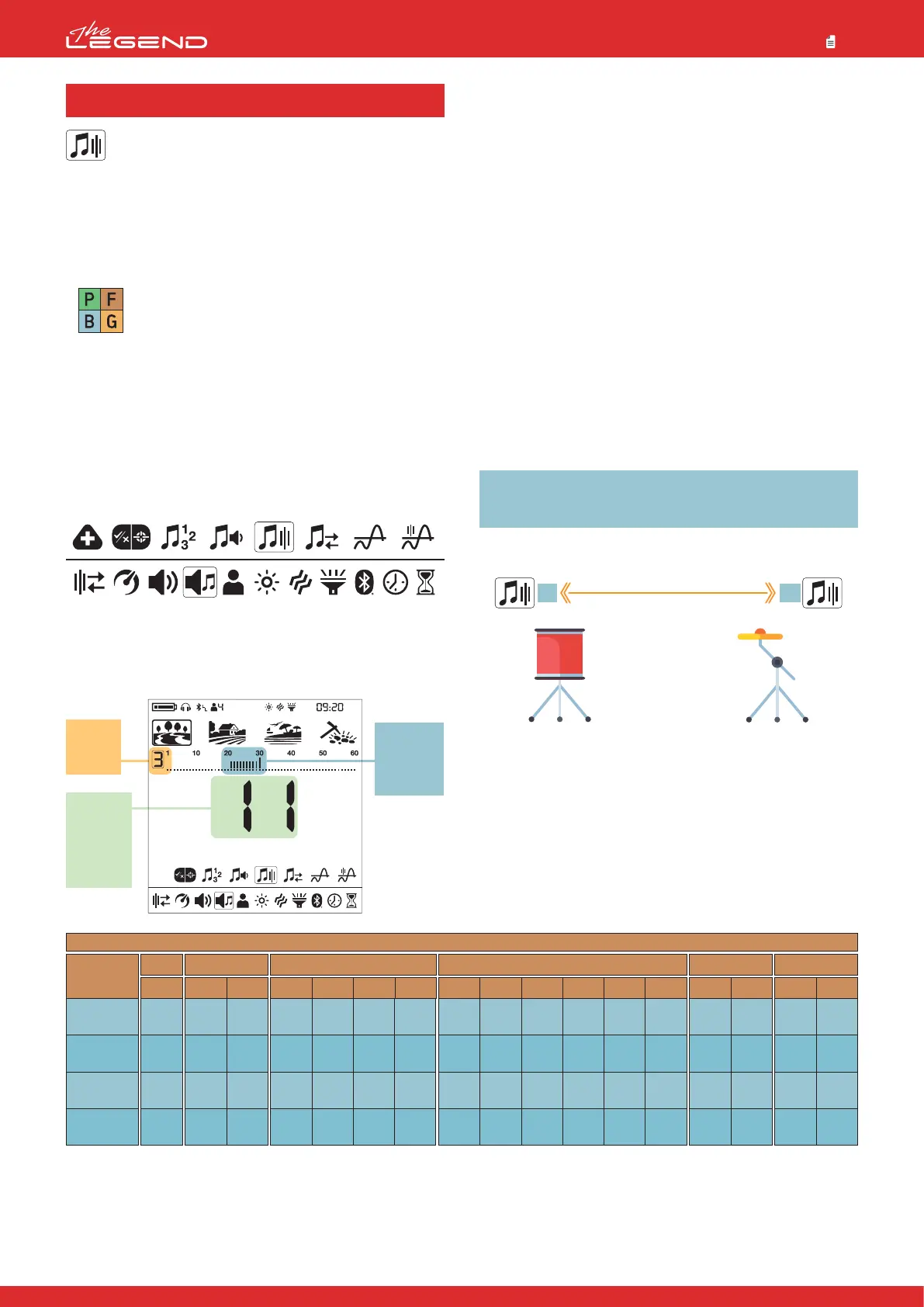
The Tone Frequency can be adjusted for each target zone. For
example; in 6-Tone, you can adjust the Tone Frequency of each
of the 6 zones separately.
Tone Frequency setting range is from 1 to 30.
Tone Frequency setting only affects the mode
currently selected; changes made in one mode do
not affect the others.
Tone Frequency setting does not work in the Goldfield mode.
Adjusting the Tone Frequency
1. Press the Power & Settings Button once. Select the tone setting
using the right and left buttons.
2. The tone settings menu will appear at the top with a plus (+) icon
on the left. Press the plus (+) button once.
3. Using the right and left buttons, select the Tone Frequency
setting. The selected setting will be shown framed.
4. Press the plus (+) button to go into the setting.
5. The Tone Frequency of the selected zone will be displayed
on screen. To the left of the ID scale, the selected zone will be
displayed numerically.
4.3 Tone Frequency
Target IDs
for the
selected
zone
Selected
target
zone
Tone
Frequency
Level
for the
selected
zone
1 30
Low Tone
Frequency
High Tone
Frequency
Tone Frequency Levels
6. Using the right and left buttons, select the zone of which you
want to change the Tone Frequency.
7. Once the zone is selected, you can change the Tone Frequency
using the plus (+) and minus (-) buttons.
8. Once you are done, you can go back to tone setting by pressing
the Pinpoint & Accept/Reject Button once or back to the main
settings menu by double clicking it. To go back to the main screen,
press the Power & Settings Button once.
Differences between 2-Tone and 60-Tone
The Target ID scale is divided into 2 zones as ferrous and
non-ferrous both in 2-Tone and 60-Tone.
The Tone Frequency can be adjusted for both Zone-1 (Z-1) and
Zone-2 (Z-2) to any number between 1-30. The user may even
set both zones to the same number. However, this setting is used
differently in the 60-tone.
In the 60-Tone, the Tone Frequency value set for Zone-1 (Z-1) must
be lower than the Tone Frequency value set for Zone-2 (Z-2). For
example; if the Tone Frequency value set for Zone-2 is 20, the Tone
Frequency level for Zone-1 should be between 1 and 19. This applies
to P-Tone Pitch as well.
IMPORTANT! To be able to distinguish between ferrous and
non-ferrous targets, the Tone Frequency levels selected should
be further away from each other.
23
Park
Goldfield
Beach
Field



 To Next Page