4.10
Interfacing with Multiple Computers
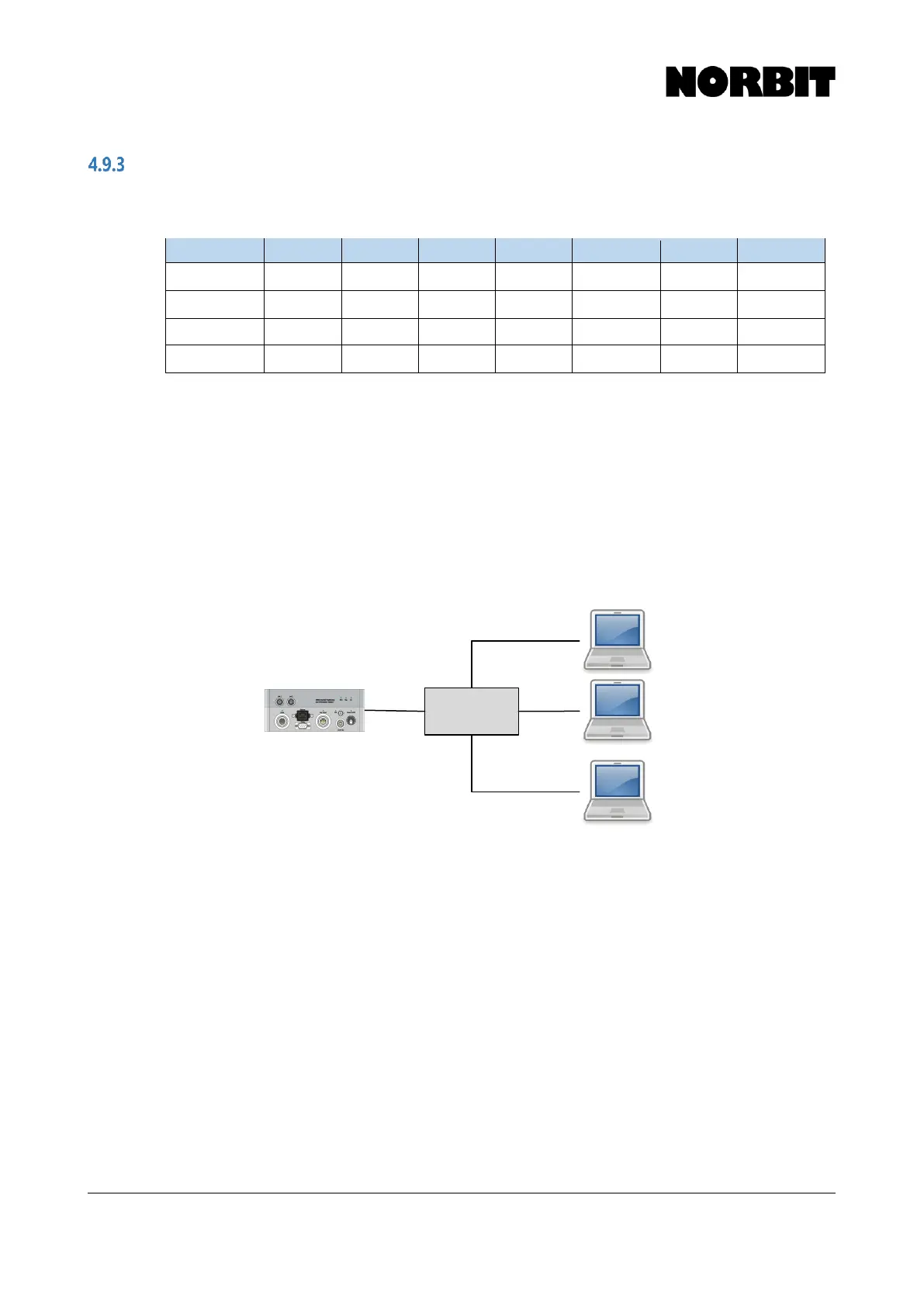
It may be necessary to have more than one PC to communicate with the sonar, e.g. one computer
to configure and control the sonar system and a second, more computationally resourceful PC, for
running acquisition software such as HYPACK or QINSy. To achieve this, two additional hardware
items are required:
1. A Network Switch
2. An Ethernet cable for each PC connecting to the sonar
Step 1. Connect the sonar to the Ethernet switch and then the controlling PC to the switch. Configure the
network settings on the controlling PC as described in Section 4.2, noting the IP address of this
computer. Install the WBMS GUI and configure it as described above. Power on the sonar and
launch the WBMS GUI.
Step 2. Connect the second PC to the Ethernet switch. Ensure that the IP address of this PC does not
conflict with those of the other systems. From here, the user has at least two options for interfacing
with the sonar. First, the user may communicate from a second instance of the GUI, running on this
PC. If configured properly, the IP address of the first PC should appear online in the Connection
Dialog and users may connect to it as usual. Another option is to open the acquisition software, e.g.
HYPACK sonar settings (see Appendix), initialize the program to query the IP address of the first
PC. This configures the acquisition program to request data from the GUI running in the first PC.
Network



 To Next Page