depending on the power source, check the battery/inverter for failure. Check the sonar
SIU LED and power supply to the SIU; a faulty power supply prevents proper connection
to sonar, and/or IMU faults. If power is <12V or >28V the power LED will blink at 5Hz. It
may be necessary to employ an alternative, preferably known power source to test the
system, e.g. power the sonar from a wall outlet or fully charged battery. If this step is not
possible, go to the next step.
3. Command Line Ping: To test connectivity to the sonar, open Windows Command Prompt
and type ping 192.168.53.XX (XX being the last 2 digits of the sonar serial number).
This indicates whether the sonar is detectable by the acquisition PC
4. Factory Reset: If the sonar is detected in the GUI, go to Connection > Sonar
Connection and click Set Sonar Factory Defaults. Wait a few minutes to see if the
connection is re-established.
5. Socket Pins: Turn off power and check all cable and SIU sockets for bent pins.
6. NORBIT GUI Recording: For issues visible in the GUI display, send NORBIT Support a
small recording that shows an example of the problem. Please enable water column
(“View WC”) in the NORBIT GUI and include it in the recorded display.
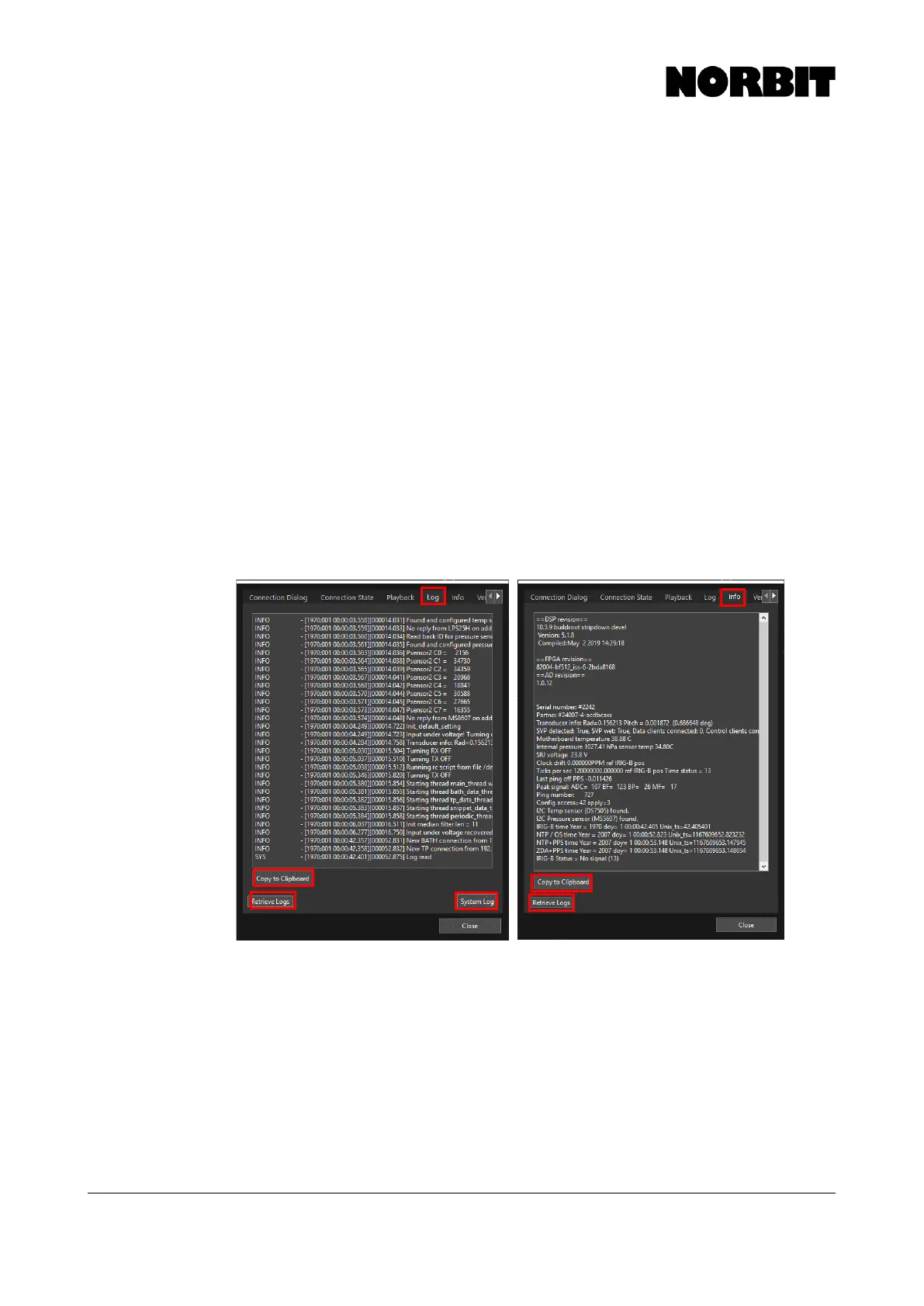
7. NORBIT Logs: If possible, send NORBIT Support the following information in an email or
document:
a. In the GUI, go to Connection > Sonar Connection > Log. Select Retrieve Logs, then
Copy to Clipboard, and paste the contents to a document or email. Do the same for
System Log.
b. Go to Connection > Sonar Connection > Info, select Copy to Clipboard and paste the
contents to a document or email and send it to NORBIT Support.
c. Should the user see other error messages, whether in Windows or the GUI, screenshots
should be taken, saved, and emailed to NORBIT support for reference.



 To Next Page