EasyManua.ls Logo

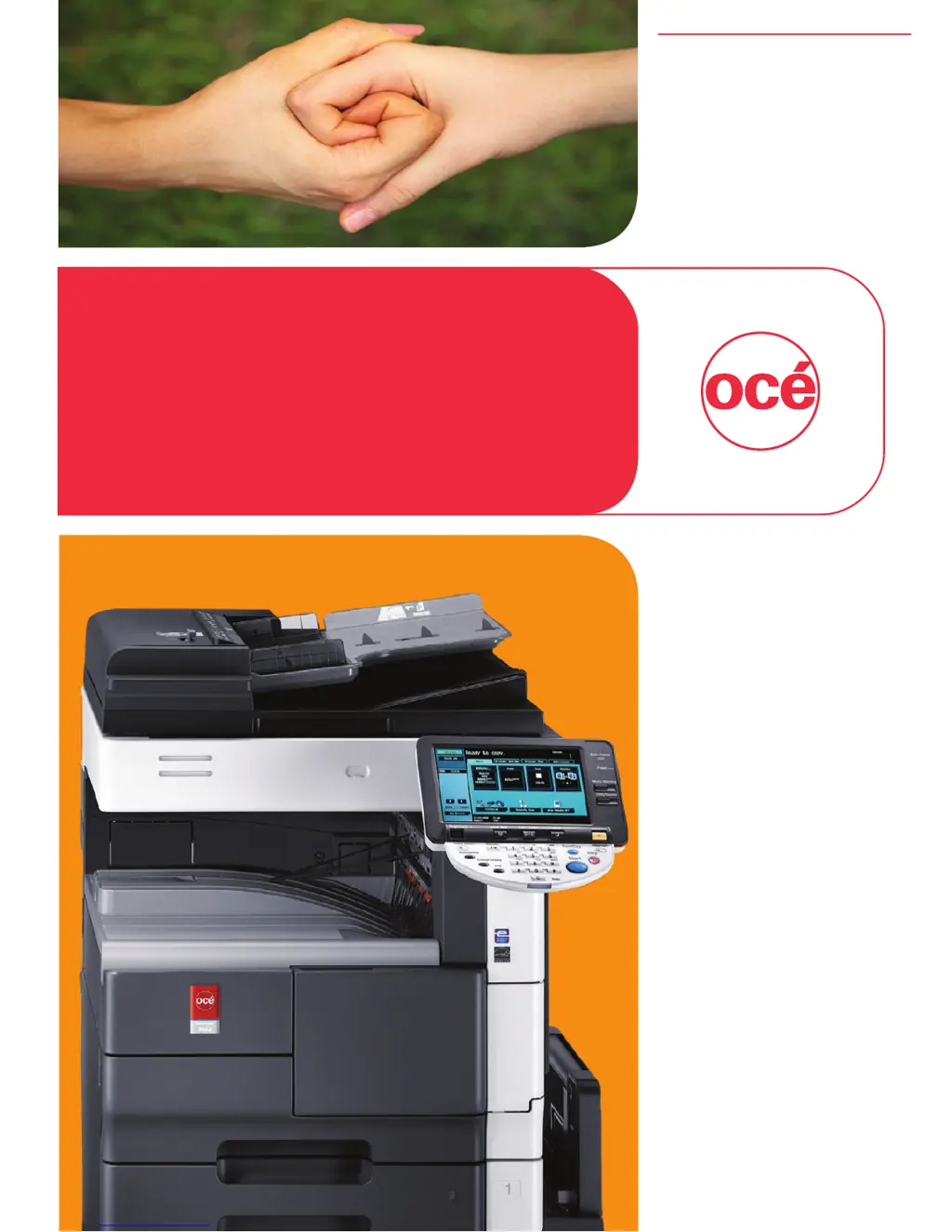
Oce VarioLink 5022 - User Manual

Oce VarioLink 5022
314 pages
Print Icon
To Next Page IconTo Next Page
Loading...
Critical Link
Océ
Network Scan/
Fax/ Network
Fax Operations
User’s
Guide
VarioLink 5022
VarioLink 4222
VarioLink 3622

Table of Contents

Other manuals for Oce VarioLink 5022

Questions and Answers

  • J
    Jennifer RichardsonAug 10, 2025
    Why my Oce All in One Printer cannot print?
    • T
      Thomas WhiteAug 10, 2025
      Your Oce All in One Printer may not be printing due to several reasons. It could be that the selected printer driver is incompatible with the printer controller, so check the printer name selected. The network or USB cable might be disconnected, ensure the cable is properly connected. There may also be an error occurring on the machine, check the control panel of the machine. Insufficient memory space or a postscript error could also be the cause, so perform a test print to check if printing is possible. Incorrect application software settings or file printing settings can also prevent printing; refer to the application software's user manual to check the settings or change the file printing settings and try again.
  • X
    xsalazarAug 20, 2025
    How to fix if my Oce All in One Printer cannot print in User Authentication (Account Track) mode?
    • D
      daniellewebbAug 21, 2025
      If you're unable to print in User Authentication (Account Track) mode on your Oce All in One Printer, the ID or password may be incorrect, so enter the correct ID and password. Also, ensure that 'Authentication' is selected in the printer driver. It's possible that different encryption passphrases are specified for the printer driver and the machine; specify the same encryption passphrase for both. Finally, printing with the current ID may not be permitted, so check with the administrator to see if the ID is valid.
  • H
    Holly BrownAug 25, 2025
    Why is my Oce All in One Printer not printing in Secure Print mode?
    • D
      David ThomasAug 26, 2025
      If your Oce All in One Printer is not printing in Secure Print mode, it could be due to password rules being enabled on the main system; specify a password according to the password rules. Another reason could be different encryption passphrases specified for the printer driver and the machine, so ensure that you specify the same encryption passphrase for both.
  • S
    Samantha PattersonAug 30, 2025
    Why have jobs in 'Save in User Box' disappeared from my Oce All in One Printer?
    • M
      Matthew BlakeAug 30, 2025
      The main system may be set to delete the jobs in the user box.
  • J
    justinhessSep 4, 2025
    What to do if Oce All in One Printer cannot print even though 'Public User' is selected for user authentication?
    • E
      Elizabeth SampsonSep 4, 2025
      Printing as a public user may not be permitted on the main system, so check with the administrator to see if printing as a public user is permitted.
  • W
    William RochaNov 14, 2025
    What to do if my Oce All in One Printer doesn't start printing after the job is completed on the computer?
    • O
      ochoadanielNov 15, 2025
      If your Oce All in One Printer completes the print job on the computer but doesn't start printing, consider these potential causes: the selected printer driver may be incompatible, so check the printer name selected. The network or USB cable may be disconnected, so check the cable connection. An error might be occurring on the machine, so check the control panel. A print job might be queued, so check the Active Jobs list on the control panel. 'Save in User Box' or 'Secure Print' may have been specified, so check the corresponding User Boxes in the control panel. If the Account Track function is enabled, ensure the correct department name or password is entered. Similarly, with authentication settings, verify the user name or password. Ensure the encryption passphrases are the same for both...

Oce VarioLink 5022 Specifications

General IconGeneral
CategoryAll in One Printer
Print TechnologyLaser
Print Speed (Black)22 ppm
Standard Paper Capacity250 sheets
Copy Speed (Black)22 cpm
Copy Resolution600 x 600 dpi
Scan Resolution600 x 600 dpi
Input Capacity250 sheets
Output Capacity100 sheets
ConnectivityUSB
Operating System CompatibilityWindows
Zoom Range25% - 400%
Paper SizeA4, Letter, Legal
InterfaceUSB 2.0
Paper Weight60-163 gsm

Related product manuals