EasyManua.ls Logo

Oce VarioLink 4522c - User Manual

Oce VarioLink 4522c
366 pages
Print Icon
To Next Page IconTo Next Page
Loading...
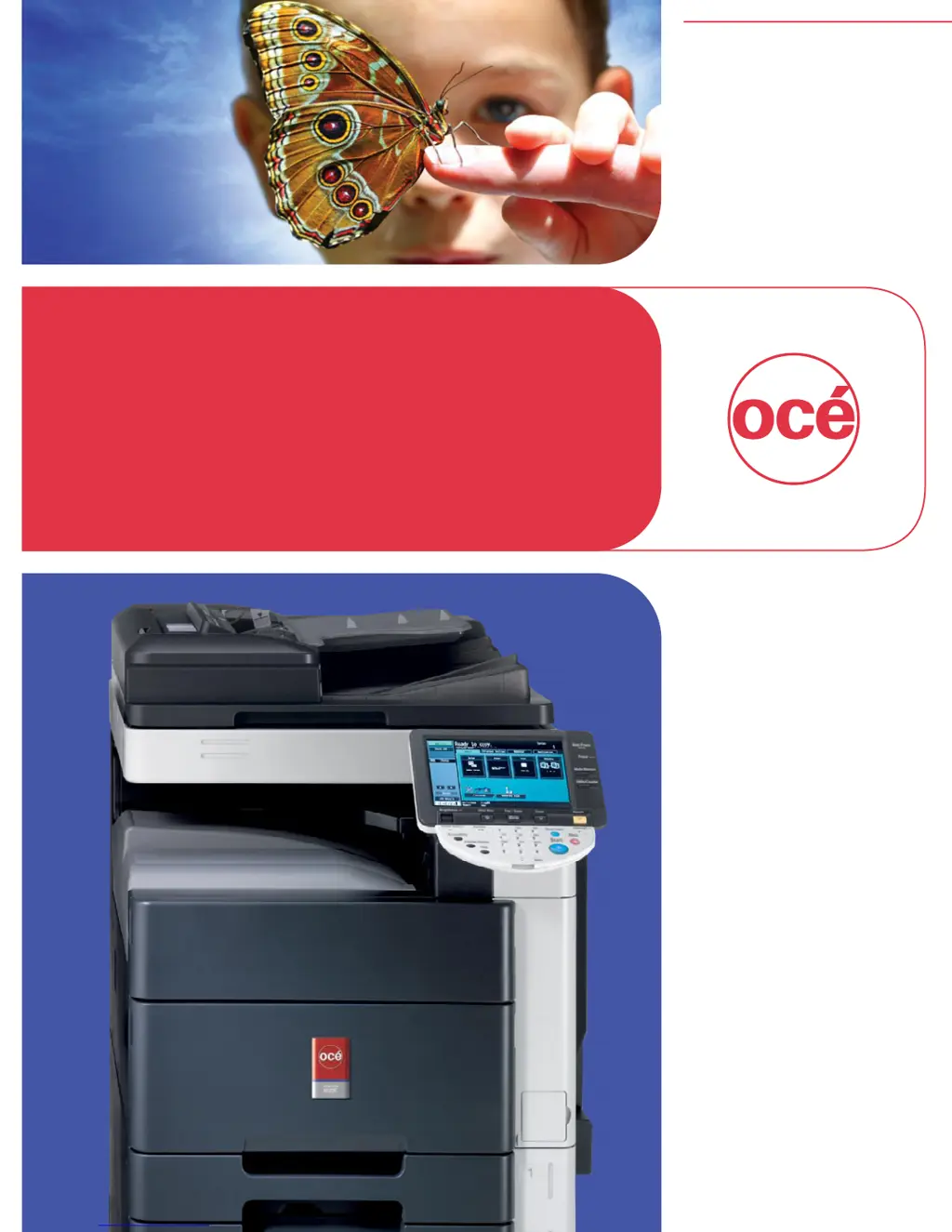
Océ
VarioLink 4522c
VarioLink 5522c
VarioLink 6522c
Printing for
Professionals
Network
Administration
User’s Guide

Table of Contents

Other manuals for Oce VarioLink 4522c

Questions and Answers

  • C
    Cynthia BryantAug 9, 2025
    Why is the printing order disturbed on my Oce printer?
    • E
      evanskaitlinAug 10, 2025
      If the printing order is disturbed and a job sent later is printed before the preceding jobs on your Oce printer, it might be caused by an error on the printer, such as running out of paper. When "Skip Job Operation Settings" is enabled in the Administrator Settings of the printer, only the jobs without a problem are processed and those with any problem are held in queue.
  • M
    Michael LeachAug 14, 2025
    What to do if the Oce Printer says 'Printer is not connected'?
    • R
      Robert SmithAug 14, 2025
      If you see a 'Printer is not connected' or 'Print Error' message on your computer screen, here's what you can check: * Verify the specified printer name is supported by the printer controller. * Ensure the network or USB cable is correctly connected. * Examine the control panel of the machine for any errors. * Test printing to check if there is enough memory.
  • L
    lindsay07Aug 25, 2025
    Why is secure print not available on my Oce Printer?
    • J
      Joshua ShannonAug 26, 2025
      If secure print is not available on your Oce printer, it might be because: * The password rules may be enabled on the machine. Specify a password according to the password rules. * Different encryption passphrases may be specified for the printer driver and the machine. Specify the same encryption passphrase for the machine and the printer driver.
  • P
    pburtonAug 30, 2025
    Why can't I print in user authentication or account track mode on my Oce Printer?
    • Y
      Yolanda PalmerAug 30, 2025
      If printing in the user authentication or account track mode is not available on your Oce printer, consider the following: * The user name, account name or password might be incorrect. Enter the correct user name, account name and password. * User authentication or account track may be disabled on the printer driver. Enable user authentication or account track on the printer driver. * Different encryption passphrases may be specified for the printer driver and the machine. Specify the same encryption passphrase for the machine and the printer driver. * The entered user name or account name may not be authorized. Check with the administrator whether the user name or account name concerned is authorized for printing.
  • J
    Joseph BarberSep 3, 2025
    Why can't I print when "Public User" is selected on my Oce Printer?
    • S
      smithpennySep 3, 2025
      If printing is not available when you have selected "Public User" in user authentication on your Oce printer, printing by public users may be prohibited on the machine. Check with the administrator whether printing by public users is permitted.
  • J
    Joshua RobertsNov 19, 2025
    Why does my Oce Printer finish processing but not start printing?
    • M
      Matthew PorterNov 19, 2025
      If print processing finishes on your computer, but the Oce printer doesn't start, consider these possibilities: 1. The printer driver specified may not be supported by the printer controller, so check the specified printer name. 2. The network or USB cable may be disconnected, so check that the cable is correctly connected. 3. An error may have occurred on the machine, so check the control panel of the machine. 4. Unprocessed jobs may remain on the machine, waiting to be processed. Check the processing order for the job using Job List on the control panel of the machine. When "Skip Job Operation Settings" is enabled in the "Administrator Settings" of this machine, only the jobs without a problem are processed. 5. When executing the print job, "Save in User Box" may have been specifie...

Oce VarioLink 4522c Specifications

General IconGeneral
CategoryAll in One Printer
FunctionsPrint, Copy, Scan, Fax
Print Resolution1200 x 1200 dpi
Max Paper SizeA3
Duplex PrintingYes
Scan Resolution600 x 600 dpi
Copy Resolution600 x 600 dpi
Fax Speed33.6 kbps
TechnologyLaser
TypeLaser
Print Speed (Black)45 ppm
Print Speed (Color)45 ppm
Paper Capacity650 sheets
ConnectivityUSB, Ethernet
Network ConnectivityEthernet, Wi-Fi
Copy Speed (Black)45 pages per minute
Copy Speed (Color)45 pages per minute

Related product manuals