Quick Start Guide Scout
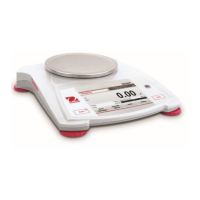
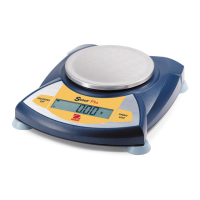
SPX Balances
Ohaus Corporation www.ohaus.com iii Scout
SPX Balances
Zero/On
Turns the
balance on;
If balance is
On, sets Zero
Function
Initiates an
application
mode
Off
Turns the
balance Off
Units
Changes the
weighing unit
Mode
Changes the
application
mode
Menu
Enters the
User menu
Short Press
(Menu
Function)
Yes
Accepts the
current setting
No
Advances to
the next menu
or setting
Back
Moves to
previous
menu item
CALIBRATION
When the balance is operated for the first time, a span calibration is
recommended to ensure accurate weighing results. With balance turned on:
Press and hold Menu until [mMeNU] (Menu) is displayed.
Release the button, the display will show [C.A.L].
Press Yes to accept. [SpaN] will then be shown.
Press Yes to begin the span calibration. Zero reading is stored
automatically.
Place the specified span calibration mass on the pan. Then, press Yes to
accept the weight or No to select an alternate weight.
[--C--] will be displayed while the reading is stored
The display will show [done] if the calibration was successful. The balance
returns to the previous application mode and is ready for use.
OPERATION & APPLICATIONS
The balance can be configured to operate in various Application modes. Press
and hold Mode key to select your Application mode.
The Scout SPX balance incorporates the following Applications:
Visit www.scaleman.com to purchase the Ohaus Scout SPX Scales
See the entire line of Ohaus Scales at www.balances.com




 To Next Page