Scout
SPX Balances Quick Start Guide
Scout
SPX Balances iv Ohaus Corporation www.ohaus.com
Weighing
1. Press the Zero/On button to turn the balance on.
2. Select Weighing (this application is the default) by pressing & holding Mode
key.
3. Press Tare or Zero if necessary to begin.
4. Place objects on the pan to display the weight. When stable, the appears.
The display shows the resulting value of the sample.
MENU STRUCTURE
Reset
Yes/No
Filter
Low/Med/High
AZT
0.5/1/3/Off
StableRange
0.5/1/2//5
Backlight
Off/On/Auto
Auto Tare
Off/On/On-acc
Auto Off
Off/1/5/10
Reset
Yes/No
Weighing
On/Off
Counting
On/Off
Percent
On/Off
Check
On/Off
Totalize
On/Off
Hold
Disp/Peak/Off
Reset
g
kg
ct
N
oz
ozt
dwt
lb
lb:oz
grn
hkt*
sgt*
twt*
t*
tola/tical
Note: Bold fonts are default settings in the menus. * Only available in certain regions.
ADDITIONAL FEATURES
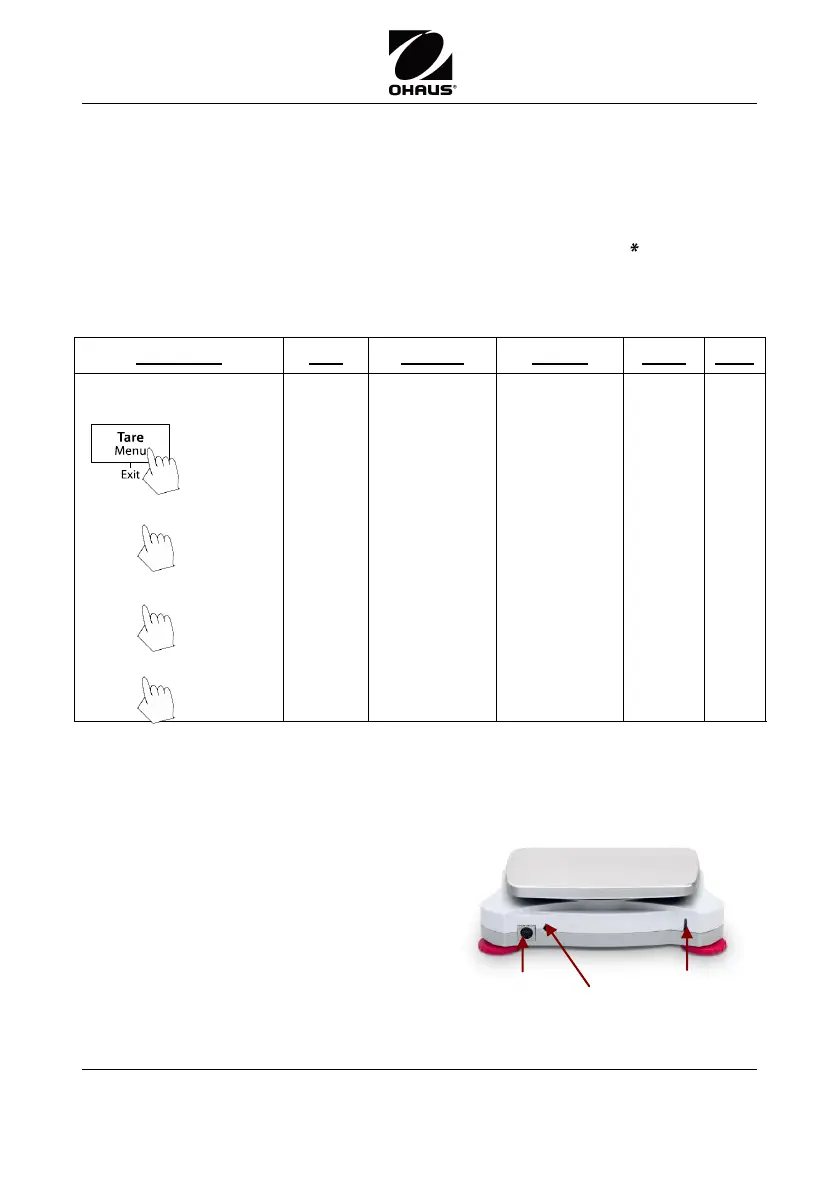
Connecting the Interface
Use an optional interface connectivity kit to
connect the balance either to a computer,
printer or OHAUS auxiliary display.
Below Interface kit accessories are available:
RS232, USB Host, USB Device, Ethernet,
Bluetooth
*
.
Interface connection on the rear of
the balance:
* Interface kits may vary according to local regulations
Short press –
Go to
Next/Prev.
menu
Visit www.scaleman.com to purchase the Ohaus Scout SPX Scales
See the entire line of Ohaus Scales at www.balances.com




 To Next Page