Status / Job Cancel
ADVANCED OPERATION GUIDE 5-5
5
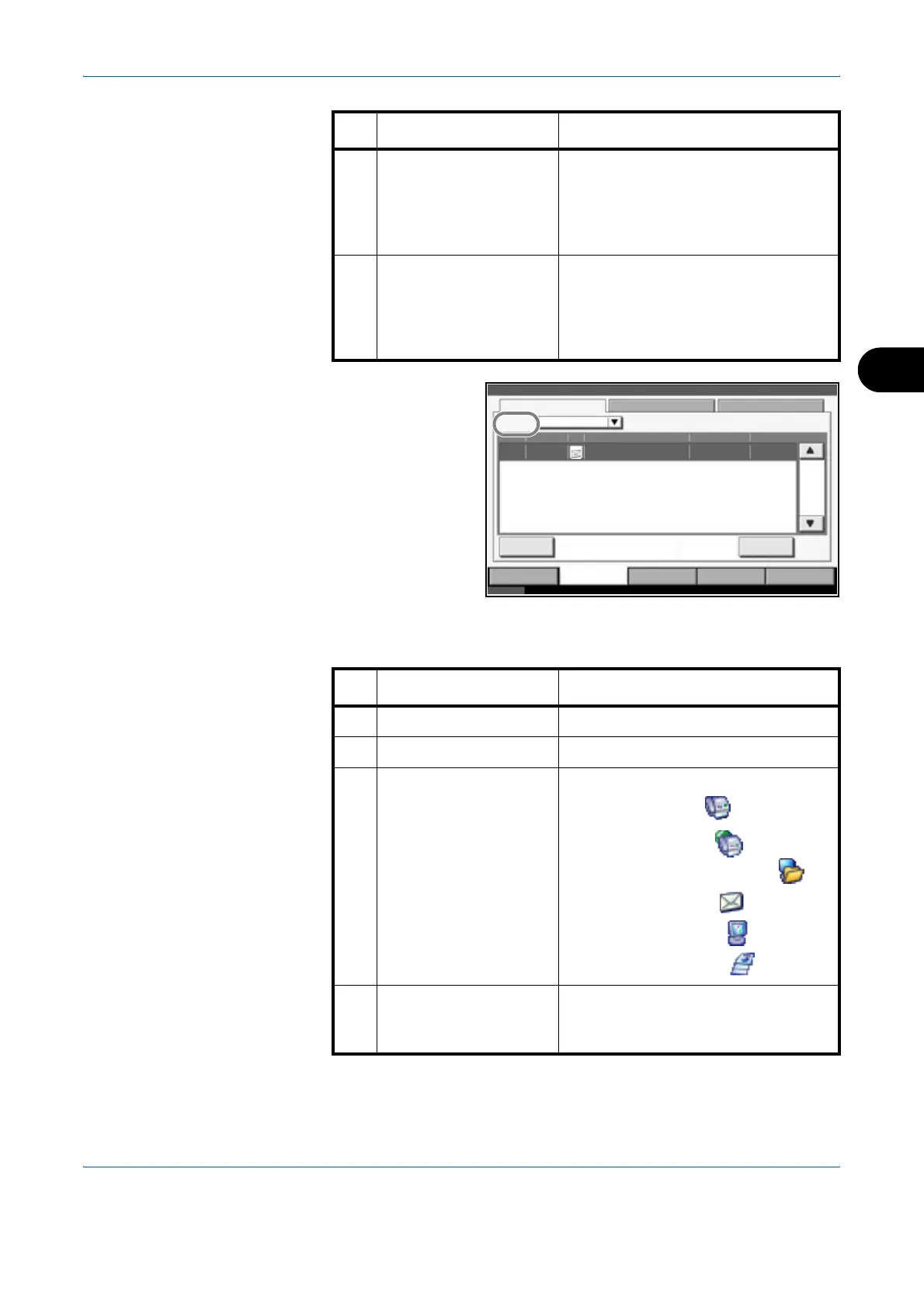
Sending Jobs Status
screen
The table below lists the items displayed in the Sending Jobs Status
screen.
11 [Move Up] In the list, select the job that you want
to move up the job queue and press
this key.
(Refer to Reordering Print Jobs on
page 5-15)
12 [Detail] Select the job for displaying detailed
information from the list, and press
this key. (Refer to Checking the
Detailed Information of Histories on
page 5-11)
No. Item / Key Detail
Status Scheduled Job Log
All
Job No. Accepted Time Type
abc@def.com
User Name Status
InProcess438 14:47
Status
Destination
001/001
Cancel
Printing Jobs Sending Jobs Storing Jobs Device/
Communication
Paper /Supplies
Status Pausing Scanner. 10/10/2007 10:10
Detail
Job Type
123 4 5 6
7
89
No. Item / Key Detail
1 Job No. Acceptance No. of job
2 Accepted Time Accepted Time of job
3 Type Icons that indicate the job type
Sending Job FAX
Sending Job i-FAX
Sending Job PC (SMB/FTP)
Sending Job E-mail
Sending Job TWAIN
Sending Job Multiple
4 Destination Destination (Either destination name,
FAX number, E-mail address, or
server name)



 To Next Page