EasyManua.ls Logo

Olivetti d-COPIA 3514MF - User Manual

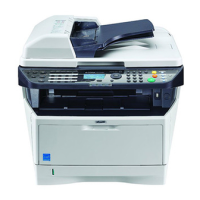
Olivetti d-COPIA 3514MF
483 pages
Print Icon
To Next Page IconTo Next Page
Loading...
#ODE 581406en
GUIDA ALLE FUNZIONI
OPERATION GUIDE
NÁVOD K OBSLUZE
BETJENINGSVEJLEDNING
BEDIENUNGSANLEITUNG
ΕΓΧΕΙΡΙΔΙΟ ΧΡHΣHΣ
GUÍA DE USO
MANUEL D'UTILISATION
HASZNÁLATI ÚTMUTA
GEBRUIKERSHANDLEIDING
PODRĘCZNIK OBSŁUGI
GUIA DE USO
-!.5!,$).3425##)/.3
GUIA DE USO
GHID DE OPERARE
KÄYTTÖOPAS
BRUKSANVISNING
OPERATØRHÅNDBOK
РУКОВОДСТВО ПО ЭКСПЛУАТАЦИИ
ÇALIŞTIRMA KILAVUZU
מדריך הפעלה
d-COPIA 3013MF / 3013MFplus
d-COPIA 3014MF / 3513MF / 3514MF

Table of Contents

Questions and Answers

Olivetti d-COPIA 3514MF Specifications

General IconGeneral
BrandOlivetti
Modeld-COPIA 3514MF
CategoryAll in One Printer
LanguageEnglish

Summary

Part Identification

Operation Panel Components

Identifies and describes the function of each key and display on the operation panel.

Machine Components Overview

Details the physical parts of the machine, including the document processor and internal units.

Initial Setup and Preparation

Connection Setup

Explains connection methods (network/USB) and preparing necessary cables.

Network Configuration

Details TCP/IP (IPv4) setup for Windows network connection.

Software Installation

Instructions for installing printer drivers and utilities from the DVD on Windows and Macintosh.

Loading Paper

Provides instructions for loading paper into cassettes, multi-purpose tray, and feeders.

Loading Originals

Guides on placing originals on the platen or in the document processor for scanning.

Basic Operations

User Login and Logout

Procedures for logging in with user credentials and logging out of the machine.

Performing Basic Copying

Step-by-step instructions for making standard copies, including paper selection.

Printing from Applications

Instructions for printing documents from various software applications on a computer.

Sending Scanned Documents

Details the process of sending scanned images via E-mail, Folder (SMB/FTP), or other methods.

Copying Features

Paper Selection for Copying

Selects the paper source and size for the copying job.

Sending Features

File Format Selection for Sending

Selects the file format (PDF, TIFF, XPS, JPEG) for scanned images.

Scan Resolution Settings

Selects the fineness of scanning resolution for optimal image quality.

Document Box Features

Printing from USB Memory

Prints documents directly from USB memory without a computer.

Saving Scans to USB Memory

Stores scanned image files onto connected USB memory.

Printing from Job Box

Prints documents stored in the machine's job box, including private print jobs.

Job Status and Cancellation

Checking Job Status

Monitors the status of print, send, store, and scheduled jobs.

Canceling Jobs

Procedures for canceling print, send, or store jobs in progress.

System Menu: Default Settings

Network Setup and Configuration

Configures LAN interface, TCP/IP (IPv4/IPv6), Bonjour, and WSD settings.

Routine Maintenance

Troubleshooting Common Issues

Resolving Malfunctions

Provides a table of common symptoms, check points, and corrective actions for machine problems.

Responding to Error Messages

Guides on interpreting and resolving alphanumeric error messages displayed on the control panel.

Clearing Paper Jams

Instructions for removing jammed paper from the MP tray, cassettes, duplexer, and inside the machine.

User and Job Management

User Login Administration

Manages user access by enabling login, adding users, and setting authentication methods.

Job Accounting Setup

Enables and configures job accounting to track copy/print usage by account.

Related product manuals