20
ECR SOFTWARE UTILITY - SET UP A LOGO
To be able to send a logo to the cash register, an image must be created using the computer with the
following features:
Graphic logo features
Some restrictions apply as to the type of Logo:
• Logo size: Width 288 x Height 216 (pixels) in black and white (B/W mode).
• If the ratio of black dots printed with respect to white is high, the ECR is unable to print
the graphic image correctly due to power consumption limitations.
To create a logo you can use a program such as Paintbrush, which is present in all versions of the operating
system, saving the image in the folder C:\OLIVETTI_ECR_Utility_82xx\Image.
Then, to load the logo saved on the computer, proceed as follows:
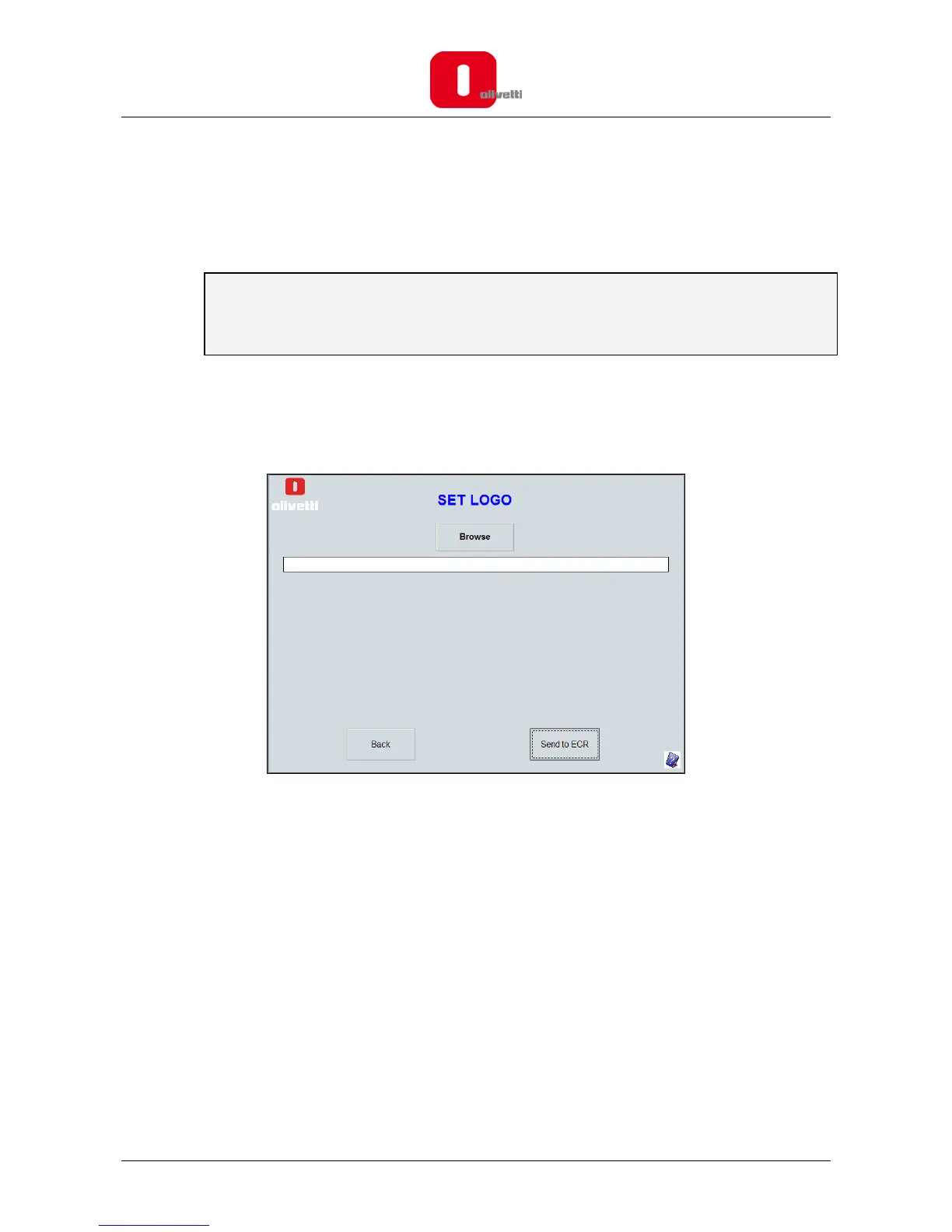
1. Click the SET LOGO button. A dialogue box appears on the screen.
2. Click the Browse button to choose the image saved on the computer that is to be used as a logo,
selecting it from the folder C:\OLIVETTI_ECR_Utility_82xx\Image
3. Press the Send to ECR button to send it to the cash register.




 To Next Page