EasyManua.ls Logo

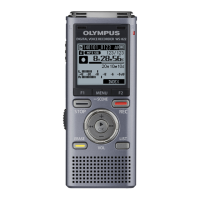
Olympus WS-812 - User Manual

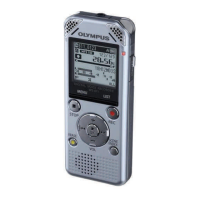
Olympus WS-812
95 pages
Print Icon
To Next Page IconTo Next Page
Loading...
DETAILED
INSTRUCTIONS
DIGITAL VOICE
RECORDER
Thank you for purchasing an Olympus
Digital Voice Recorder.
Please read these instructions for information
about using the product correctly and safely.
Keep the instructions handy for future reference.
To ensure successful recording, we recommend that
you test the record function and volume before use.
EN
dictate.com.au

Table of Contents

Questions and Answers

  • M
    Mr. Timothy Robinson PhDSep 3, 2025
    Why is there noise during Olympus Voice Recorder playback?
    • M
      Mr. Terrence James DDSSep 4, 2025
      Noise during playback on your Olympus Voice Recorder could be due to the recorder being shaken during recording or being placed near a cell phone or fluorescent lamp. Try to avoid shaking the recorder during recording and move it away from electronic devices or fluorescent lamps.
  • C
    Charles JohnsonSep 18, 2025
    Why PC is unable to recognize Olympus WS-812 Voice Recorder?
    • S
      stevenrobertsonSep 18, 2025
      If your PC is unable to recognize the Olympus Voice Recorder, ensure that [USB Connection] is set to [PC].
  • V
    Victoria CowanSep 16, 2025
    Why Olympus WS-812 cannot recharge?
    • M
      melaniecurtisSep 16, 2025
      If your Olympus Voice Recorder (WS-813, WS-812 only) is not recharging, it could be because [Battery] is set to [Alkaline]. When using the supplied rechargeable battery, set the battery setting to [Ni-MH]. Also, avoid using the battery outside the recommended temperature range. When using the USB connection, follow the confirmation display and press the `OK button. Also, ensure that [USB Class] is set to [Storage Class].
  • M
    Michael CaseSep 14, 2025
    Why Olympus WS-812 Voice Recorder cannot receive FM radio signal?
    • D
      Dr. Susan BrownSep 14, 2025
      If your Olympus Voice Recorder (WS-813 only) cannot receive an FM radio signal, ensure that the earphones are plugged into the EAR jack, as they function as the antenna. Also, to output from the built-in speaker, set [Output] to [Speaker].
  • T
    Teresa LeeSep 12, 2025
    How to fix Olympus Voice Recorder when unable to set index marks, temp marks?
    • K
      kthompsonSep 12, 2025
      If you are unable to set index marks or temp marks on your Olympus Voice Recorder, the maximum number of marks may have been reached, or the file is locked or read-only. Try erasing unnecessary marks, unlocking the file, or canceling the file’s read-only setting on your PC.
  • M
    Michael CaseySep 12, 2025
    Why is noise audible through the Olympus Voice Recorder recording monitor?
    • S
      Sonya MartinezSep 12, 2025
      If you hear noise through the recording monitor of your Olympus Voice Recorder, acoustic feedback might be occurring. It is recommended that you use earphones as the recording monitor. You can also try distancing the earphones from the microphones, avoiding pointing the microphones at the earphones, or lowering the volume of the recording monitor.
  • M
    melanie92Sep 9, 2025
    Why Olympus WS-812 Voice Recorder is unable to erase the folder?
    • M
      mariacastilloSep 9, 2025
      If you're unable to erase a folder on your Olympus Voice Recorder, it may contain a file that the recorder cannot recognize. Connect the recorder to your PC and erase the folder from there.
  • W
    Willie HillSep 7, 2025
    How to fix Olympus WS-812 when unable to erase the file?
    • K
      Kevin GarciaSep 8, 2025
      If you are unable to erase a file on your Olympus Voice Recorder, it might be because the file is locked or is set to read-only. Unlock the file or cancel the file’s read-only setting on your PC.
  • F
    Faith AlvarezSep 5, 2025
    Why Olympus Voice Recorder silent portions are not skipped during playback?
    • J
      Jeffrey Shaffer IISep 5, 2025
      If silent portions are not being skipped during playback on your Olympus Voice Recorder (WS-813, WS-812 only), it may be because the [Voice Detect] process has not been performed or [Voice Playback] is set to [Off]. Try extracting voice portions using [Voice Detect] or setting [Voice Playback] to [On].
  • C
    Christopher WolfeAug 21, 2025
    Why Olympus Voice Recorder won't start?
    • L
      lauramercerAug 21, 2025
      Your Olympus Voice Recorder might not start because the battery is low, the power is off, or it's in HOLD mode. To resolve this, try charging or replacing the battery, turning the power on, or releasing the recorder from HOLD.

Summary

Introduction

Trademarks and Registered Trademarks

Lists trademarks and registered trademarks mentioned in the manual.

Safety Precautions

Cautions Relating to the Operating Environment

Details environments to avoid for safe operation and to protect the device.

Handling the Recorder

Provides warnings and guidelines for safely handling the recorder, including children and potential hazards.

Battery Handling Precautions

Outlines important guidelines to prevent battery leakage, overheating, or other issues.

Getting Started

Main Features

Highlights the key features and capabilities of the digital voice recorder.

Identification of Parts

Display (LCD Panel)

Explains the various indicators and information shown on the recorder's LCD screen.

Power Supply

Inserting the Battery

Details the procedure for inserting batteries, including polarity and type.

Charging via USB

Instructions for charging the recorder's battery by connecting it to a computer's USB port.

HOLD Mode

Setting the Recorder to HOLD

Explains how to activate HOLD mode to prevent accidental button presses and preserve settings.

Setting Time and Date

Changing Time and Date

Guides users on how to set or change the recorder's current time and date for file management.

Inserting and Ejecting microSD Card

Inserting a microSD Card

Step-by-step instructions for inserting a microSD card into the recorder.

[Home] Display Operations

Recorder Mode Selection

Describes how to select the 'Recorder' mode from the Home display for recording and playback.

Notes on Folders

Folders for Voice Recordings

Explains the folder structure used for storing voice recordings.

Selecting Folders and Files

Folder Navigation Operations

Details how to navigate through folders and select files for various operations.

About Recording

Recording Process

Details the steps involved in starting and stopping a recording session.

Recording Settings

Explains various settings that can be adjusted to optimize the recording quality and performance.

Changing Recording Scene

Guides on selecting preset recording environments to match specific conditions.

About Playback

Playback Process

Outlines the basic steps to select and play back recorded files.

Playback Settings

Describes various functions to enhance the playback experience, like Noise Cancel and Voice Balancer.

Searching for a File by Date

Guides users on how to locate recorded files using the calendar search feature.

Adjusting Playback Sound

Details how to change playback speed and tone for clearer listening.

Erasing

Erasing Files

Instructions for deleting individual files or all files within a folder.

About FM Radio (WS-813 Only)

Using the FM Radio

Explains how to use the FM radio function, including reception tips and earphone connection.

FM Radio Mode Operations

Presetting Radio Stations

Details how to preset radio stations for easy tuning and selection.

Changing Reception Mode

Explains how to manually tune channels or use auto-reception scanning.

Menu Setting

Menu Setting Method

General overview of how to navigate and change settings using the recorder's menu system.

Rec Menu Settings

Covers settings related to recording, such as sensitivity (Rec Level) and recording format (Rec Mode).

Play Menu Options

Explains playback enhancements like Voice Playback, Noise Cancel, Voice Balancer, and Voice Filter.

Play Mode and Equalizer

Details how to set playback modes (File, Folder, All) and adjust audio quality with the equalizer.

Formatting the Recorder

Instructions on how to format the recorder, which erases all data and resets settings.

Using the Recorder on Your PC

Operating Environment

Specifies the required operating systems and PC configurations for connecting the recorder.

Connecting to Your PC

Disconnecting from Your PC

Provides procedures for safely disconnecting the recorder from a PC after use.

Transferring Voice Files to PC

Other Information

Alarm Message List

Lists potential error messages and their meanings, explanations, and recommended actions.

Troubleshooting

Accessories (Optional)

Specifications

General Specifications

Provides general technical details about the recorder's hardware and capabilities.

Battery Life Guide

Offers estimated battery life for various recording and playback modes.

Technical Assistance and Support

European Customer Information

Contact information and regulatory compliance details for European customers.

Olympus WS-812 Specifications

General IconGeneral
MP3 bit rates8 - 320 Kbit/s
Playback time30 h
WMA bit rates5 - 320 Kbit/s
Recording modesHigh Quality (HQ), Long Play (LP), Standard Play (SP), Stereo High Quality (STHQ), Stereo Extra Quality (STXQ)
Built-in microphoneYes
HQ mode recording time259 h
Maximum recording time1016 h
SP mode recording time511 h
Audio formats supportedMP3, WAV, WMA
HQ mode frequency response40 - 13000 Hz
LP mode frequency response40 - 3000 Hz
SP mode frequency response40 - 8000 Hz
Internal memory4096 MB
Display typeLED
Backlight colorWhite
Display diagonal1.43 \
Display resolution108 x 84 pixels
Display size (HxV)27.56 x 23.9 mm
Output power80 mW
Loudspeaker diameter18 mm
Number of built-in speakers1
InterfaceUSB
FM radioNo
Media types supportedInternal memory & flash card
Compatible memory cardsmicroSDHC
Battery technologyNickel-Metal Hydride (NiMH)
Recording battery life27 h
Compatible battery sizesAAA
Product colorGray
Number of folders messages5
Number of messages per folder300
Mac operating systems supportedMac OS X 10.4 Tiger, Mac OS X 10.5 Leopard, Mac OS X 10.6 Snow Leopard, Mac OS X 10.7 Lion
Windows operating systems supportedWindows 7 Home Premium, Windows 7 Home Premium x64, Windows 7 Professional, Windows 7 Professional x64, Windows 7 Starter x64, Windows 7 Ultimate, Windows 7 Ultimate x64, Windows Vista Business, Windows Vista Business x64, Windows Vista Home Basic, Windows Vista Home Basic x64, Windows Vista Home Premium, Windows Vista Home Premium x64, Windows Vista Ultimate, Windows Vista Ultimate x64, Windows XP Home, Windows XP Home x64, Windows XP Professional, Windows XP Professional x64
Weight and Dimensions IconWeight and Dimensions
Depth14.8 mm
Width40 mm
Height100.2 mm
Weight- g

Related product manuals