SET.IQRJ
Other print modes and print settings (CUSTOM PRINT)
1 Follow Steps 1 and 2
on
P.
29 to display the screen for Step 3 above,
and then press
~.
2 Select [CUSTOM PRINT], and press
~.
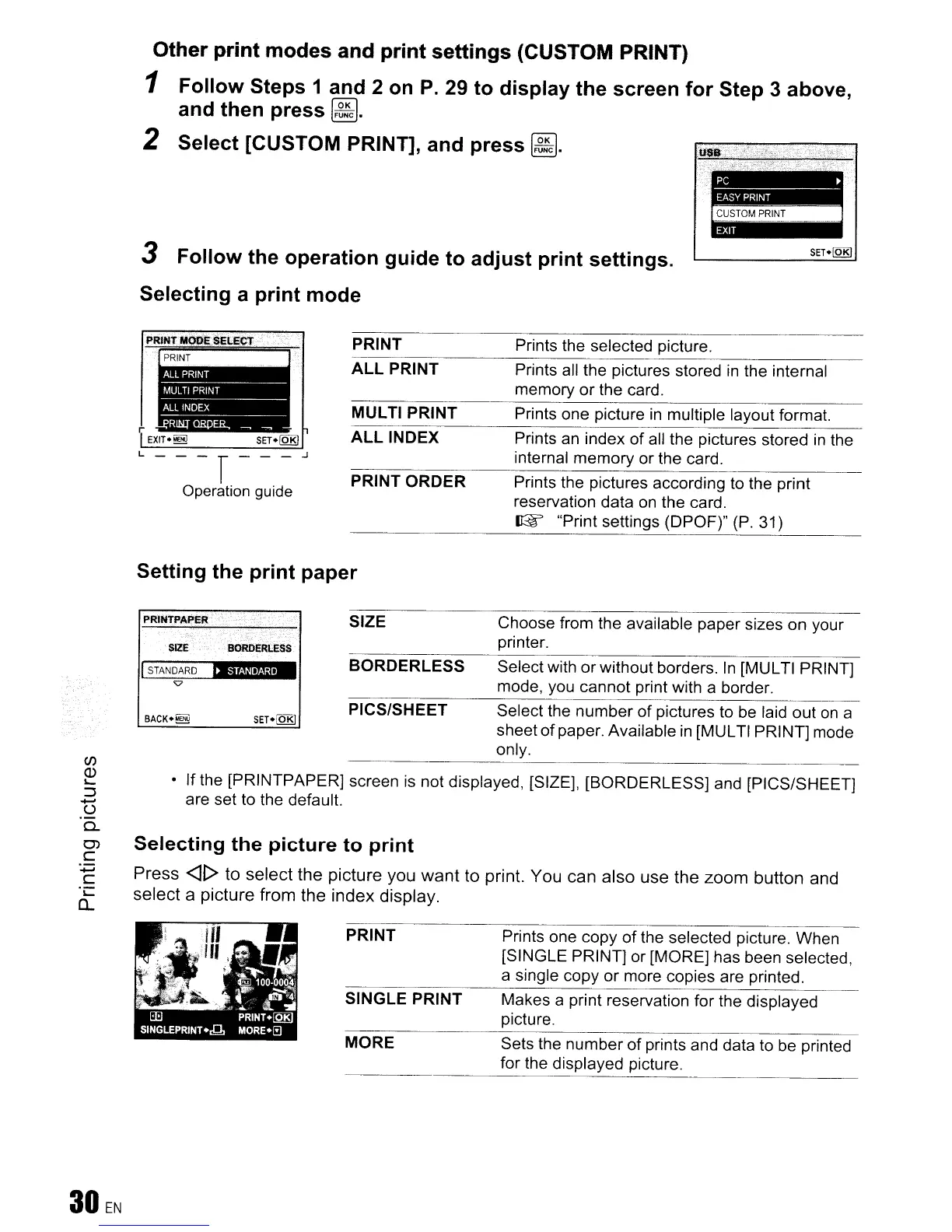
3 Follow the operation guide to adjust print settings.
Selecting a print mode
--r
Operation guide
PRINT
ALL PRINT
MULTI PRINT
ALL INDEX
PRINT ORDER
Prints the selected picture.
Prints all the pictures stored
in
the internal
memory or the card.
Prints one picture
in
multiple layout format.
Prints
an
index
of
all the pictures stored
in
the
internal memory or the card.
Prints the pictures according to the print
reservation data
on
the card.
~
"Print settings (DPOF)"
(P.
31)
Setting the print paper
Select with or without borders.
In
[MULTI PRINT]
mode, you cannot print with a border.
Choose from the available paper sizes on your
printer.
SIZE
BORDERLESS
..
SIZE
PRINTPAPEll
··~~ER~~~
1,..[
S-TA-N-OA-R-O
-_
'V
• If the [PRINTPAPER] screen
is
not displayed, [SIZE], [BORDERLESS] and [PIGS/SHEET]
are set to the default.
Selecting the picture to print
Press
<][>
to select the picture you want to print. You can also use the zoom button and
select a picture from the index display.
BACK.~
SET.fQRJ
PIGS/SHEET
Select the number
of
pictures to be laid out
on
a
sheet
of
paper. Available
in
[MULTI PRINT] mode
only.
PRINT
SINGLE PRINT
MORE
Prints one copy
of
the selected picture. When
[SINGLE PRINT] or [MORE] has been selected,
a single copy or more copies are printed.
Makes a print reservation for the displayed
picture.
Sets the number of prints and data to
be
printed
for the displayed picture.



 To Next Page