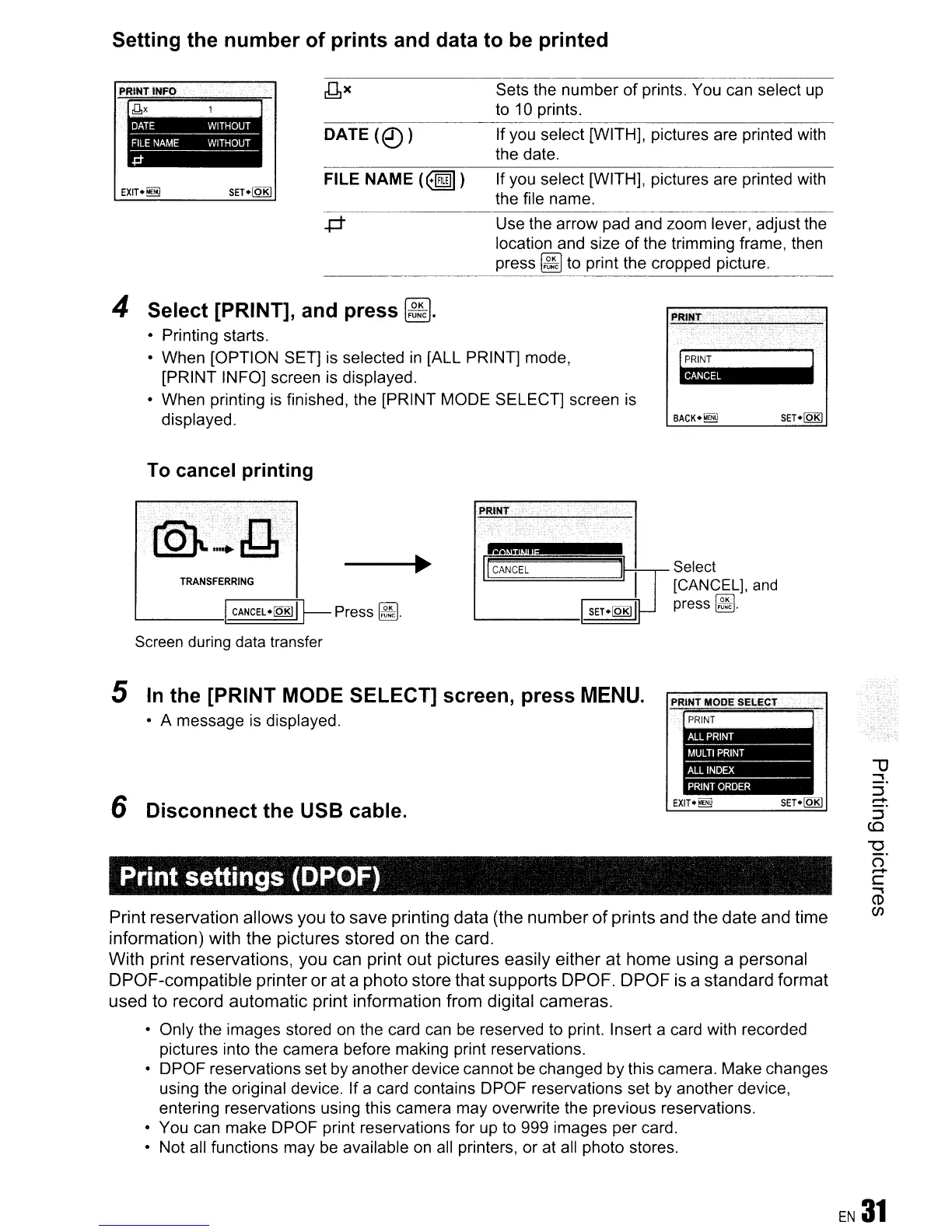
Setting the number of prints and data to be printed
EXITo~
SET
0
lQKI
FILE NAME
(@ill]
)
Sets the number
of
prints. You can select
up
to
10 prints.
If you select [WITH], pictures are printed with
the date.
If you select [WITH], pictures are printed with
the file name.
Use the arrow pad and zoom lever, adjust the
location and size of the trimming frame, then
press
~
to print the cropped picture.
4 Select [PRINT], and press
~.
o Printing starts.
o When [OPTION SET]
is
selected
in
[ALL PRINT] mode,
[PRINT INFO] screen
is
displayed.
o When printing
is
finished, the [PRINT MODE SELECT] screen
is
displayed.
To
cancel printing
ANCEL
BACKo~
SET
0
lQKI
----t~
TRANSFERRING
'--
I
CANCELolQKll
~
Press
~.
Screen
during
data
transfer
U:;;~~===drll
Select
[CANCEL),
and
IoKl
press
~.
5
In
the [PRINT MODE SELECT] screen, press
MENU.
• A message
is
displayed.
6 Disconnect the USB cable.
Print settings (DPOF)
Print reservation
allows
you
to
save
printing data (the
number
of
prints and the
date
and
time
information) with
the
pictures stored on the card.
With print reservations, you can print
out
pictures
easily
either
at
home
using a personal
DPOF-compatible
printer
or
at
a
photo
store that supports DPOF.
DPOF
is a standard
format
used to record
automatic
print information from digital cameras.
• Only the images stored
on
the card can be reserved to print. Insert a card with recorded
pictures into the camera before making print reservations.
• DPOF reservations set
by
another device cannot
be
changed by this camera. Make changes
using the original device. If a card contains DPOF reservations set by another device,
entering reservations using this camera may overwrite the previous reservations.
• You can make DPOF print reservations for
up
to
999 images per card.
o Not all functions may
be
available
on
all printers, or at
all
photo stores.



 To Next Page