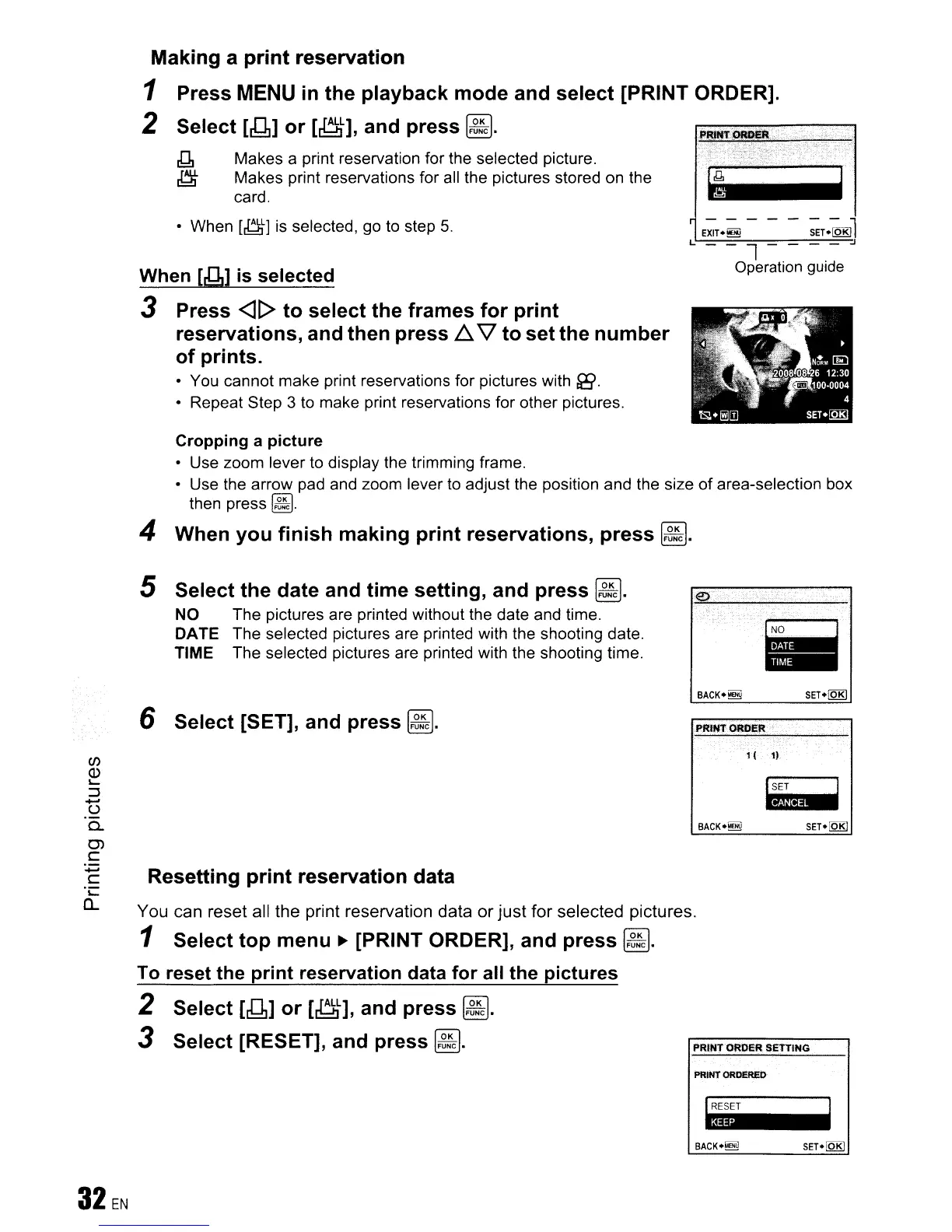
Makes a print reservation for the selected picture.
Makes print reservations for all the pictures stored on the
card.
Making a print reservation
1 Press MENU
in
the playback mode and select [PRINT ORDER].
2 Select
[J;1]
or
[~],
and press
~.
J1
~
• When
[~]
is selected, go to step
5.
When
[g]
is
selected
3 Press
<J[>
to select the frames for print
reservations, and then press
.6.
\l
to set the number
of prints.
• You cannot make print reservations for pictures with fi!{.
• Repeat Step 3 to make print reservations for other pictures.
Cropping a picture
• Use zoom lever to display the trimming frame.
• Use the arrow pad and zoom lever to adjust the position and the size
of
area-selection box
then press
~.
4 When you finish making print reservations, press
~.
5 Select the date and time setting, and press
~.
NO The pictures are printed without the date and time.
DATE The selected pictures are printed with the shooting date.
TIME The selected pictures are printed with the shooting time.
6 Select [SET], and press
~.
~
-
PRtHTORDER
PRfNTOROI5RSETTING
en
<J)
L...
::J
+oJ
()
a.
Ol
c
+oJ
C
·C
a..
Resetting print reservation data
You can reset all the print reservation data or just for selected pictures.
1 Select top menu
~
[PRINT ORDER], and press
~.
To
reset the print reservation data for
all
the pictures
2 Select
[J;1]
or
[~],
and press
~.
3 Select [RESET], and press
~.
1(
1}
PRINT
ORDeRED



 To Next Page