EasyManua.ls Logo

Omron VIVA - User Manual

Omron VIVA
30 pages
Print Icon
To Next Page IconTo Next Page
Loading...
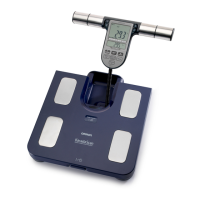
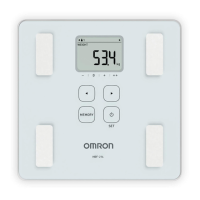
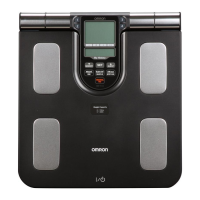
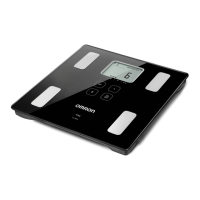
Body Composition Monitor
VIVA (HBF-222T-EBK)
 ,QVWUXFWLRQ0DQXDO
 *HEUDXFKVDQZHLVXQJ
 0RGHG¶HPSORL
 0DQXDOGHLQVWUXFFLRQHV
 0DQXDOHGLLVWUX]LRQL
 *HEUXLNVDDQZLM]LQJ
 ɊɍɄɈȼɈȾɋɌȼɈɉɈɗɄɋɉɅɍȺɌȺɐɂɂ
 .XOODQÕP.ÕODYX]X
Thank you for purchasing the OMRON Body Composition Monitor.
Before using this unit, please be sure to read this Instruction Manual carefully to
understand the safe and proper use.
Please store this Instruction Manual carefully for future reference.
IM-HBF-222T-E-04-01/2018
3135909-5D
EN
DE
FR
ES
IT
NL
RU
TR
AR

Questions and Answers

  • H
    Heidi ToddSep 2, 2025
    How to fix Omron VIVA showing '24-29 sets of measurement results have been stored'?
    • T
      Terri HillSep 2, 2025
      If your Omron Scales display '24-29 sets of measurement results have been stored', transfer the measurement results to the “OMRON connect” app. After the transfer, the symbol should disappear.
  • C
    charles37Aug 31, 2025
    What to do if my Omron VIVA shows a device error?
    • H
      Helen BirdAug 31, 2025
      If you see a device error on your Omron Scales, remove and re-insert the battery, then restart the device. If the error continues, consult the OMRON service representative.
  • A
    Allen MillerAug 29, 2025
    What to do if my Omron Scales show communication failure?
    • J
      Jeffrey ThompsonAug 29, 2025
      To resolve a communication failure with your Omron Scales, turn off the power and try to communicate again. If the error persists, it is recommended to contact the OMRON service representative.
  • S
    Sara WhiteAug 27, 2025
    Why are the buttons on my Omron VIVA not responding?
    • A
      Amy SmithAug 28, 2025
      If your Omron Scales buttons are not responding, it could be due to a few reasons: * You might be pressing a button while standing on the unit. Step off the unit before pressing any buttons. * The button might be wet or contaminated. Wipe off any water or stains. * You might be pressing multiple buttons at once. Press one button at a time.
  • J
    Jeremy Durham MDAug 26, 2025
    What to do if my Omron VIVA are not recognizing me?
    • A
      Anna WintersAug 26, 2025
      If your Omron Scales are not recognizing you correctly, it might be because your body weight has changed significantly since your last measurement. Try selecting your personal number before taking a measurement. This will help the scale to recognize you based on your current weight.
  • J
    Jill WongAug 25, 2025
    What to do if my Omron VIVA Scales show low battery?
    • R
      Rebecca SalinasAug 25, 2025
      If your Omron Scales show that the batteries are low, it's recommended to replace them with new ones as soon as possible.
  • J
    Jason MasonAug 22, 2025
    What to do if my Omron VIVA Scales batteries are depleted?
    • P
      Preston ParrishAug 22, 2025
      If your Omron Scales display shows that the batteries are depleted, replace them with new ones.

Summary

Notes on Safety

Danger

Critical warnings about hazards causing death or serious injury.

Warning

Important warnings about potential death or serious injury.

Know Your Unit Overview

Insert and Replace Batteries

Pair Unit with Smart Device

Bluetooth and App Pairing Process

Step-by-step instructions for pairing the unit with a smart device via Bluetooth.

Set Measurement Unit, Date, and Time

Initial Unit Configuration

Guides on setting the unit, date, and time for accurate measurements.

Register Personal Data

User Information Setup Steps

Details how to enter birth date, gender, and height for up to four users.

Take Accurate Measurements

Correct Postures and Environment

Guides on proper body positioning and environment for accurate measurements.

0 kg Correction Procedure

Take a Measurement

Confirm Personal Number

Instructions on how to confirm or correct the identified personal number after measurement.

View Results on Smart Device

App-Based Data Review

Instructions on how to view measurement results using the OMRON connect app.

Select Personal Number for Measurement

Guest Mode (Unrecorded Mode)

Manage Personal Data

Troubleshooting

Error Display Codes

Lists common error codes displayed on the unit and their potential causes.

Measurement Inaccuracies and Solutions

Details common causes for measurement inaccuracies and how to resolve them.

Device Operation Issues and Fixes

Addresses issues like buttons not responding or power turning off unexpectedly.

Interpreting Body Fat Results

Interpreting Skeletal Muscle Results

Omron VIVA Specifications

General IconGeneral
TypeElectronic personal scale
ShapeSquare
Accuracy- g
Turn-on typeTap
CompatibilityModel OS iPhone 5 10.3.3 iPhone 5C 10.3.3 iPhone 5S 12.1.3 iPhone SE 12.1.3 iPhone 6 12.1.3 iPhone 6 Plus 12.1.3 iPhone 6S 12.1.3 iPhone 6S Plus 12.1.3 iPhone 7 12.1.3 iPhone 7 Plus 12.1.3 iPhone 8 12.1.3 iPhone 8 Plus 12.1.3 iPhone X\\t12.1.3 iPhone XR 12.1.3 iPhone Xs 12.1.3 iPhone Xs Max 12.1.3 iPad Air2\\t12.0 iPad mini 3 12.0 iPad mini 4 12.0 iPad Pro 12.0 iPad 5 12.0
Product colorBlack
Auto power offYes
Units of measurement-
Maximum weight capacity- kg
Number of memory records30
Package typeBox
Package weight2300 g
Battery typeAAA
Number of batteries supported4
Weight and Dimensions IconWeight and Dimensions
Depth50 mm
Width340 mm
Height320 mm

Related product manuals