Troubleshooting
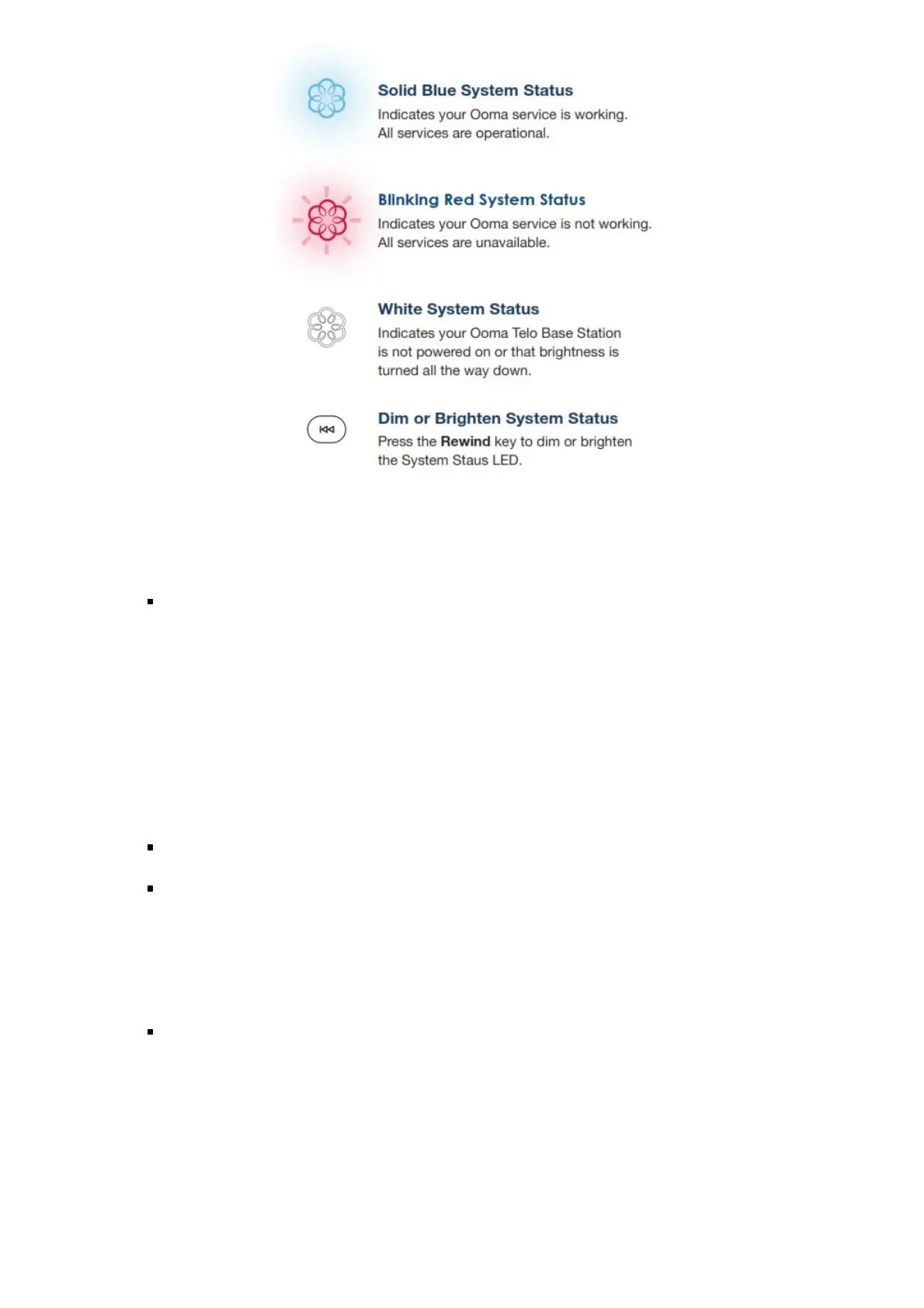
√ logo is blinking red
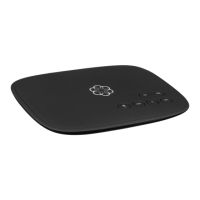
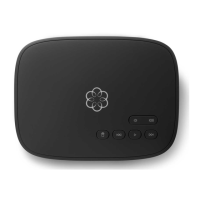
A blinking red logo indicates that your Ooma Telo Base Station is not operational. It is
normal for the Ooma logo to blink red for a couple of minutes during boot up. Otherwise,
check the following to make sure everything is set up correctly:
• Verify that you have activated your device as described on Page 4. If you plugged in
your device before going through the activation process, try rebooting it now.
• Check that your network cables are plugged in securely. Verify that the INTERNET port
is connected to your router (or modem). The LED at the bottom right of the connector
will be lit green if the cable is connected properly.
• Check that your Internet connection is working.
• Try rebooting your Base Station, modem, and router by pulling out the power and
plugging them back in.
√ logo does not light up
Check that the AC adapter is plugged in and power is being supplied to the device.
App shows “Home Security is Offline on your Base Station” message
Try the following troubleshooting steps to make sure your your Ooma Telo Base Station
is connected to the Internet:
• Make sure the Base Station is powered on and connected to the Internet so the Ooma
logo is solid blue.
• If the Ooma logo on the Base Station is blue, try rebooting the Base Station by
unplugging the power, waiting 10 seconds, then reconnecting the power.
Sensor shows “Disconnected” in the app
Try the following troubleshooting steps to determine why the sensor is not connecting to
the Home Security app:
• Generate activity on the sensor. If the disconnected sensor is a Door/Window sensor
you may try opening and closing the door a few times. If the sensor is a motion sensor,
generate motion in front of the sensors.
• Ensure the sensor is not mounted on or near a large metal surface, which can interfere
with the radio signal necessary for the sensor to connect to the Base Station.
• Replace the batteries in the sensor.
• Try unpairing and re-pairing the sensor. To unpair, the sensor, open the mobile app,
visit the dashboard, and tap on the sensor that is disconnected. Choose “Unpair Sensor.”


 To Next Page