40
FM Radio – If you tap on FM Radio, you can listen to FM Radio channels. Pressing the left and
right buttons will scroll through all the FM radio channels. If you click the options button on the
keypad, you can pause, add that channel to favourites, Switch to earphone mode, Auto search
and save and edit favourites.
Music – Within the music folder, you can access any saved music you have on your phone. You
can search by song, artist and album. By clicking the options button on the keypad, it will open
the music player for you to play your stored music.
Sound Recorder – You can use the sound recorder to record your own sounds, notes, music
etc. Taping on the record button will activate record, you can then press pause or stop when you
have finished recording. It will then save that recording. To access the saved recordings, press
the options button on the keypad and tap on recording file list. You can then scroll up and down
your recordings. Taping on a recording will automatically play that recording.
Settings
To access additional settings for your phone scroll across to the settings icon and tap on it
There are many different options in settings, like, WLAN (Wi-Fi) Cellular, Bluetooth and android
settings.
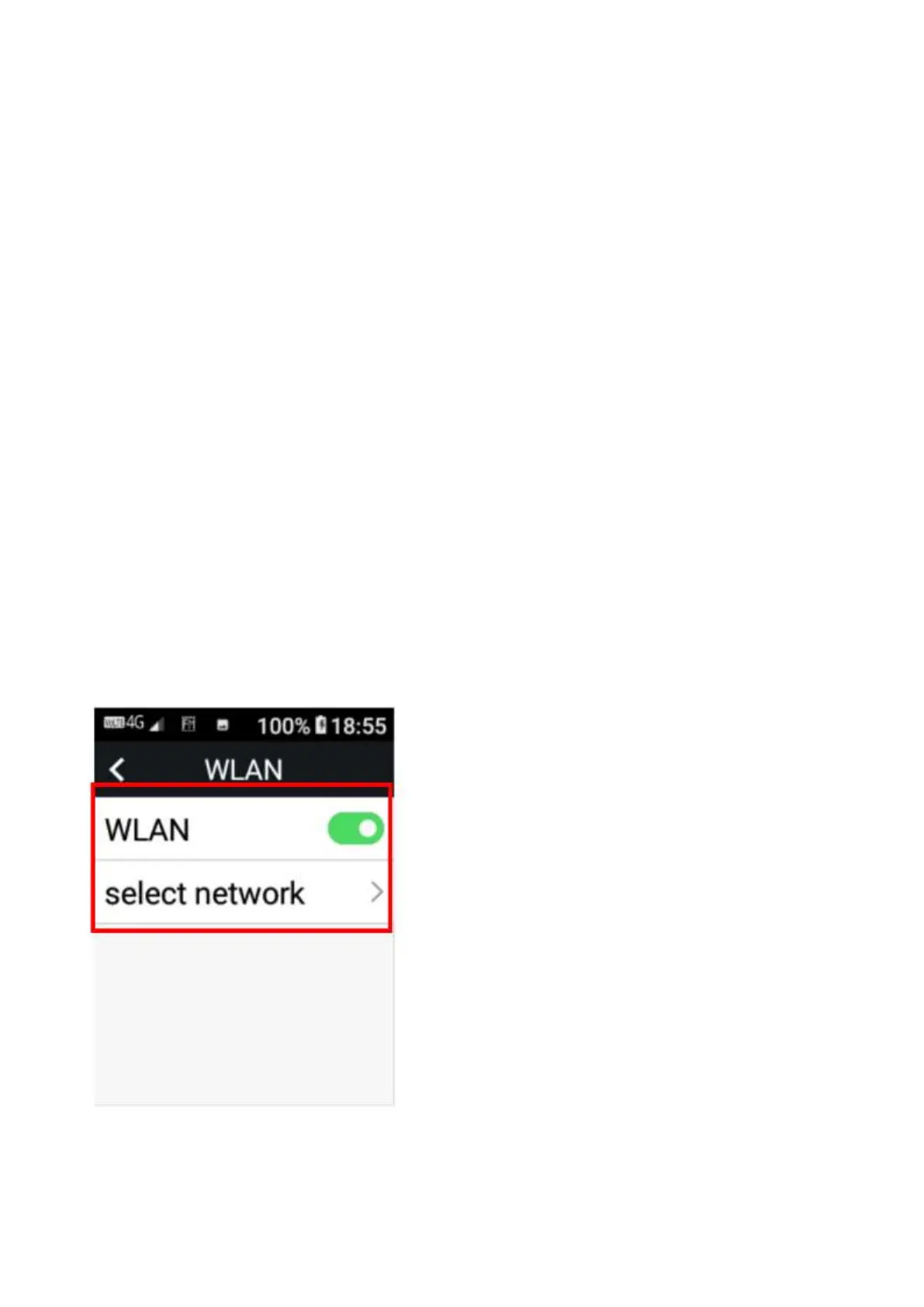
WLAN (Wi-Fi Settings) – Tap on WLAN to open the Wi-Fi settings. To turn on Wi-Fi tap on
WLAN, it will show if it’s activated when the button turns green.
Once activated tap on select network, this will then show which Wi-Fi networks you can access.
Tap on the Wi-Fi network you wish to access and enter the password if applicable. The network
will then say connected and the Wi-Fi signal will appear at the top of the phone.



 To Next Page