Optelec FarView
English Page 27
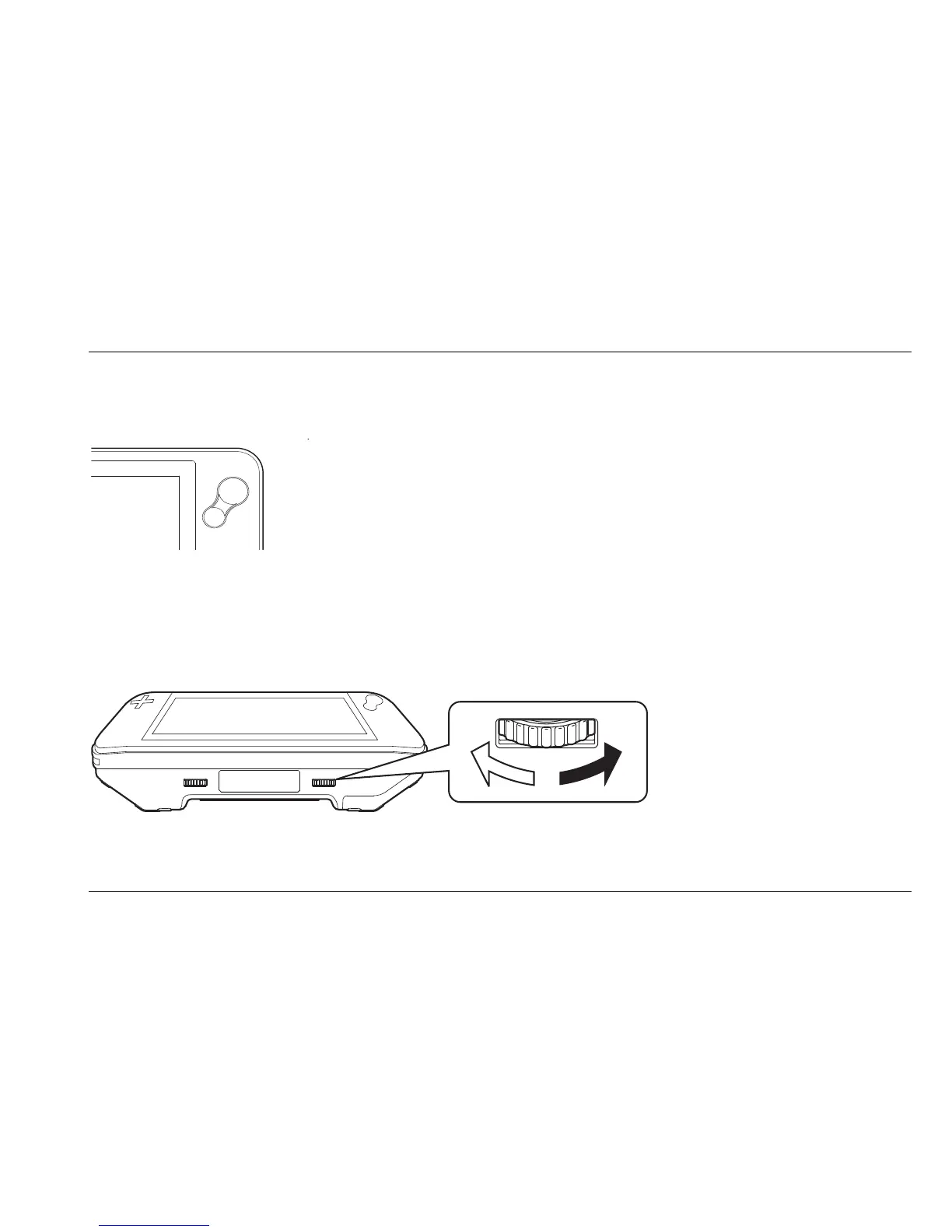
Using the zoom button
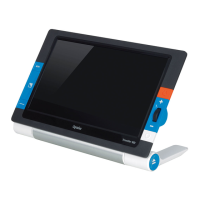
Press the zoom button, located on the right side of the screen, to
change the magnification. Pressing the larger side of the button allows
you to increase the magnification, whereas pressing the smaller side
of the button will decrease the magnification.
Selecting a viewing mode
Rotating the color mode button, located on the right of the bottom side of the unit, allows you to
select among the six viewing modes.
- Photo mode: view text and images in full color
- Negative mode: reading in high contrast white text on black background






 To Next Page