up g r a D e fI r m W a r e
Software updates can be obtained from the OPTOMA website
(
www.optoma.com
/
www.optoma.eu
/
www.optoma.com.tw
).
1. On your computer, create a folder named "upgrade".
2. Downloadthelatestrmwarefromwww.optoma.com and save it in the "upgrade" folder.
3. Copy the "upgrade" folder to the root folder of the SD card.
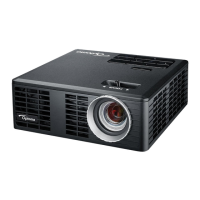
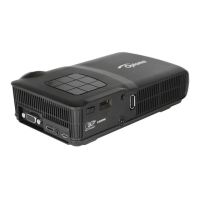
4. Insert the SD card into the SD card slot of the projector.
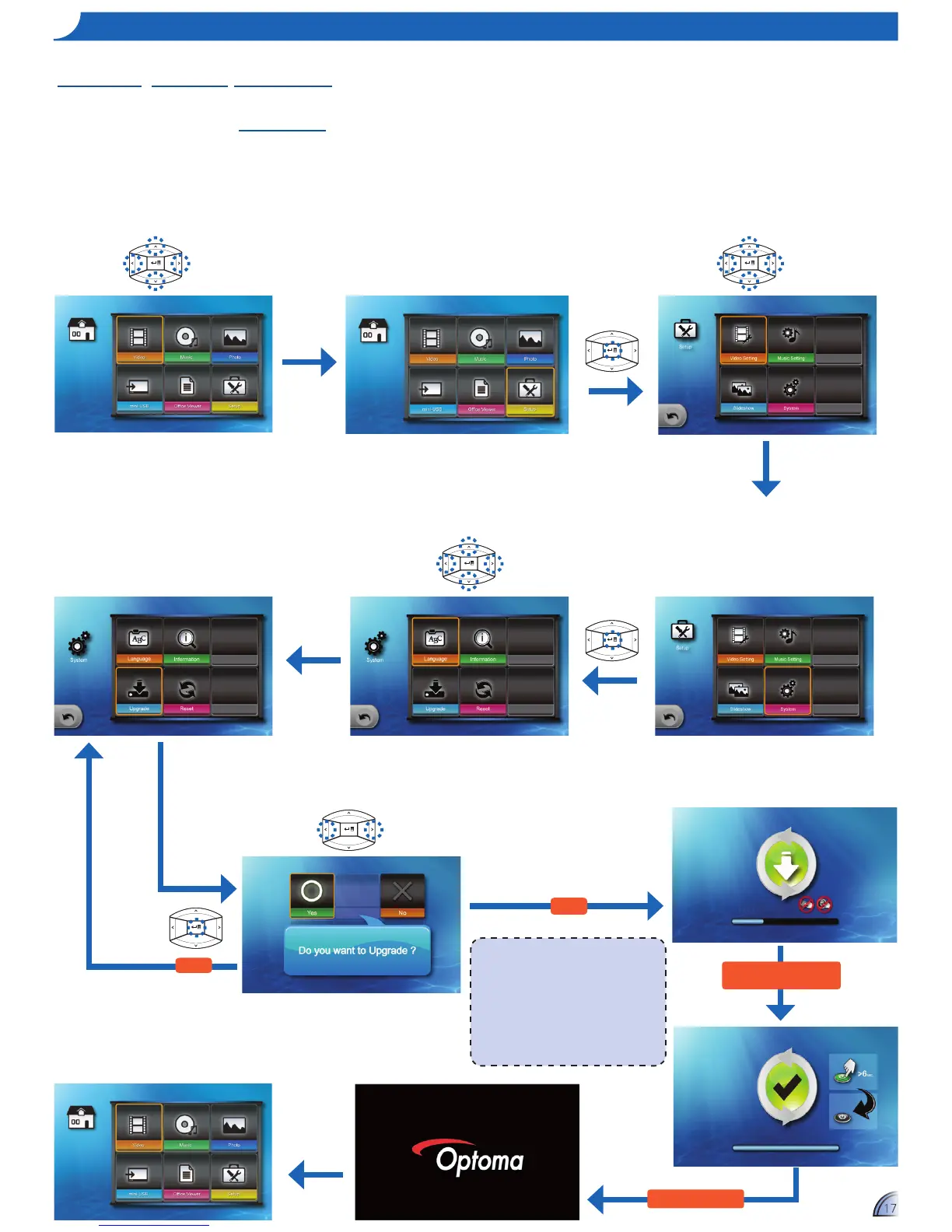
5. Follow the steps below.
<Note>
A"Nonewrmwareisfound"message•
appearsifthereisnoupdateleinthe
SD card.
Do not touch any buttons or turn off the •
projector while upgrading is in progress.
Otherwise, this may damage the
projector.
Do not remove the SD card until the •
upgrade is complete.
Upgrade may take a while
to complete
Select item
Home menu
Return to
No
Reboot the projector
Yes
Home menu
1.
Select "Setup"
2.
Enter "Setup" Menu
3.
Select "System"
6.
Enter "Upgrade" Menu
5.
Select "Upgrade"
4.
Enter "System" Menu
7.
Confirm Upgrade
8.
Wait to Complete


 To Next Page