19
1.3.2 Status bar
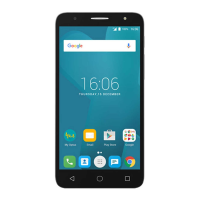
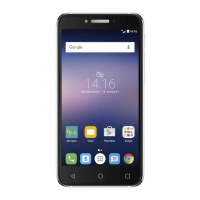
From the status bar, you can see both phone status (on the right side)
and notification information (on the left side).
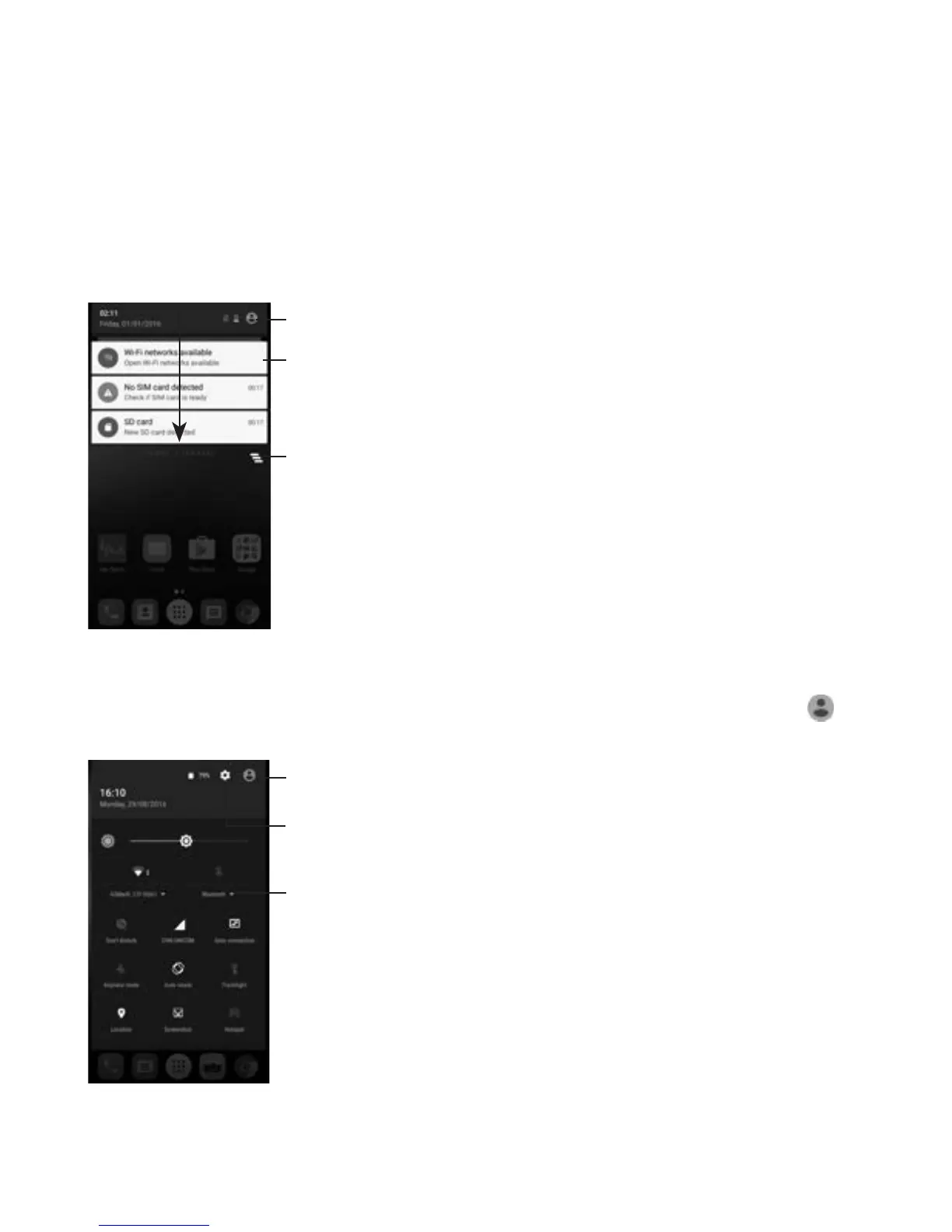
Notification panel
Drag down the status bar to view notifications and drag down again to
open the Quick settings panel. Touch and drag up to close it. From the
Notification panel, you can open items and other reminders indicated
by notification icons or view wireless service information.
Quick settings panel
Touch and drag the Notification panel downwards twice or touch
to
open the Quick settings panel.
(1)
See "3.3.1 View your contacts''
Touch to clear all event–based
notifications (other ongoing
notifications will remain).
Touch to open the Quick settings panel
Touch a notification and slide it sideways
to delete it
The customised picture will show if you set
up your profile in the Contacts application
(1)
Quick settings panel
• Touch icons to enable/disable functions or
to change modes
Touch to open Settings


 To Next Page