33
Contacts to display Choose which contacts to be displayed.
Import/Export Import or export contacts between accounts,
phone, SIM card, internal storage, and SD card.
Groups View or create contact groups
Accounts Manage the synchronisation settings for
different accounts.
Settings Open the contacts display settings.
Block contact list Show your blocked contacts. You can also unblock
desired contact by touching the corresponding
app icon.
3.3.2 Adding a contact
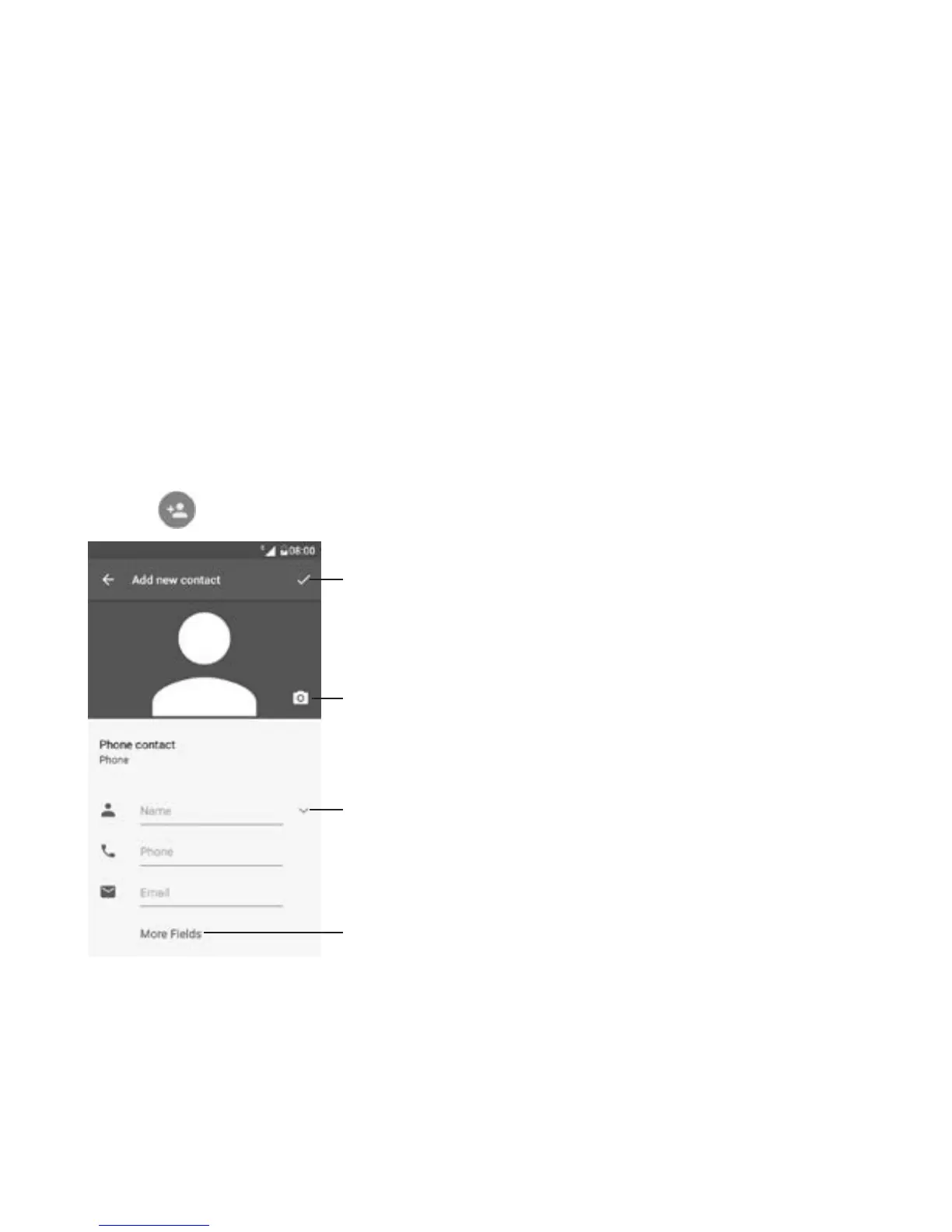
Touch in the contact list to create a new contact.
Scroll up and down the screen to move from one field to another.
Select a picture or take a
photo for the contact
When finished, touch the
icon to save
Touch to open available labels
Touch to expand fields


 To Next Page