32
Touch
and select Delete or Clear call history to erase any unwanted
call logs.
3.3 Contacts
You can view and create contacts on your phone and synchronise these
with your Gmail contacts or other applications on the web or on your
phone.
3.3.1 Consult your Contacts
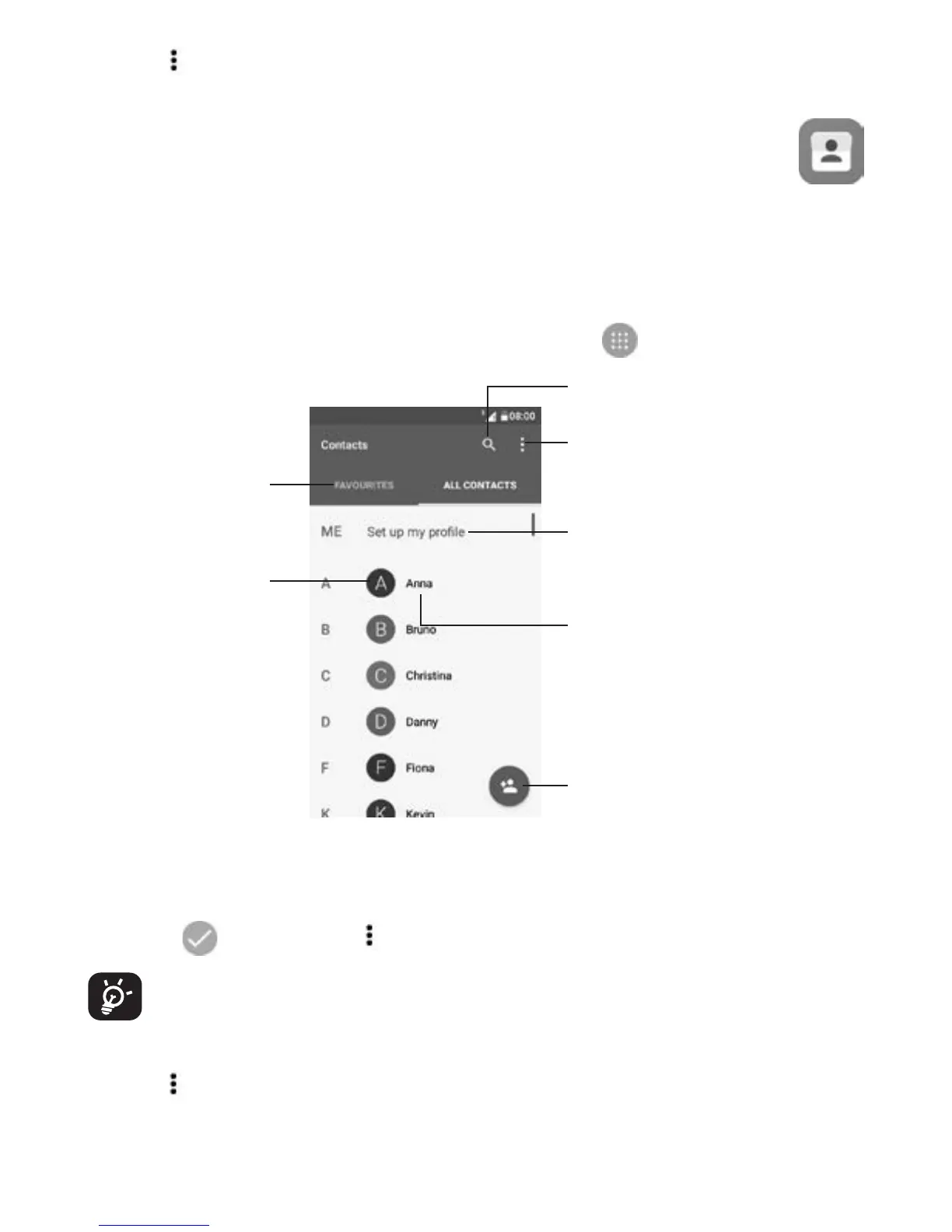
To see your contacts, touch the Application tab on the Home screen,
then select Contacts.
Delete contacts
Long press the contact you want to delete untill the contact photo
turns to
, then touch and select Delete.
The contact you have deleted will also be removed from other
applications on the phone or web the next time you synchronise
your phone.
Touch
to display the contacts list option menu.
Following options are available:
Add a new contact
Touch a contact
to open the Quick
Contact panel and
view the contact’s
detailed information
View your
favourite
contacts
Long press to
be selected for
further options
Search Contacts
Contacts list option menu
After setting up your
profile, your picture will
show and the icon in
quick settings screen will
be the same


 To Next Page