25
2.2 Text editing
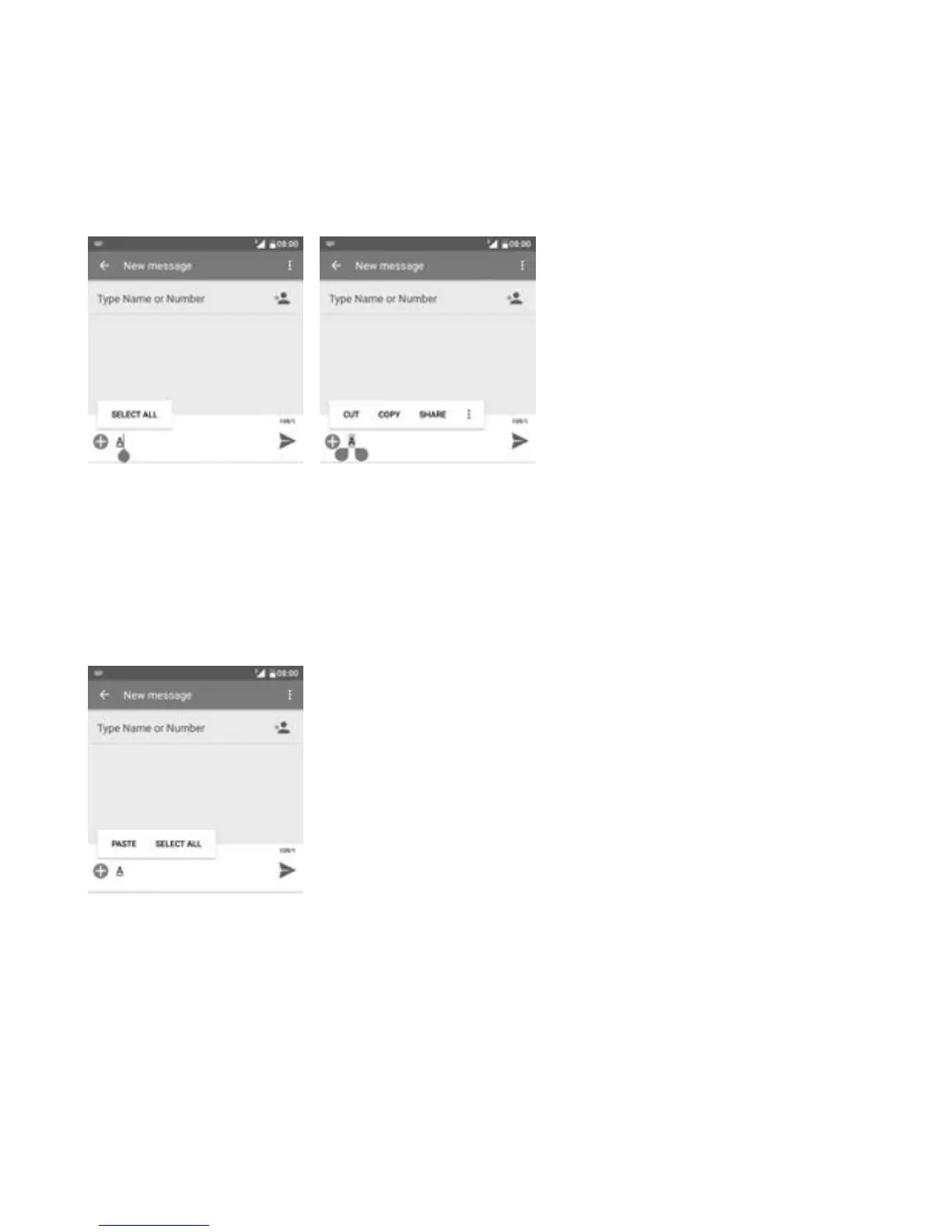
You can edit the texts you entered.
• Long press the text you want to edit.
• Drag the tabs to change the highlighted selection.
• The following options will show: SELECT ALL, CUT, COPY, SHARE, etc.
You can also insert new text
• Touch where you want to type, or long press a blank space, the cursor
will blink and the tab will show. Drag the tab to move the cursor.
• If you have cut or copied any text, touch the tab to show the PASTE
icon which allows you to paste any text you have previously copied.



 To Next Page