16
Lightning storms
Disconnect your set-top’s power cord during lightning storms. A lightning storm may affect your set-top, if it is on
during the storm. It may appear that it has stopped working, but you can easily restore its operation as follows:
Unplug your set-top’s power cord from the wall AC outlet. Then plug this power cord in again at the wall AC outlet
(and, if there is a switch by this outlet, switch it to its ON position).
Using your remote control
Your cable TV service-provider determines the digital channels, services, and screen information that you see on
your TV when you use your set-top and its remote control.
Consult the information supplied by your cable service-provider for details on how to make the most of the digital
cable services. Also read the operating instructions that are supplied with your remote control.
Displaying a picture on your HDTV screen
If your set-top is connected to your HDTV’s component video or HDMI™ input and is turned on (the power light
is green), but your HDTV does not initially display a picture from your set-top, your HDTV may not support your
set-top’s current output resolution (for further details on resolutions, see page 25). You therefore need to change
your set-top’s output resolution as follows:
1. First press the POWER button on your remote control (power light goes red), then press the MENU button.
2. Next, press the ZOOM button on your remote control (the button could be labeled ASPECT) until a picture
appears.
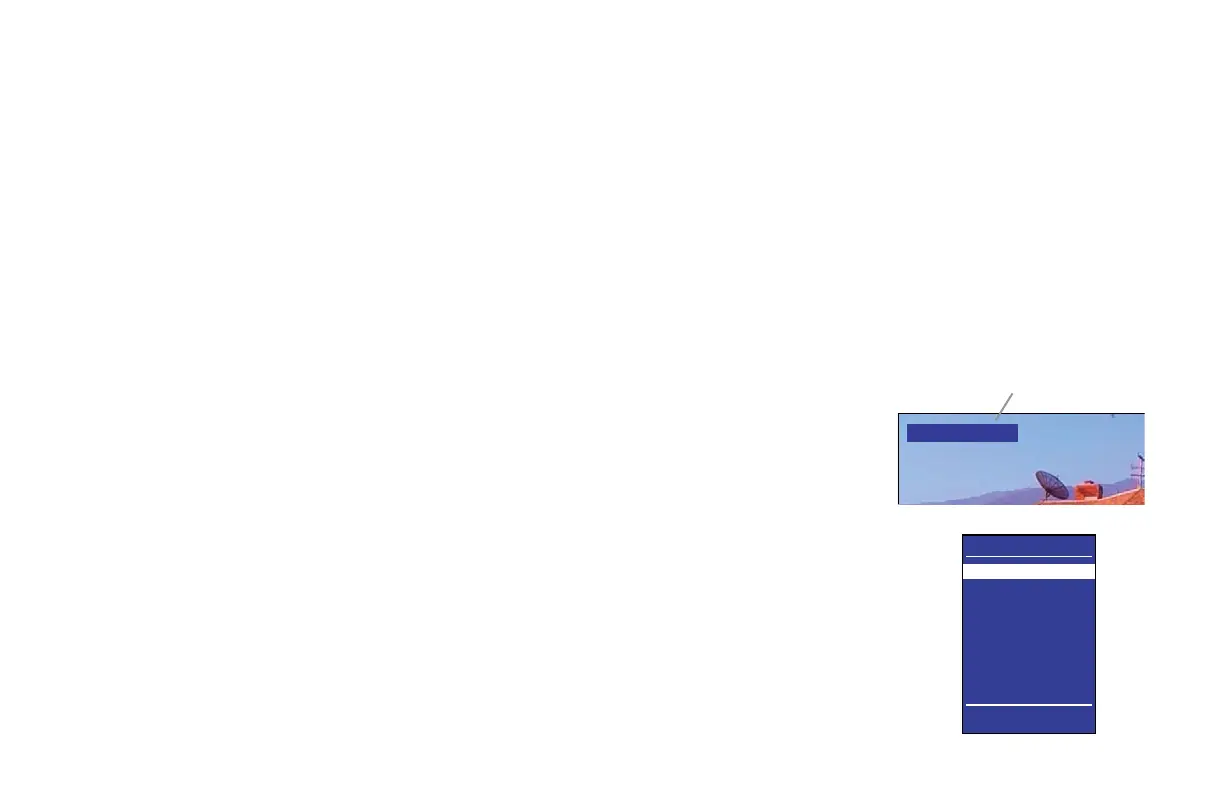
Each button-press changes your set-top’s output resolution, which also appears on the TV screen.
After a few seconds, you should see the PACE USER SETTINGS menu.
3. Press the POWER button to remove this menu and return to normal viewing.
OPERATING YOUR SET-TOP (cont.)
PACE USER SETTINGS
TV Aspect Ratio
TV Display Capability
Auto Pillarbox
Closed Captions
Front Panel Settings
Hard Disk Sleep Mode
HDMI Settings
Restore Defaults
Select[OK] Exit[POWER]
Current output resolution from your
set-top (1080i, 720p, 480p, or 480i)


 To Next Page