31
MAKING USER SETTINGS (cont.)
3 If you wish to reset all the Closed Caption settings to their default values (mainly Auto), press the D button to
highlight “Reset to Defaults” on the menu, then press select.
4. When you have made all the changes you want, press L twice to re-display the PACE USER SETTINGS menu.
Making Front-Panel Settings
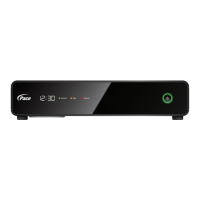
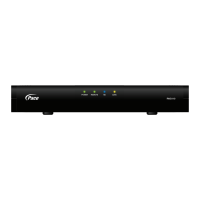
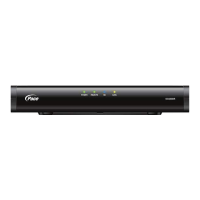
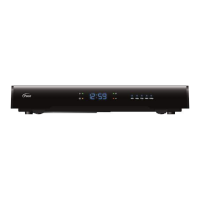
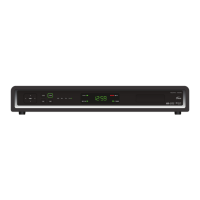
You can use the Front Panel Settings menu to set the brightness level of the front-panel lights (but not the power
light) when your set-top is being used (“Viewing” level) and when it is switched off (“Standby” level).
If you have not done so already, put your set-top into User Settings mode, as described on page 23.
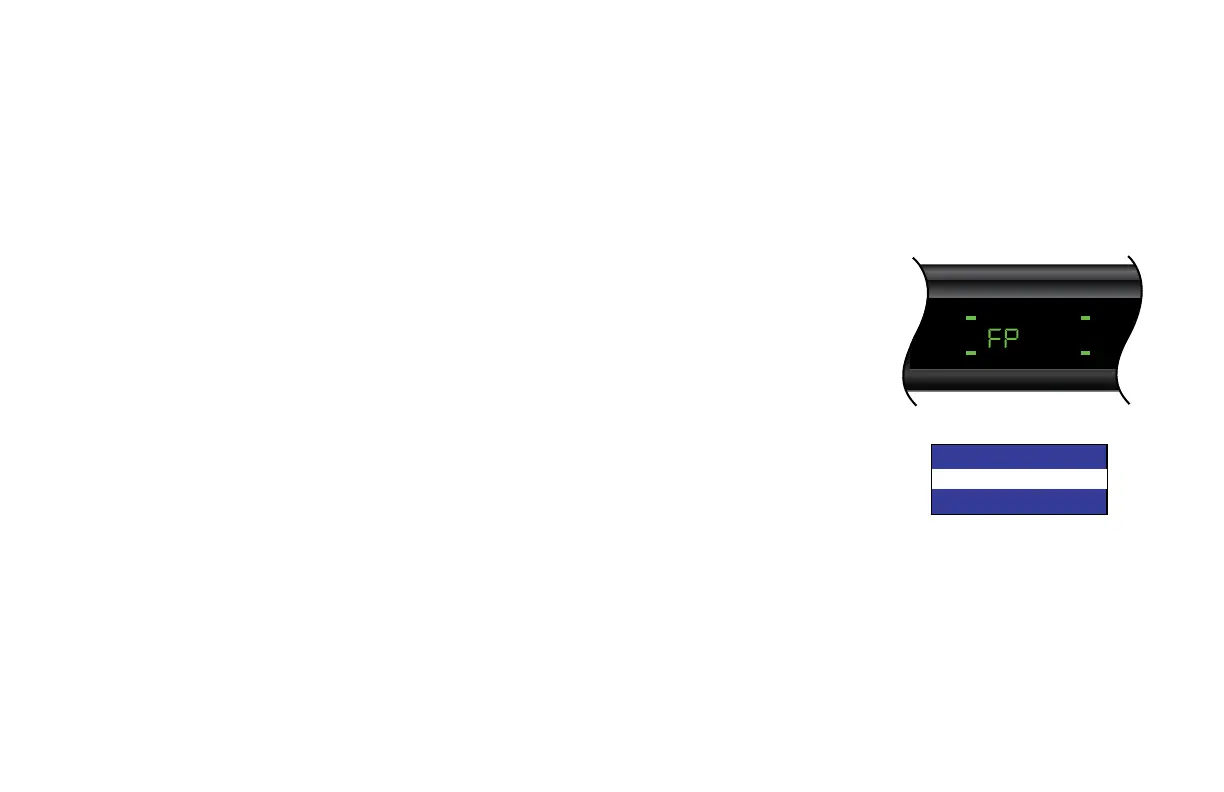
1. Press the U or D button until the front panel shows “FP”.
On the PACE USER SETTINGS menu, Front Panel Settings is highlighted when “FP” is on the front panel.
2. Press the R button. The Front Panel Settings menu, shown right, appears on your TV screen.
3. Press the U or D button to highlight “Standby Brightness” and “Viewing Brightness” in turn, as required.
4. For each level, use the select button to choose the setting you want: “Low”, “Std” (Standard), or “High” (the
setting changes each time you press select). Look at the dimming and brightening of the front-panel lights
while you are making the settings, to see the effect of your selections.
6. When you have made all the changes you want, press L to re-display the PACE USER SETTINGS menu.
Front Panel Settings
Standby Brightness :
Std
Viewing Brightness : High
TDC770D
HDTV BYPASS
IR RECEIVE MESSAGE


 To Next Page