33
Making HDMI Settings
You can use the HDMI Settings menu to choose an Audio Output Mode, and to enable or disable automatic
detection of a newly connected HDTV (if it is connected by an HDMI
cable).
1. If you have not done so already, put your set-top into User Settings mode, as described on page 23.
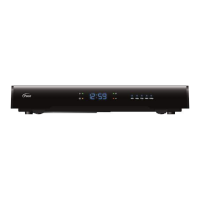
Then press the U or D button until the front panel shows “hdni”, as shown right.
2. Press the R button.
The HDMI Settings menu appears (see right).
3.
Press the U or D button to highlight “Audio Output Mode” or “Disable Auto Detect” as required.
4. Use the select button to choose the setting you want (the setting changes each time you press select).
Audio Output Mode has three possible settings:
“Auto” (provides the audio format best suited to the connected equipment)
“L-PCM” (provides PCM audio only)
“Pass Through” (does not change the audio format)
Disable Auto Detect is either “YES” or “NO”.
5. When you have made all the changes you want, press L to re-display the PACE USER SETTINGS menu.
Removing the User Settings menus
When you have finished making all the user settings you wish to make, press the power button to remove the
PACE USER SETTINGS menu and return to normal viewing.
HDMI Settings
Audio Output Mode : Auto
Disable Auto Detect : NO
MAKING USER SETTINGS (cont.)
TDC770D
HDTV BYPASS
IR RECEIVE MESSAGE


 To Next Page