User’s Manual
24
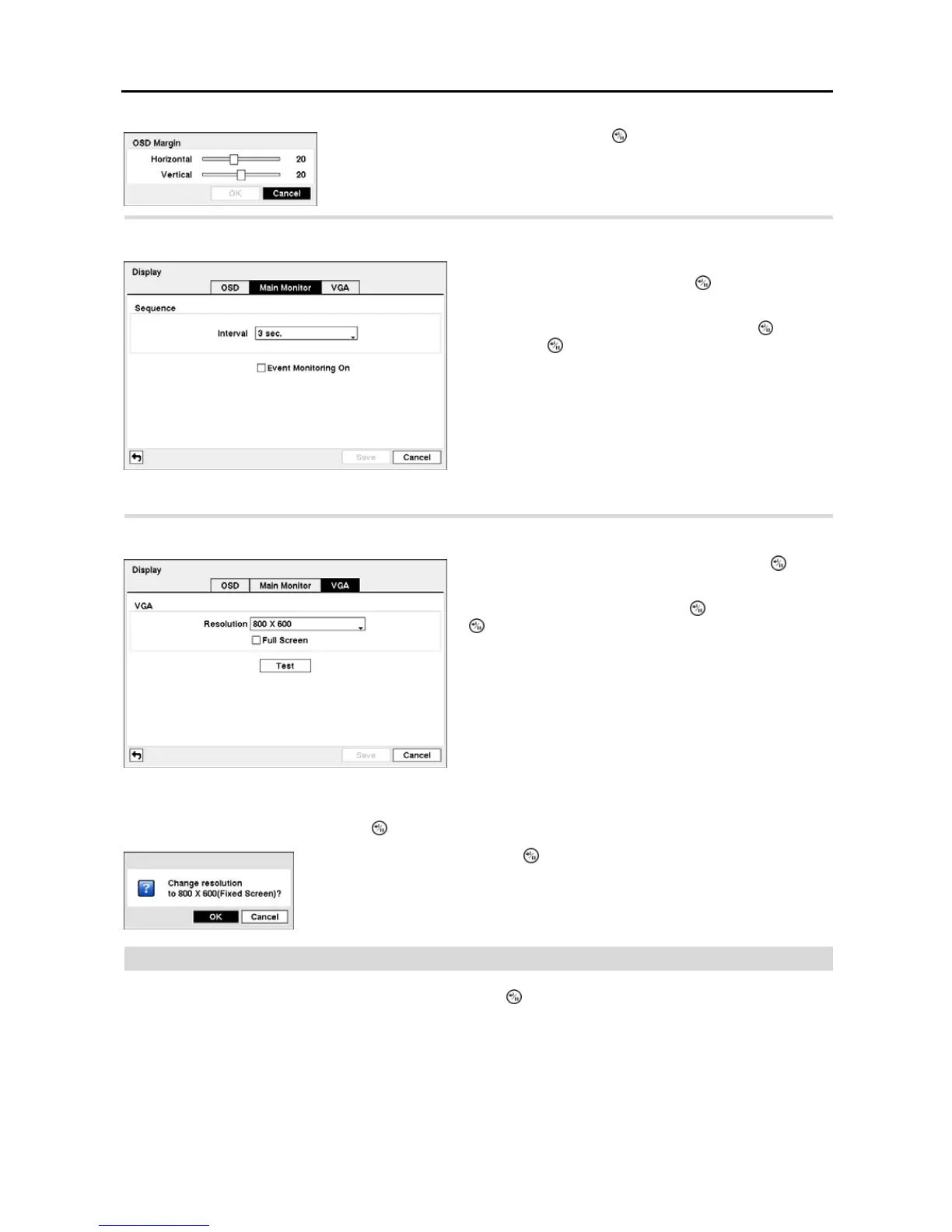
Highlight the Main Monitor tab, and the Main Monitor setup screen appears.
Highlight the VGA tab, and the VGA setup screen appears.
Highlight the box Test box and press the
button to test how the screen will be displayed with the resolution you set.
Remote Control
Highlight Remote Control in the Devices menu and press the
button. The Remote Control setup screen allows
you to select a port and make correct settings for a remote keyboard.
Highlighting OSD Margin… and pressing the button displays how OSD text will
be displayed on the monitor. You can adjust the horizontal and vertical margins
so that text and icons will not be hidden beyond the edges of the monitor.
Figure 31 ─ Main Monitor setup screen.
You can adjust the display dwell time by highlighting the
box beside Interval and pressing the
button. You can
select dwell intervals ranging from 1 second to 1 minute.
Highlight Event Monitoring On and press the button.
Pressing the
button toggles between On and Off. When
it is On, the DVR will display the camera associated with
the event when an event occurs.
Figure 32 ─ VGA setup screen.
Highlight the box beside Resolution and press the button.
You can select from 800x600, 1024x768 and 1280x1024.
Highlight Full Screen and press the button. Pressing the
button toggles between On and Off. When it is On, the
screen on the VGA monitor displays in full screen mode.
Highlighting OK and pressing the button applies resolution changes.



 To Next Page