4-Channel Digital Video Recorder
27
Highlight the box under the Range heading and press the button to change the time range that the scheduled recording
will take place. The smallest time segment you can use is 15 minutes.
Highlight the box under the Mode heading and press the button to change the recording mode that will be used.
Choose from: No Record, Time, Event and Time & Event. (Simple Mode Only)
When the DVR is in the No Record mode, it will not record during the preset day and time range as long as the Panic
button is not pressed. Use the No Record mode when you do NOT want the DVR to record during certain times.
When the DVR is in the Time mode, the icon displays at the top-left corner of the screen. The DVR will record
and displays the
icon at the top-left corner of the screen during the scheduled times.
When the DVR is in the Event mode, the red icon displays at the top-left corner of the screen. The DVR will record
and displays the
icon at the top-left corner of the screen when any event occurs. When the DVR is in the Pre-Event
recoding mode, the yellow
icon displays when there is no event, and the DVR is not recording. When the DVR is
in the Pre-Event mode, the red and display when any event occurs and the DVR starts recoding.
When the DVR is in the Time & Event mode, the DVR will follow the Time settings and the icon displays. The
DVR follows the Event settings and the
icon displays.
Highlight the box under the Channels heading and press the button to select which cameras will be recorded. (Simple
Mode Only)
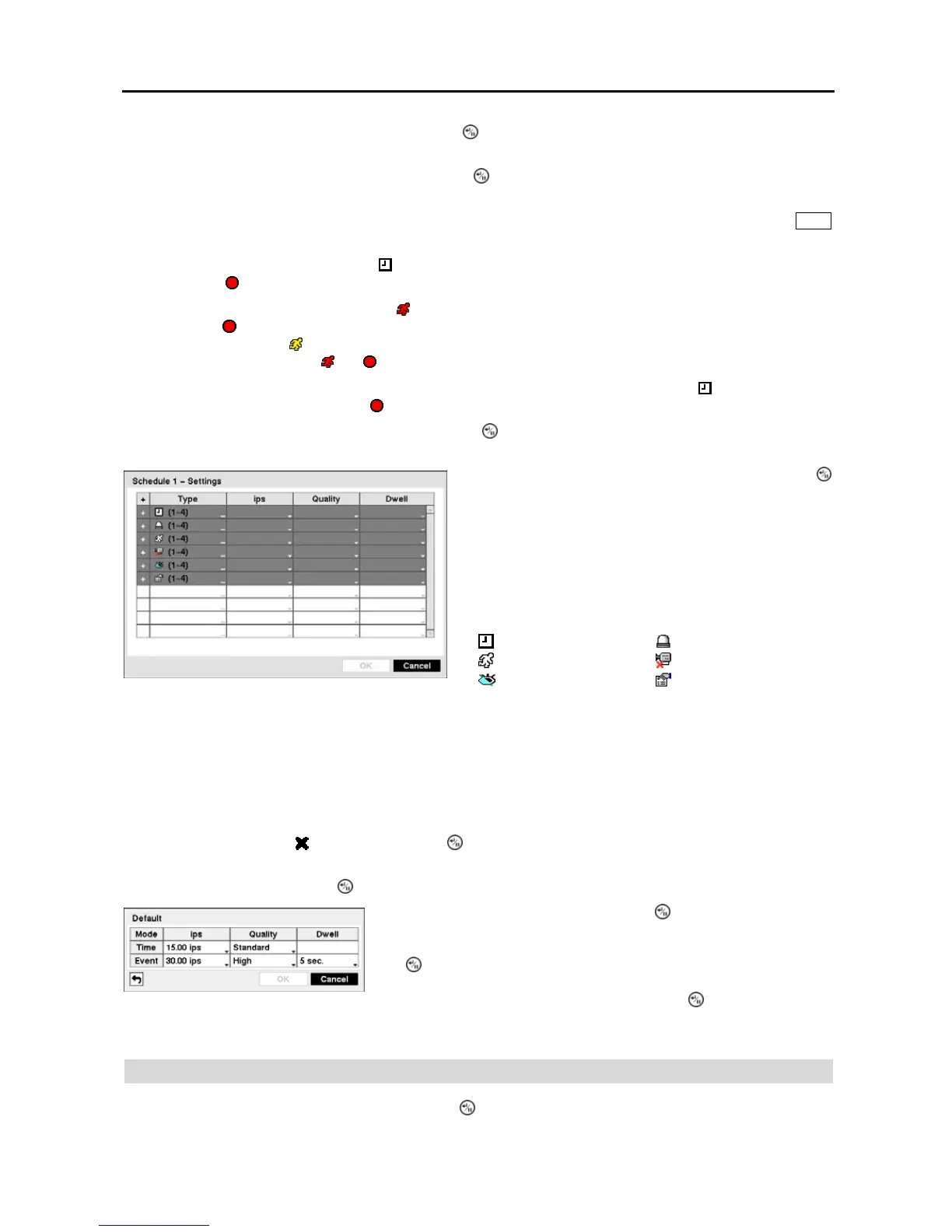
Figure 37 ─ Schedule – Settings (Advanced Mode) setup screen.
NOTE: Channels that are not defined will use the setting values of the previous schedule item.
NOTE: When multiple events are detected at the same time from a specific channel, the DVR will record event
video with the high setting values if the ips, Quality, Resolution and Dwell values of events are different from
each other. However, the ips will be reset to the supported maximum value when the ips, Quality, Resolution
and Dwell are all set to the highest value. (Advanced Mode Only)
Highlight the box under the heading and press the button to delete the recording settings. You will be asked to
confirm that you want to delete the settings.
Highlight Default… and press the button. The Default screen appears.
Pre-Event
Highlight Pre-Event in the Record menu and press the button, and the Pre-Event setup screen appears. If you do
not have Event set up in the Record Schedule, a message will display alerting you to this fact.
Highlight the box under the Settings heading and press the
button to define the recording settings. You can set the ips
and Quality (ips, Quality and Dwell for Advanced Mode setup)
of the recording for any modes you set up in the Mode column.
If you do not set the ips, Quality and Dwell in the Settings
column, the DVR will follow the default settings. See below
for details.
NOTE: Descriptions of the Record icons in the Type
column are as follows:
Time-lapse (Time) Alarm-In
Motion Video Loss
Video Blind Text-In
Highlighting boxes under ips and pressing the
button allows you to set the
images per second for Time and Event recording. You can select from 0.10
to 30.0 images per second. Highlighting boxes under Quality and pressing
the
button allows you to set the recorded image quality for Time and Event
recording. You can select from: Very High, High, Standard and Basic.
Highlighting boxes under Dwell and pressing the
button allows you to
set the length of time you would like to record for the associated event.
(Advanced Mode Only)



 To Next Page