4-Channel Digital Video Recorder
25
Recording Setup
Figure 34 ─ Record menu.
Record
Highlight Record in the Record menu and press the button. The Record setup screen appears.
Highlighting Record Audio and pressing the button toggles between On and Off. When set to On, the DVR will
record audio when video is recording.
NOTE: The DVR will NOT record audio when the recording speed is set to less than 1 ips.
Highlight the box beside Auto Deletion, and use the Left and Right arrow buttons to adjust the length of time recorded
data will be kept from 1 to 999 days. The DVR automatically deletes video recorded earlier than the user-defined period
under three conditions: at midnight, whenever the system reboots or whenever the user changes the Auto Deletion settings.
Selecting Never will disable the Auto Deletion function.
Highlight the slide bar beside Limit Time-Lapse Recording, and use the Left and Right arrow buttons to adjust the
length of the maximum storage time for time-lapse recording from 1 to 99 days. The Limit Time-Lapse Recording
feature will function when the storage device has enough space to record video data longer than the preset period. When
this feature is On, the DVR records over the oldest “time-lapse” video once all available storage has been used in the
Recycle mode, so more event video can be saved. Selecting Never will disable the Limit Time-Lapse Recording function.
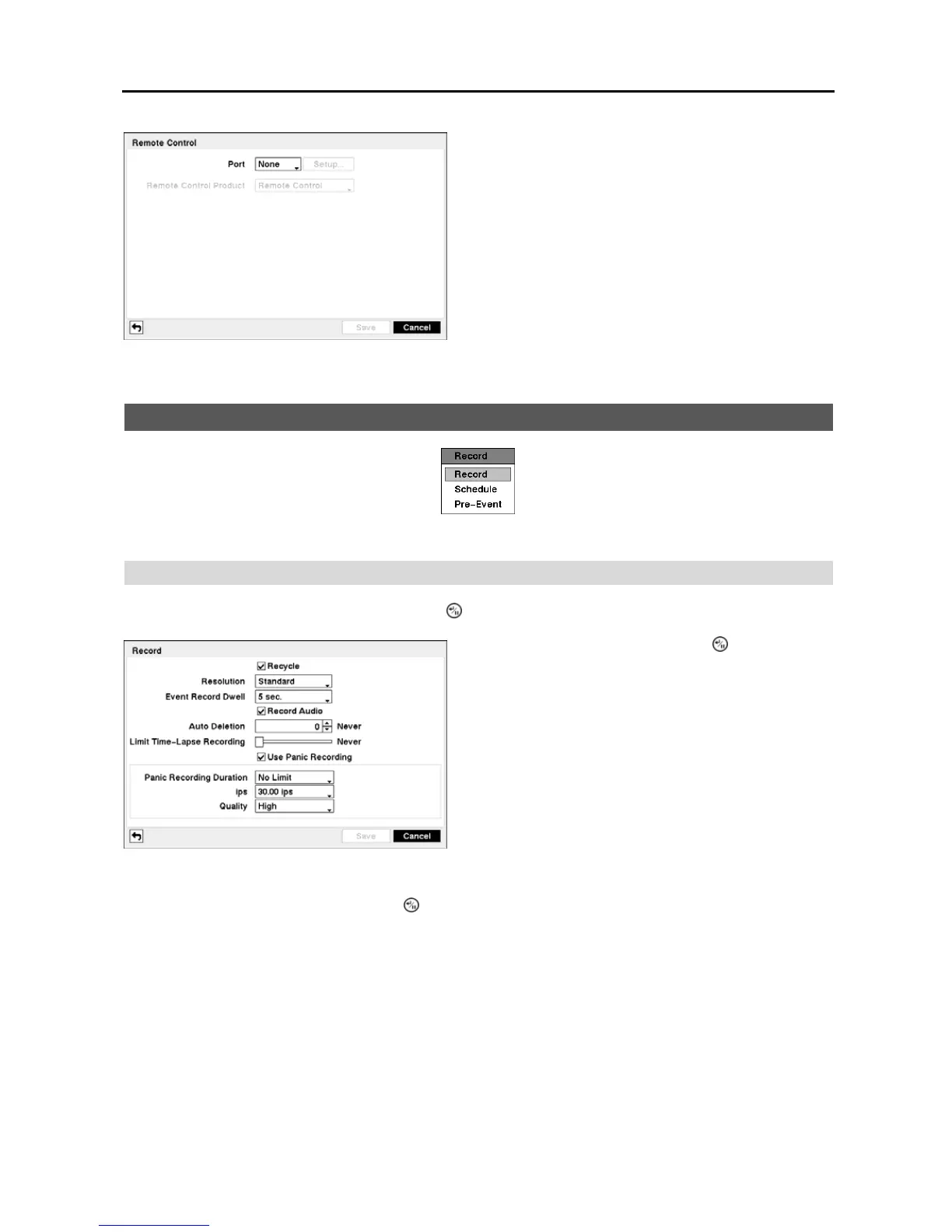
Figure 33 ─ Remote Control setup screen.
Highlight the box beside Port and select between None, RS232
and RS485. If the RS232 port and RS485 port is in use for
PTZ control, networking or text input, the remote keyboard
cannot be configured.
Highlight Setup… and select the correct Baud Rate, Parity,
Data Bits and Stop Bits for the device you are connecting to
the DVR.
Highlight the box beside Remote Control Product and select
the device from the list.
Figure 35 ─ Record setup screen.
Highlighting Recycle and pressing the button toggles
between On and Off. In the Recycle mode, the DVR records
over the oldest video data once all available storage space
has been used. When Recycle is turned off, the DVR stops
recording once all available storage space has been used.
Highlight the Resolution box and select from Very High,
High and Standard.
Highlight the Event Record Dwell box and set the length
of time you would like to record for the associated event. You
can set the dwell from 5 seconds to 15 minutes. Refer to Event
Actions screen in this chapter for information regarding event
recording.



 To Next Page