YOUR APPLICATION AND INFO MANAGEMENT TOOLS
SYNCHRONIZING INFORMATION—ADVANCED
188
10
CHAPTER
Setting up a Bluetooth connection for
synchronization
If your computer is enabled with Bluetooth
wireless technology, you can synchronize
wirelessly over a Bluetooth connection.
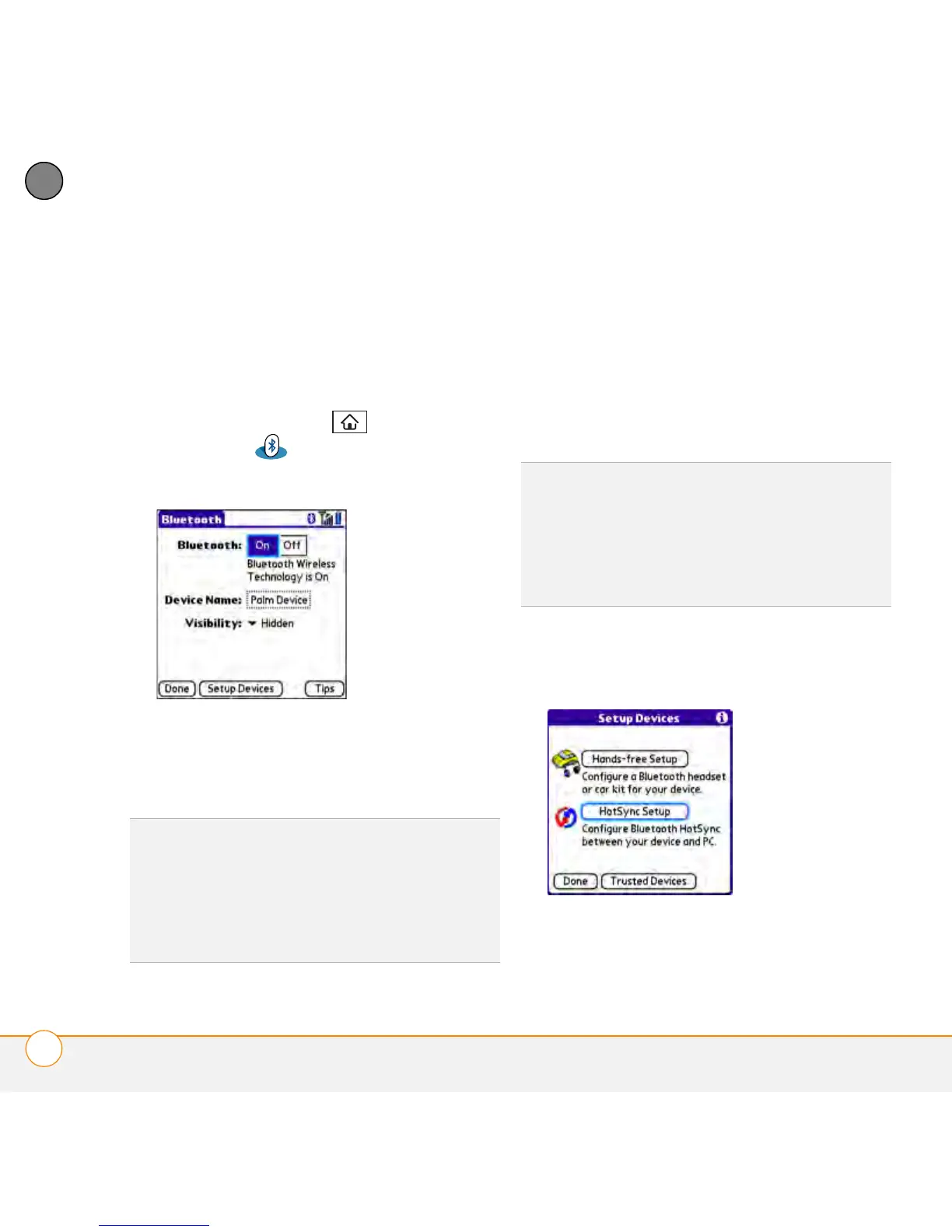
1 Press Applications and select
Bluetooth .
2 Select Bluetooth On.
3 (Optional) Enter a device name that
identifies your smartphone when it is
discovered by other Bluetooth devices.
NOTE Use the same device name for all
your Bluetooth connections. If you change
the device name, you need to re-create any
partnerships you have already created.
4 Select the Visibility pick list and select
Visible or Te m p o r a r y .
5 Select Setup Devices.
6 Select HotSync Setup.
7 Follow the onscreen instructions to
create a partnership between your
TIP
The device name you enter is the name
that other devices with Bluetooth wireless
technology see when they connect to your
smartphone. The default name is the name
you gave your device during setup. You can
change this name if you want to.
TIP
After you form a partnership with a device,
you can change the Visibility setting back to
Hidden. That way only devices with which
you’ve already formed a partnership can find
your smartphone. New devices cannot
request a connection.



 To Next Page