YOUR APPLICATION AND INFO MANAGEMENT TOOLS
SYNCHRONIZING INFORMATION—ADVANCED
190
10
CHAPTER
When synchronization is complete, a
message appears at the top of your
smartphone screen. Be patient;
synchronization may take a few
minutes.
Synchronizing over an infrared
connection
When you synchronize using the IR port on
your smartphone, you don’t need your sync
cable. This is especially useful if you travel
with an IR-enabled laptop.
BEFORE YOU BEGIN Verify the following
on your computer:
• It has an enabled IR port or an IR device
attached to it. Check your computer’s
documentation to see if it supports IR
communication.
• The HotSync manager is active. On a
Windows computer, you know the
HotSync manager is active when its
icon appears in the lower-right corner of
your screen.
WINDOWS ONLY
1 On your computer, click HotSync
manager in the taskbar in the
lower-right corner of your screen. Make
sure that Infrared is selected.
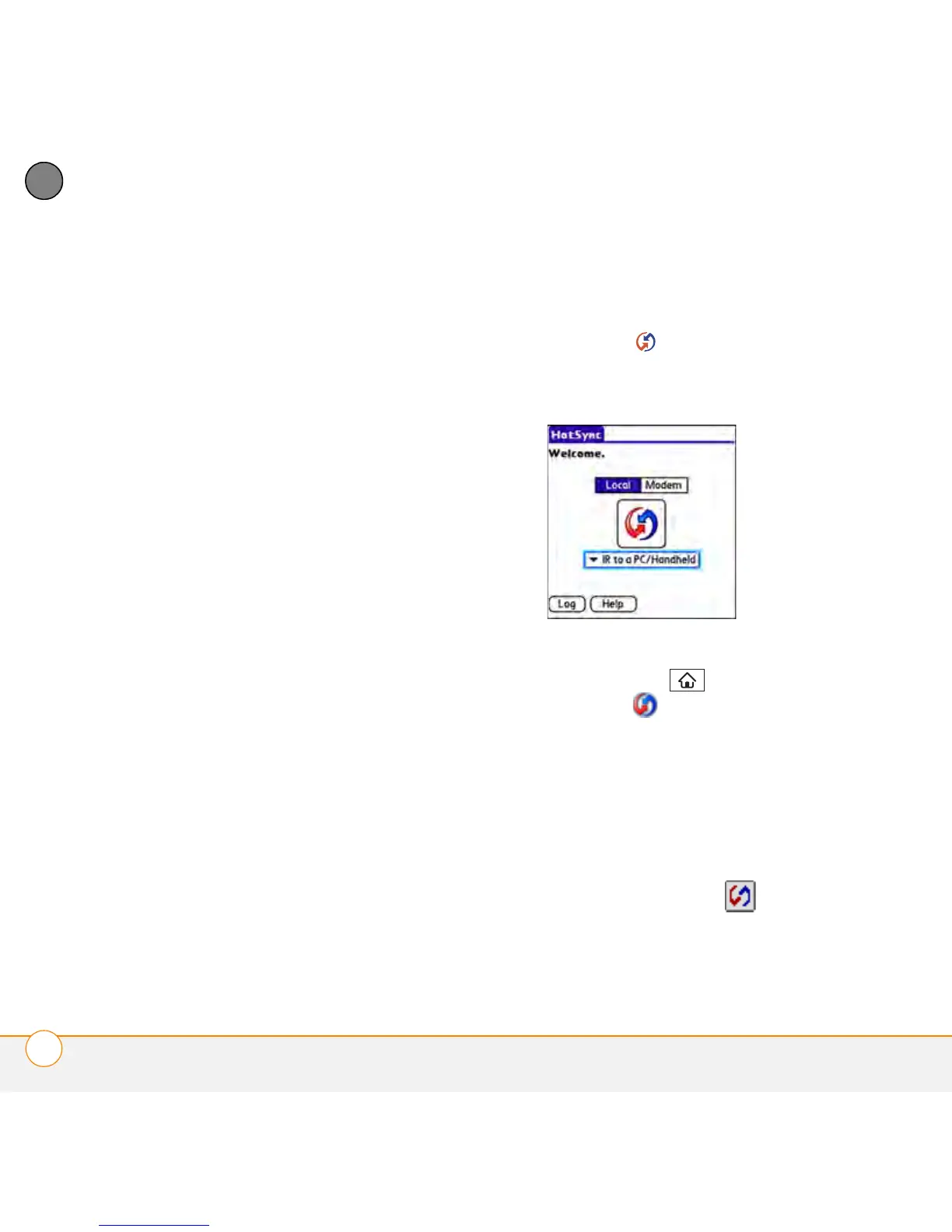
2 On your smartphone, press
Applications and select
HotSync .
3 Select Local.
4 Select the pick list below the HotSync
icon and select IR to a PC/Handheld.
5 Position the IR port on your smartphone
within a few inches of your computer’s
IR port.
6 Select the HotSync icon on your
smartphone.



 To Next Page