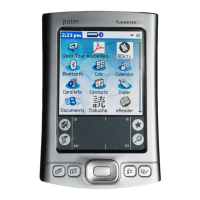
LifeDrive from palmOne 150
CHAPTER 12 Your Expandable Storage
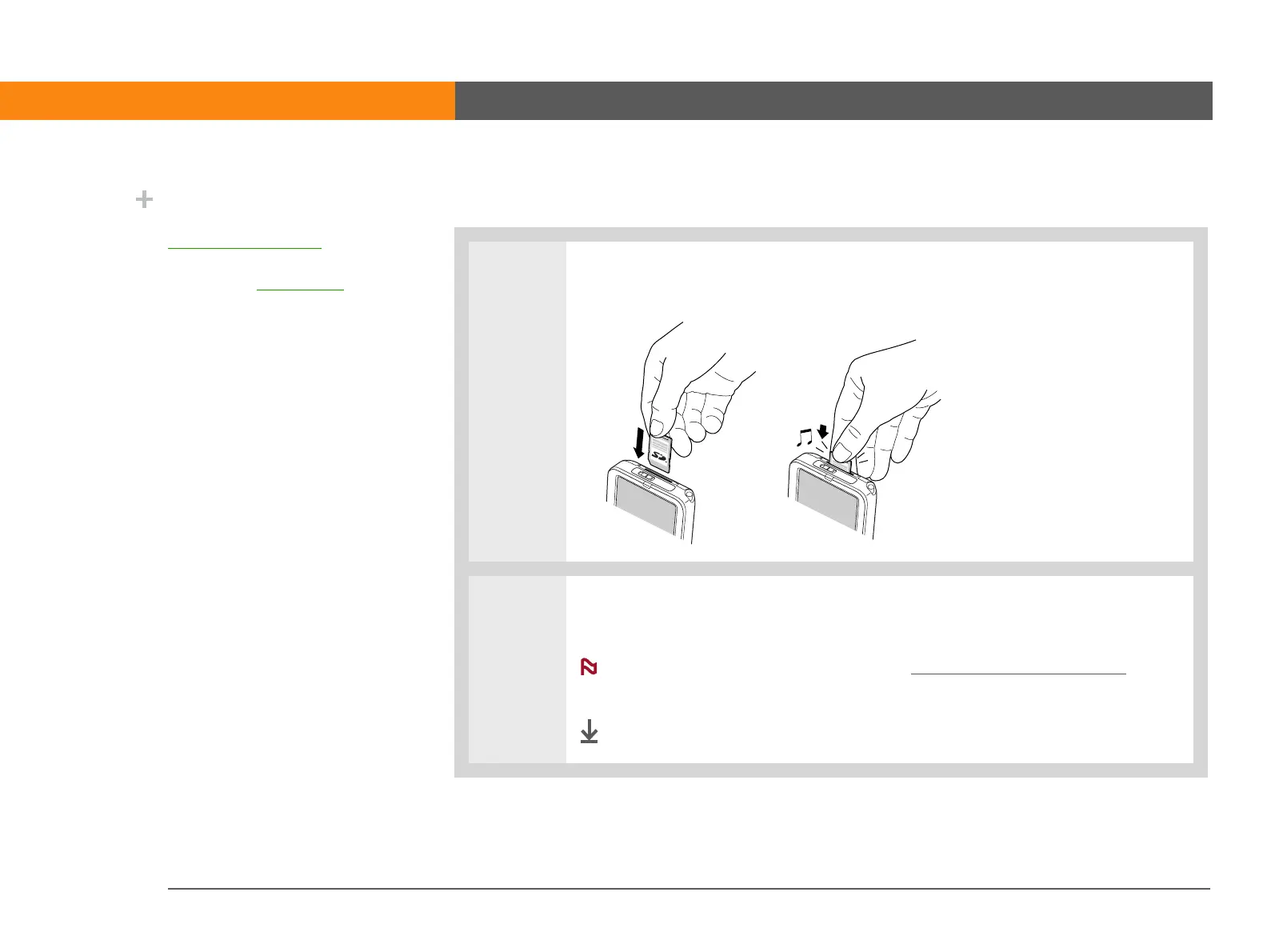
Inserting an expansion card
0
1 Insert the card into the expansion slot with the label side facing the front of the
device.
2 Push the card in with your thumb until you feel the card “click” into place and
you hear the confirmation tone.
No confirmation tone? Check the Sounds & Alerts Preferences
to
make sure the System Sound setting is turned on.
Done
Did You Know?
When your are using
LifeDrive™ Manager
on
your computer or your
device is in Drive Mode
,
your device serves as an
expansion card reader. If
you have a card inserted
into your device’s
expansion slot, select the
card icon in the LifeDrive
Manager, Windows
Explorer, or My Computer
window on your
computer to view the
contents of the card.
NOTE



 To Next Page