CHAPTER 13 Your Personal Settings
LifeDrive from palmOne
161
Changing the background of your screen
Use your favorite photos as the background for the Favorites and Applications Views and the
Agenda View in Calendar. Choose the same photo for all screens or make them different.
0
1 Open the Display Options dialog box:
a. Press the Home button once for Favorites, twice for Applications. Or,
select Calendar for Agenda View.
b. Open the menus
.
c. Select Options, and then select Display Options. For Favorites, select
Options, and then select Preferences.
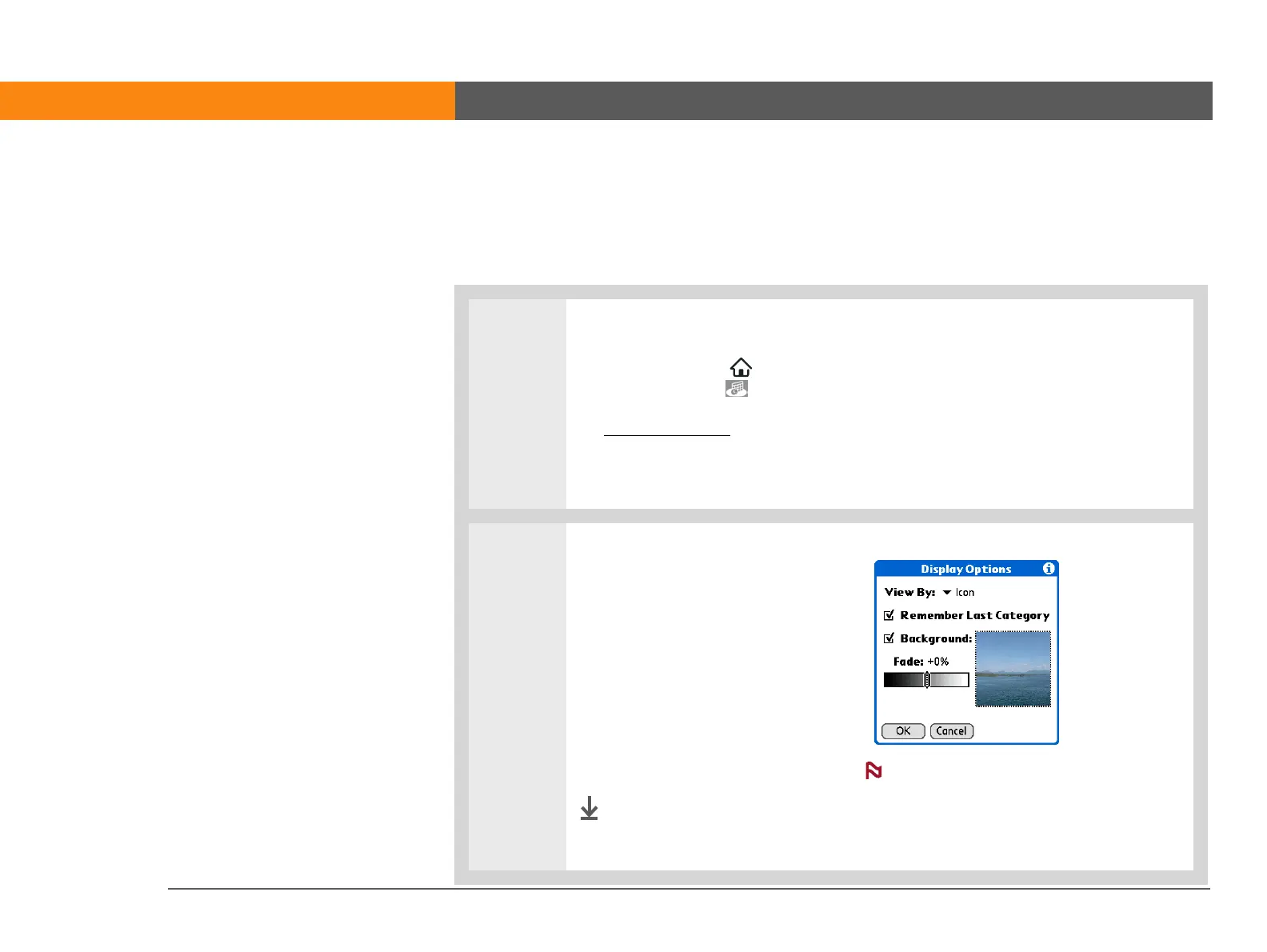
2 Select a photo:
a. Check the Background box.
b. Tap the photo thumbnail and
select a photo.
c. Adjust the fade setting so that
text and icons are easy to see
against the photo.
d. Select OK.
Done
The screen for selecting a
background photo appears differently in
each of the three applications. The
Applications Display Options screen is
shown here.
NOTE



 To Next Page