LifeDrive from palmOne 52
CHAPTER 2 Your 4GB Hard Drive
Doing a file sync
0
1 Open the LifeDrive Manager window.
2 Choose one of the following synchronization options:
Synchronize a single file or folder Right-click the item’s icon, select Sync
actions, and then select Synchronize this item now.
Synchronize multiple files or folders Select the items you want, right-click any
item’s icon, select Sync actions, and then select Synchronize this item now.
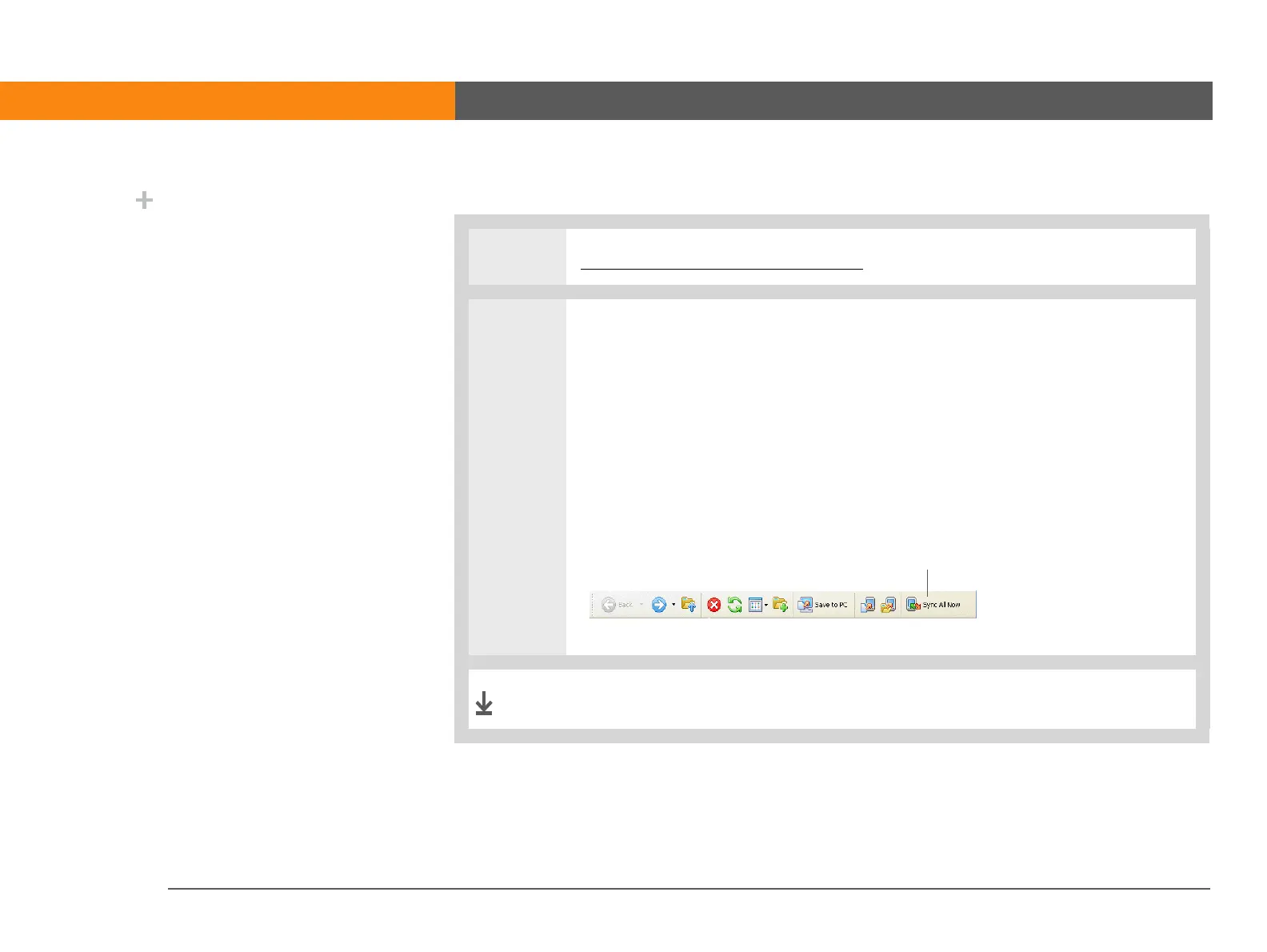
Synchronize all sync items on the drive Click Sync All Now on the toolbar at
the top of the LifeDrive Manager window.
A synchronization progress screen appears.
Did You Know?
If you put a file or folder
that you chose not to
make a sync item into a
folder that is a sync
folder, the item
synchronizes regardless
of your choice. After the
next sync, a copy of the
sync folder appears on
both your device and
your computer, with the
sync version of the item
inside. The original file or
folder that you
transferred using the
Copy or Format for device
option remains in its
original location and does
not synchronize.
Click here
Done



 To Next Page