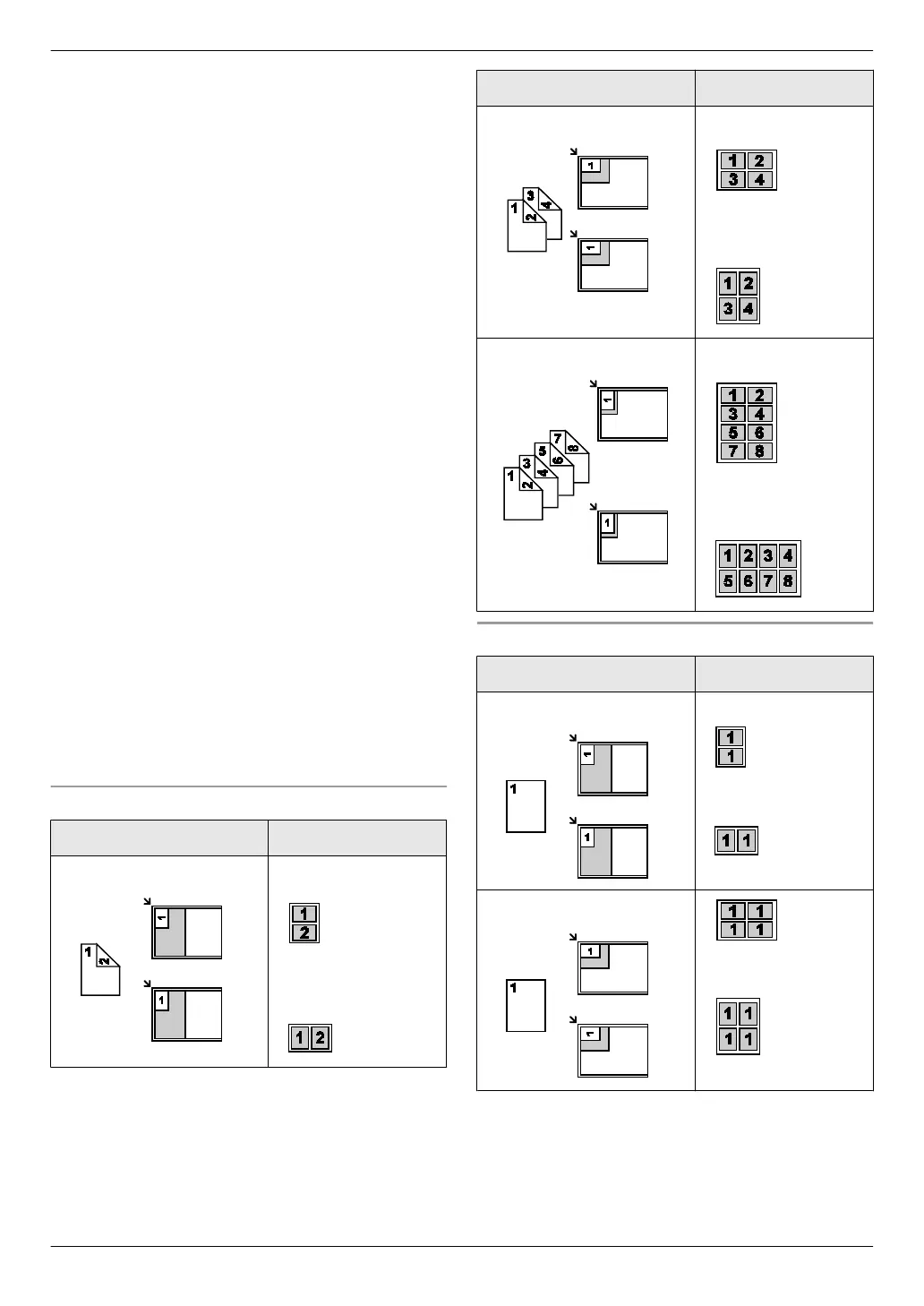
R The scanning area changes according to the
selected setting in step 4. See the following table
for details. The shaded area will be scanned.
2 Press MPage LayoutN repeatedly to select “PAGE
LAYOUT”.
3 Press MCN or MDN repeatedly to select “QUIK ID
COPY” or “IMAGE REPEAT”. A MSetN
4 Press MCN or MDN repeatedly to select the number of
original documents from “2 in 1”, “4 in 1” or “8
in 1”. A MSetN
R For quick ID copy feature, go to the next step.
R For image repeat feature, go to step 6.
5 Press MCN or MDN repeatedly to select the page layout
from “LANDSCAPE” or “PORTRAIT”. A MSetN
6 If necessary, enter the number of copies (up to 99).
7 Quick ID copy feature:
1. MStartN
R The unit will scan 1 page.
2. Place the next document on the scanner glass
and press MSetN. Repeat this until all the
documents are scanned.
R The unit will start copying.
R You can press MStartN anytime to start
copying.
Image repeat feature:
MStartN
8 After you finish copying, press MStopN to reset this
feature.
Note:
R You can save the previous page layout setting
(feature #467 on page 63).
For quick ID copy feature
Original document Page layout
“2 in 1” “LANDSCAPE”
“PORTRAIT”
Original document Page layout
“4 in 1” “LANDSCAPE”
“PORTRAIT”
“8 in 1”
“LANDSCAPE”
“PORTRAIT”
For image repeat feature
Original document Page layout
“2 in 1”
“4 in 1”
37
5. Copier



 To Next Page