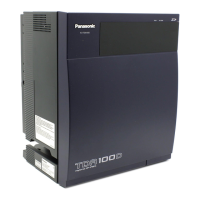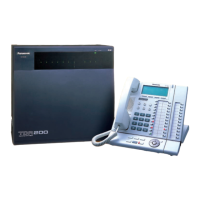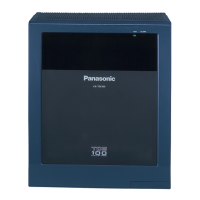
EasyManua.ls Logo

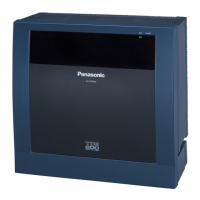
Panasonic KX-TDE200 - User Manual

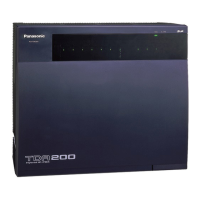
Panasonic KX-TDE200
282 pages
Print Icon
To Next Page IconTo Next Page
Loading...
Thank you for purchasing a Panasonic Pure IP-PBX.
Please read this manual carefully before using this product and save this manual for future use.
KX-NCP500/KX-NCP1000: PBMPR Software File Version 7.0000 or later
KX-TDE100/KX-TDE200: PMMPR Software File Version
7.0
000 or later
KX-TDE600: PGMPR Software File Version
7.0
000 or later
Model No. KX-NCP500/KX-NCP1000
KX-TDE100/KX-TDE200/KX-TDE600
Pure IP-PBX
User Manual

Table of Contents

Other manuals for Panasonic KX-TDE200

Questions and Answers

  • B
    Brenda SchwartzAug 28, 2025
    What to do if Panasonic PBX telephone does not respond?
    • M
      Melissa HaynesAug 28, 2025
      If your Panasonic PBX telephone isn't responding when you press the buttons, it could be because the telephone is locked. Try unlocking your telephone. Another reason might be that your telephone is connected to an eXtra Device Port, which requires system programming. In this case, consult your dealer.
  • S
    smithvincentAug 25, 2025
    What to do if my Panasonic Telephone does not respond when buttons are pressed?
    • N
      Nathaniel RiddleAug 25, 2025
      If your Panasonic Telephone isn't responding when you press the buttons, it could be locked. You need to unlock your telephone. If that's not the issue, your telephone might be connected to an eXtra Device Port, requiring system programming. In this case, you should consult your dealer.
  • J
    Jennifer BarnesNov 24, 2025
    What to do if IP-PTs/SIP Extensions do not operate on Panasonic KX-TDE200?
    • A
      Amy JordanNov 25, 2025
      If your IP-PTs or SIP Extensions are not working with your Panasonic PBX, possible causes and solutions include: * IP-EXT/DSP card malfunction: Replace the corresponding card. * IPCMPR card malfunction: Replace the IPCMPR card, remembering to turn off the PBX first. * Insufficient activation keys: Purchase additional activation key codes from a certified dealer. * IP-PT/SIP Extension not registered: Register the corresponding IP-PT/SIP Extension. * IP-PT/SIP Extension malfunction: Replace the IP-PT/SIP Extension. * Poor connection: Ensure an 8-pin twisted pair cable is used, CAT 5 cables are not longer than 100 m, and a straight cable is used for connection to a switching hub. * Network malfunction: Ensure all network devices are on, and the IP-PT/SIP Extension isn't blocked...
  • O
    oyoungAug 31, 2025
    What to do if my Panasonic PBX phone buttons are not responding?
    • J
      Julia DavisAug 31, 2025
      If your Panasonic PBX telephone does not respond when buttons are pressed, it could be because the telephone is locked. Unlock your telephone. It is also possible that your telephone is connected to an eXtra Device Port, and in this case system programming is required, so consult your dealer.
  • A
    anthonywalkerSep 3, 2025
    What to do if the Panasonic Telephone does not respond when buttons are pressed?
    • A
      allen07Sep 3, 2025
      If your Panasonic Telephone isn't responding when you press the buttons, it might be locked. Try unlocking it. Another possibility is that your telephone is connected to an eXtra Device Port, in which case system programming is required, and you should consult your dealer.
  • C
    chapmanericAug 30, 2025
    How to troubleshoot Panasonic KX-TDE200 PBX Bluetooth headset?
    • T
      Timothy LeeAug 30, 2025
      To resolve issues with using a Bluetooth headset with your Panasonic PBX, first ensure that the headset is properly registered to the module. Next, ensure the headset is fully charged according to its manual. Finally, remove any wired headset from the headset jack, as priority is given to wired headsets when both are connected.
  • J
    Jonathon LopezAug 27, 2025
    How to make an outside call on Panasonic KX-TDE200 using One-touch Dialling if it is not working?
    • S
      Stephanie ThompsonAug 27, 2025
      If you cannot make an outside call using the One-touch Dialling button or speed dialling on your Panasonic PBX, a line access number was likely not stored. A line access number is required for outside calls.
  • H
    Holly LoganSep 4, 2025
    Why can't I register a Bluetooth headset on Panasonic Telephone?
    • Z
      zquinnSep 5, 2025
      To register, de-register, or confirm the ID of the Bluetooth headset, make sure that the module is properly installed in the IP-PT/DPT.
  • R
    Renee MurphySep 2, 2025
    How to improve the display on my Panasonic KX-TDE200?
    • A
      andersonkimSep 2, 2025
      To improve the display on your Panasonic PBX, change the Display contrast level.
  • G
    Greg KellerAug 26, 2025
    How to fix IP-PT cannot connect to Panasonic KX-TDE200 PBX?
    • S
      Steven NorrisAug 26, 2025
      If the IP-PT cannot connect to the Panasonic PBX, consider the following: * Incorrect IP address, subnet mask address, PBX IP address, or default gateway address: Check each parameter and enter the correct value. * Ethernet cable not connected correctly: Check the Ethernet cable connections. * DHCP server is not active: Restart the DHCP server, or disable DHCP and re-enter settings.

Summary

Feature Highlights

IP Communication

PBX supports IP communication using various IP telephones, Softphones, and SIP Extensions.

Easy Operation

PBX features Navigator Key/Jog Dial and display for easy access, and informs of calls/messages via lamp.

Cellular Phone Features

PBX supports using cellular phones to make and receive calls as registered extensions.

Wireless System

PBX optionally supports a Portable Station (PS) system for wireless use with wired telephones.

Built-in Simplified Voice Message

PBX allows callers to leave voice messages when unable to answer.

Call Centre

PBX has a Call Centre feature for Incoming Call Distribution (ICD) Group, queuing, and monitoring.

Communication Assistant (CA)

CA Client users can connect to PBX for phonebook dialing, calls, and other features.

CA Call Accounting

Application calculates call cost estimates and tracks call activity. Web server software for access.

Section 1 Operation

1.1 Before Operating the Telephones

Basic information and types of telephones used with the PBX.

1.2 Making Calls

Covers fundamental call procedures like intercom, outside calls, private networks, and account codes.

1.3 Receiving Calls

Methods for answering incoming calls using various buttons or the handset.

1.4 During a Conversation

Procedures and features for managing calls while in a conversation.

1.5 Using a PDN;SDN Button

Explains the function and usage of PDN and SDN buttons for call handling.

1.6 Before Leaving Your Desk

Procedures for forwarding calls and setting other features before leaving your desk.

1.7 Making;Answering an Announcement

Procedures for making and answering voice announcements and conference calls.

1.8 Setting the Telephone According to Your Needs

Allows customization of telephone features like alarms, DND, and call waiting.

1.9 Utilising the Call Centre

Provides functions for managing incoming call distribution groups and monitoring calls.

1.10 Using User-supplied Equipment

Instructions for connecting and using external equipment like doorphones or relays.

1.11 Administrative Features

Features for hotel-type environments like check-in, check-out, and wake-up calls.

1.12 Exchanging the Settings between Extensions

Allows users to exchange personal settings between extensions for mobility.

1.13 Using a Display Proprietary Telephone

Features specific to display telephones, including call logs and directories.

1.14 Using an IP Proprietary Telephone

Information on using IP proprietary telephones, specifically self-labelling features.

1.15 Using a KX-HGT100 SIP Extension

Lists PBX features accessible by KX-HGT100 SIP extension users.

1.16 Cellular Phone Features

Features available when using cellular phones with the PBX for call handling.

Section 2 Manager Operation

2.1 Control Features

Manager functions for controlling other extensions and system settings.

2.1.1 Extension Control

How managers can control settings of other extensions, like locking/unlocking.

2.1.2 Time Service Mode Control

How managers change time modes (Day, Night, Lunch, Break) for the system.

2.1.3 Restriction Level Control (Dial Tone Transfer)

How managers adjust call restriction levels for extensions to permit calls.

2.1.4 Turning on the External Background Music (BGM)

How managers select and broadcast background music via external speakers.

2.1.5 Recording Outgoing Messages (OGM)

How managers record greeting messages (DISA, ICD Group, Timed Reminder).

2.1.6 Allowing Users to Seize an Unavailable Outside Line (Trunk Busy Out)

How managers manually enable unavailable outside lines for users.

2.1.7 Releasing Network Direct Station Selection (NDSS) Monitor

How to stop monitoring extensions connected to other PBXs.

Section 3 Customising Your Phone & System

3.1 Customising Your Phone (Personal Programming)

Allows users to customize telephone features and button settings.

3.1.1 Customising Your Phone (Personal Programming)

How to customize telephone features like PIN assignment and button settings.

3.1.2 Settings on the Programming Mode

How to configure various PBX features, display settings, and line assignments.

3.1.3 Customising the Buttons

Guides on customizing flexible and programmable feature buttons for various functions.

3.2 Manager Programming

Enables managers to program call charges and control other extensions.

3.3 Customising Your System (System Programming)

How to customize system settings like date/time, speed dialling, and extensions.

Section 4 Appendix

4.1 Troubleshooting

Lists common problems and their remedies for telephone operation and features.

4.2 Feature Number Table

Lists default feature numbers and additional digits/buttons for PBX operations.

4.3 What is This Tone?

Explains various ring, dial, and indication tones, and their meanings.

Panasonic KX-TDE200 Specifications

General IconGeneral
LED indicatorsYes
SIP extensions128
Number of extensions256
Number of DECT cell stations32
Weight and Dimensions IconWeight and Dimensions
Weight15966.5 g
Dimensions (WxDxH)424 x 276 x 439 mm

Related product manuals