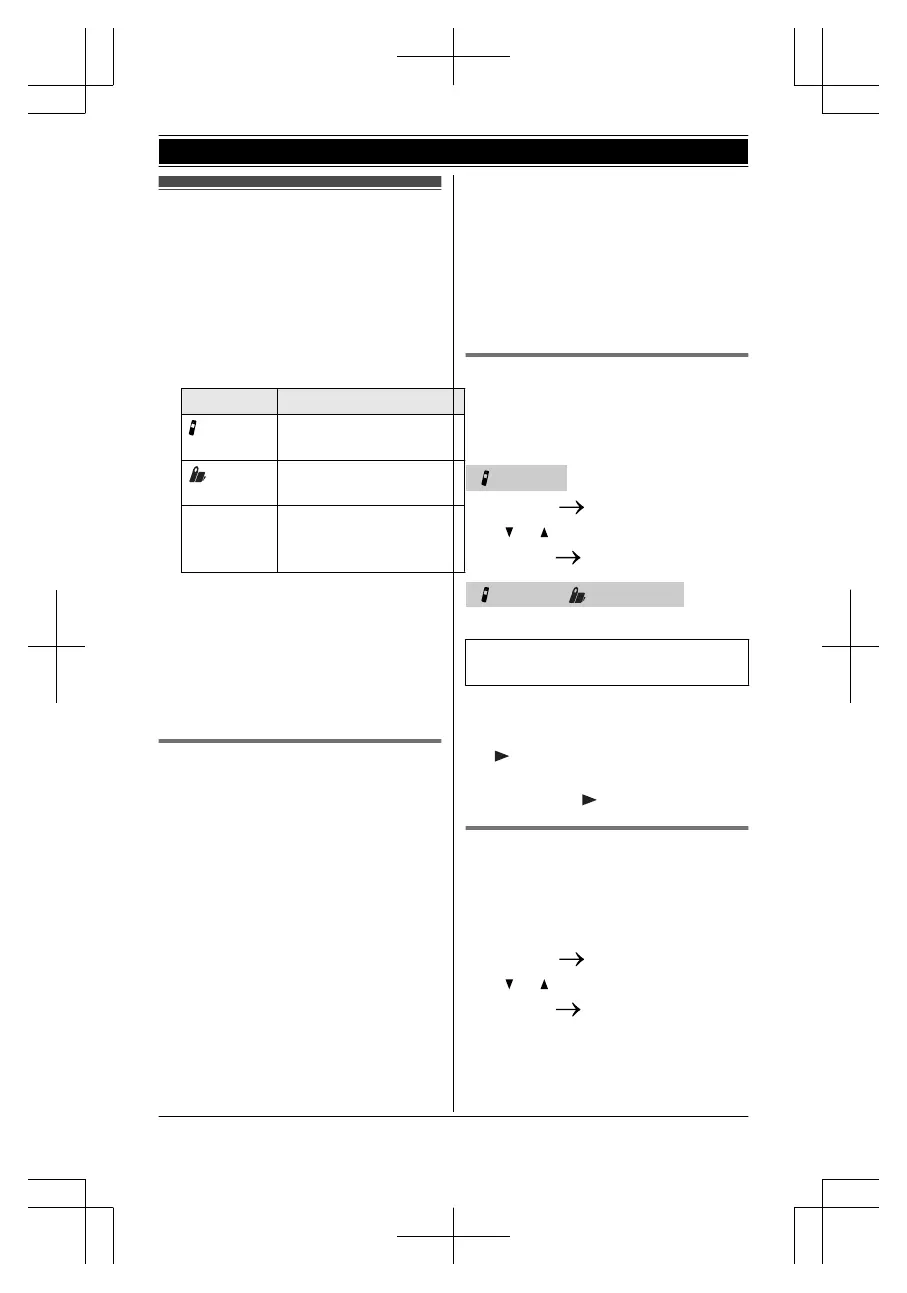
Initial settings
n D
i
rect commands:
The features can be accessed by
pressing MMENU N, M#N and then the
corresponding code on the dial
keypad.
Example:
PressMMENUN M#N M1N M1N M0N
n Symbol meaning:
Symbol Meaning
Perform with the
ha
ndset.
Perform with the base
un
it.
Example:
MCN/MDN:
“Of
f”
PressMCN or MDN to select
the words in quotations.
Important:
R Wh
en you install the batteries for the
first time, the handset prompts you to
set date and time. First press MOKN,
then proceed to step 2 in “Date and
time ”, page 18.
Date and time
1 MME
NUNAM#N M1N M0N M1N
2 Enter the current month, date, and
year by selecting 2 digits for each.
Example: July 15, 2011
M0N M7N M1N M5N M1N M1N
3 MOKN
4 Enter the current hour and minute
(12-hour clock format) by selecting 2
digits for each.
Example: 9:30
M0N M9N M3N M0N
5 MAM/PMN: Select “AM” or “PM”.
6 MSAVENAMOFFN
Note:
R Wh
en English is selected as the
display language, 12-hour clock
format is used. When Spanish is
selected, 24-hour clock format is used.
R The date and time may be incorrect
after a power failure. In this case, set
the date and time again.
Display language
Y
o
u can select either “English” or
“Español” as the display language.
The default setting is “English”.
Handset
1 MME
NUN
M#N M1N M1N M0N
2 M N/M N: Select the desired setting.
3 MS
AVEN
MOFFN
Handset / Base unit
*1
*
1 KX-TG7641 series:page 4
Available for:
KX-TG7641 series (page 4)
1 MDISPLAYN
2 MCN/MDN:
“Change language”AM
N
3 MCN/MDN:
Select the desired
setting.AM
N
Voice guidance language
Yo
u can select either “English” or
“Español” as the voice guidance
language of the answering system. The
default setting is “English”.
1 MMENUN
M#N M1N M1N M2N
2 M N/M N: Select the desired setting.
3 MS
AVEN
MOFFN
18
F
or assistance, please visit http://www.panasonic.com/help
Getting Started




 To Next Page