PROJECTOR SETUP menu
ENGLISH -
85
Settings
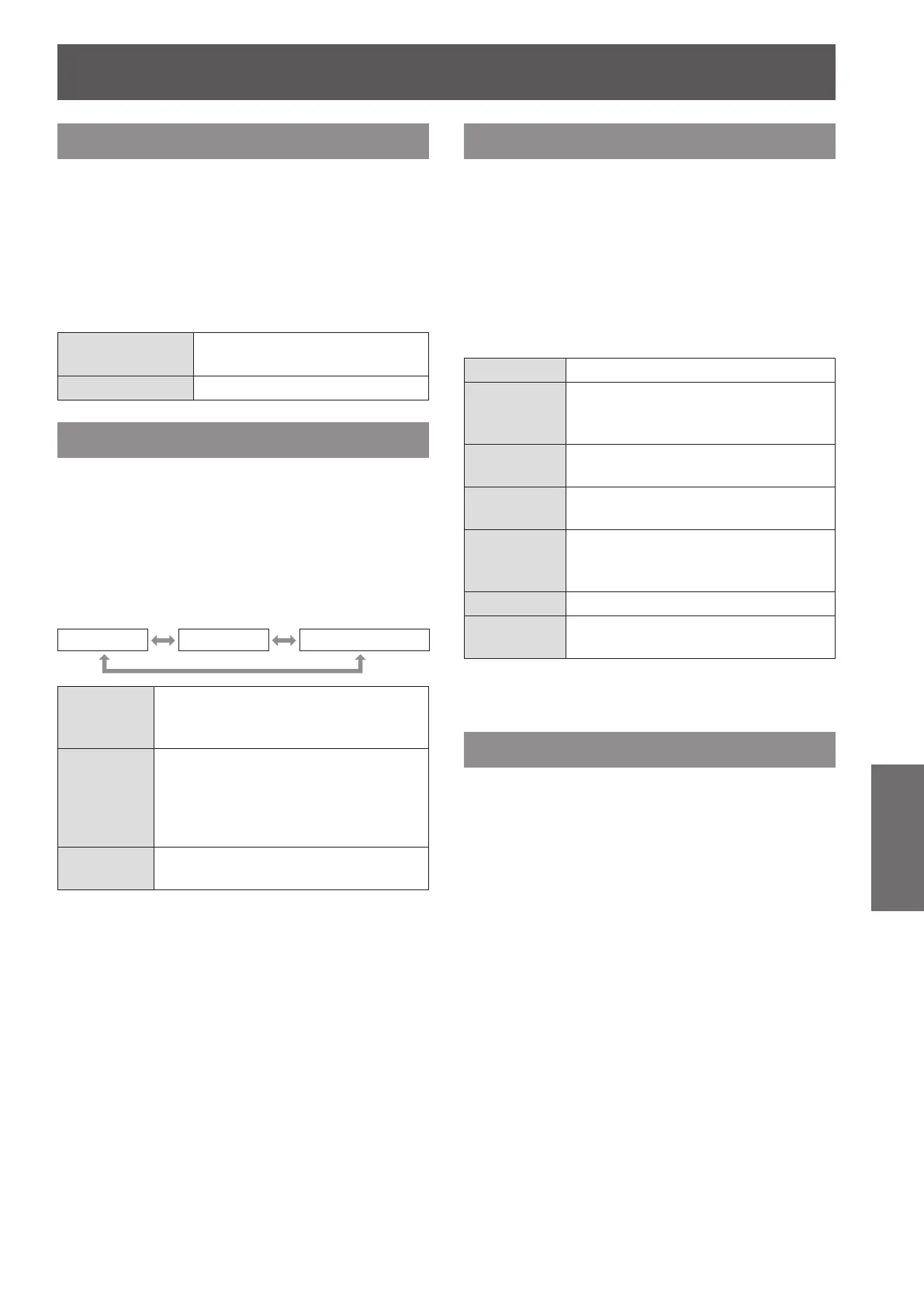
NO SIGNAL SHUT-OFF
You can set the timer to switch off the power of the
projector after a certain period of time automatically
when no signal is detected.
Press ▲▼ to select [NO SIGNAL 1 )
SHUT-OFF].
Press ◄► to switch [NO SIGNAL 2 )
SHUT-OFF].
DISABLE
Deactivate the NO SIGNAL
SHUT-OFF.
10MIN. - 90MIN. At intervals of 10 minutes.
REMOTE2 MODE
You can customize the [REMOTE 2 IN] terminal
function.
Press ▲▼ to select [REMOTE2 MODE].1 )
Press ◄► to switch [REMOTE2 2 )
MODE].
The setting will change as follows each time
z
◄► is pressed.
DEFAULT USER L6500 SERIES
DEFAULT
The pin assignment of the [REMOTE
2 IN] terminal is used as the projector
default setting. (
Æ
page 121)
USER
This is used for changing the settings
for the REMOTE2 terminal.
Any settings you make for pins 2
to 8 become valid once you press
<ENTER> button.
L6500
SERIES
Use the setting for L6500-compatible
REMOTE 2 terminal.
FUNCTION BUTTON
You can assign a certain menu function to the
<FUNCTION> button as shortcut.
Press ▲▼ to select [FUNCTION 1 )
BUTTON].
Press <ENTER> button.2 )
The [FUNCTION BUTTON] screen will be
z
displayed.
Press ▲▼ to select a function.3 )
DISABLE Deactivate the <FUNCTION> button.
P IN P
Changes between OFF/USER1/
USER2/USER3 in P IN P.
(
Æ
page 88)
SUB
MEMORY
Displays the assigned SUB MEMORY
LIST. (
Æ
page 91)
SYSTEM
SELECTOR
Switches [SYSTEM SELECTOR]
options. (
Æ
page 58)
SYSTEM
DAYLIGHT
VIEW
Switches [SYSTEM DAYLIGHT
VIEW] options. (
Æ
page 56)
FREEZE Freezes the image.
WAVEFORM
MONITOR
Û
Displays the waveform of the input
signal.
PT-DZ110XE only:
Û
Press <ENTER> button.4 )
DATE AND TIME
This lets you set the time zone and the current date
and time for the projector’s internal clock.
Setting the TIME ZONE
J
Press ▲▼ to select [DATE AND TIME].1 )
Press <ENTER> button.2 )
Press ▲▼ to select [TIME ZONE].3 )
Press ◄► to switch [TIME ZONE].4 )
Adjusting the date and time
J
manually
Press ▲▼ to select [DATE AND TIME].1 )
Press <ENTER> button.2 )
Press ▲▼ to select [ADJUST CLOCK].3 )








 To Next Page