Image select
Select [Image select] from the Main Menu (see
“Navigating through the menu” on page 33),
then select the item from the sub-menu.
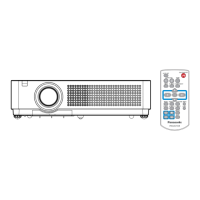
Remote Control
Control Panel
Dynamic
For viewing pictures in a bright room.
Press ▲▼ to select [Dynamic] and then
press the <SELECT> button.
Standard
Normal picture mode preset on the projector.
Press ▲▼ to select [Standard] and then
press the <SELECT> button.
Real
Picture mode with improved halftone for graphics.
Press ▲▼ to select [Real] and then press
the <SELECT> button.
Cinema
Picture mode adjusted with ne tone.
Press ▲▼ to select [Cinema] and then
press the <SELECT> button.
Blackboard(Green)
For the image projected on a blackboard.
Press ▲▼ to select [Blackboard(Green)]
and then press the <SELECT> button.
This mode helps enhance the image projected
z
on a blackboard. This is mainly effective on a
green colored board, not truly effective on a
black colored board.
Colorboard
For the image projected on a colorboard.
Press ▲▼ to select [Colorboard].1 )
Press ► or the <SELECT> button to 2 )
display the submenu.
At the time of simple projection on the colored
z
wall, you can get the close color image to the
color image projected on a white screen by
selecting the similar color to the wall color from
the preset four colors.
Image 1-4
For viewing with the user preset image mode in the
Image adjust Menu. This Image memory is provided
in each computer, component and video input source.
Press ▲▼ to select [Image 1-4] and then
press the <SELECT> button.



 To Next Page
