6
RQT0A83
Inserting media
1 Touch [<] on this unit to open the disc tray.
2 Put in a disc with the label facing up.
3 Touch [<] again to close the disc tray.
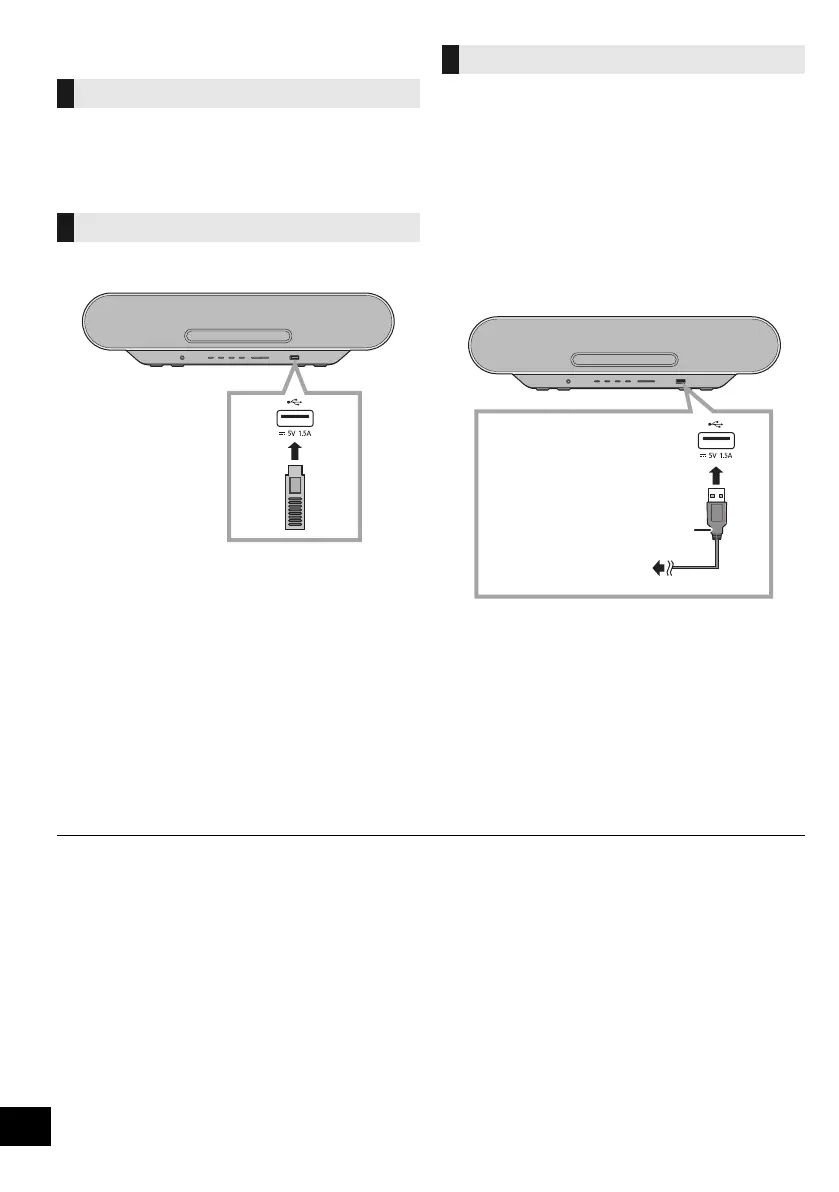
Insert the USB device directly. Do not use any USB
extension cable.
≥ Please disconnect the USB device if you finish using.
≥ Before removing the USB device, select a source other than
“USB”.
Charging starts when a device (rated value: DC 5 V/
1.5 A) is connected to the USB port of this unit.
1 Turn the unit on.
2 Select a source other than “USB”.
3 Connect a device.
≥ Confirm from the screen of the connected device, etc. to
make sure charging has started.
≥ After the device has started charging, you can turn the
unit to standby mode.
– When charging a depleted device, do not turn the unit
to standby mode until the device becomes
operational.
≥ A cable compatible with your device is required. Use the
cable that comes with your device.
≥ Even if you connect a cable compatible with the USB port of
this unit, your device may not be charged. In that case, use
the charger that comes with the device.
≥ Depending on your device, using other chargers may not
work. Check the operating instructions of your device before
use.
≥ Do not connect a device with a rated value higher than 5 V/
1.5 A to this unit.
≥ To check if charging is complete, look at the screen of the
connected device, etc.
≥ Once fully charged, remove the USB cable from the USB
port.
≥ When moving this unit, be sure to remove all media and turn this unit to standby mode.
Inserting a disc
Connecting a USB device
Charging a device
USB cable
(not supplied)
To the compatible device
SC-ALL7CD_EGEBGN_RQT0A83-B.book 6 ページ 2016年3月1日 火曜日 午後4時19分



 To Next Page