8
RQT0A83
≥
The following explanations are based on a smartphone.
1 Turn this system on.
2 Press [RADIO, EXT-IN] on the remote control
repeatedly to select “NETWORK”.
3 Press [SETUP] on the remote control repeatedly to
select “Net Setup” and then press [OK].
4 Press [2, 1] on the remote control to select
“Manual” and then press [OK].
5 Press [2, 1] on the remote control to select
“OK? Yes” and then press [OK].
≥ After pressing [OK] to confirm “OK? Yes”, the previous
network connection you have set with this unit will be
cleared.
“Setting” blinks on the display.
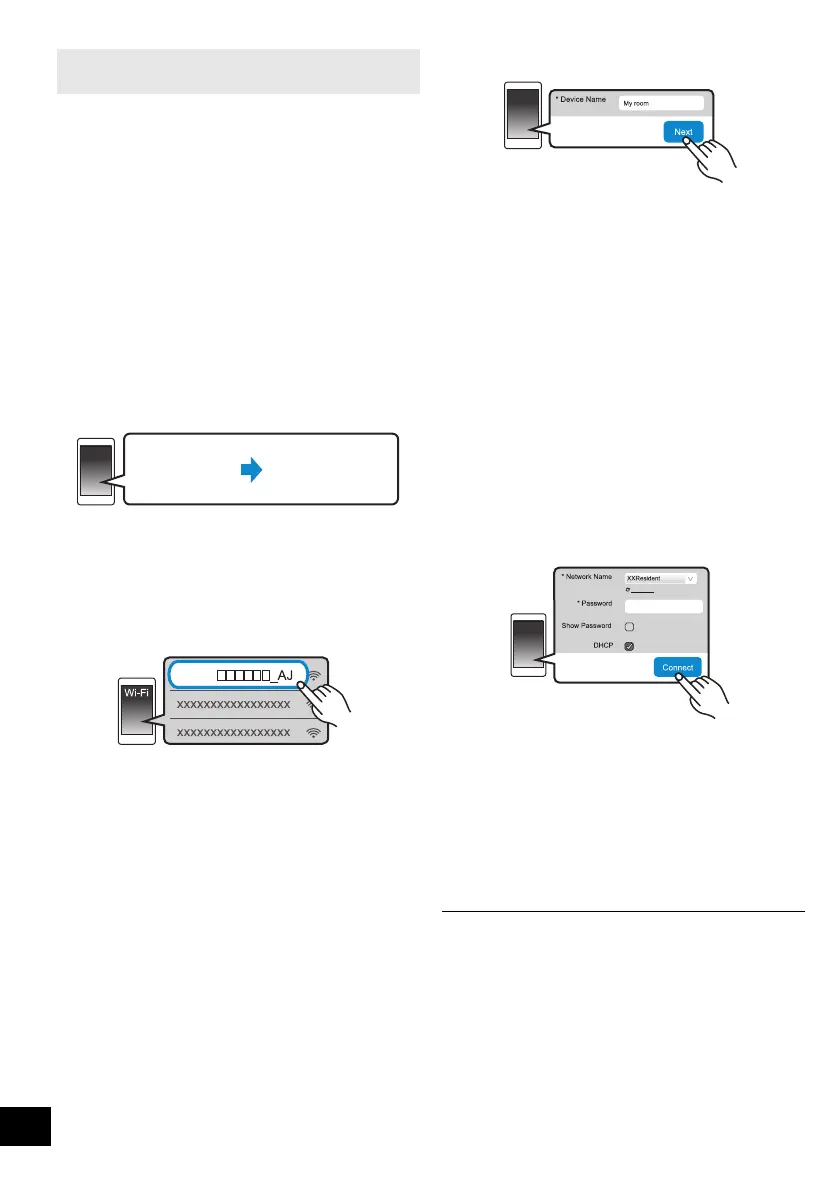
6 Go to Wi-Fi settings on your compatible device.
7 Select “ALL7CD_AJ” to connect to this
system.
≥ “ ” stands for a character that is unique to each set.
≥ This can take up to 1 minute to appear in your Wi-Fi list.
≥ If this operation does not work correctly, please repeat it
several times.
≥ Make sure that DHCP is enabled for the network setting
on your compatible device.
About the network setting page:
iOS device: The settings page will be automatically
displayed in the Internet browser.
Except iOS device: Open the Internet browser and refresh
the page to display the settings page.
≥ If the settings page is not displayed, type
“http://172.19.42.1/” into the URL address field.
8 Type a device name and then select “Next”.
≥ The device name will be displayed as this system’s
name on the network.
≥ Maximum characters that can be shown: 32
≥ Emoji characters are not supported.
≥ The device name is set when “Next” is selected.
≥
You can also change the device name after the network
connection is set up. (
l
10, “To make network-related
settings”)
9
Select your network name (SSID) and type the password.
≥ Check the wireless router for the network name (SSID)
and the password.
≥ A list of network names (SSIDs) will be appeared when
you select the “Network Name” box.
≥ To show the characters typed in the “Password” box,
select “Show Password”.
≥ If your network requires specific settings, deselect
“DHCP” to disable DHCP.
– You can use specific IP address, subnet mask,
default gateway, primary DNS, etc.
≥ To update the network name (SSID) list, select “Refresh
list”.
10
Select “Connect” to apply the settings.
≥ On the unit’s display, “Success” appears when the
connection is established. (The network indicator (l 4)
lights up.)
– If “Fail” is displayed press [OK], check the network
name (SSID) and the password, and then try the
setting again.
≥ Depending on the device, the connection complete
screen may not be displayed.
11
Make sure to connect your compatible device back
to your home wireless network.
≥ Enable Java and Cookies in your browser settings.
Method 2:
Using an Internet browser
SC-ALL7CD_EGEBGN_RQT0A83-B.book 8 ページ 2016年3月1日 火曜日 午後4時19分



 To Next Page