20
VQT3M52
After completing “Easy setup”, you can perform “Network Easy
Setting”.
[BTT262]
Follow the on-screen instructions and make
the settings with [2, 1] and press [OK].
[BTT362]
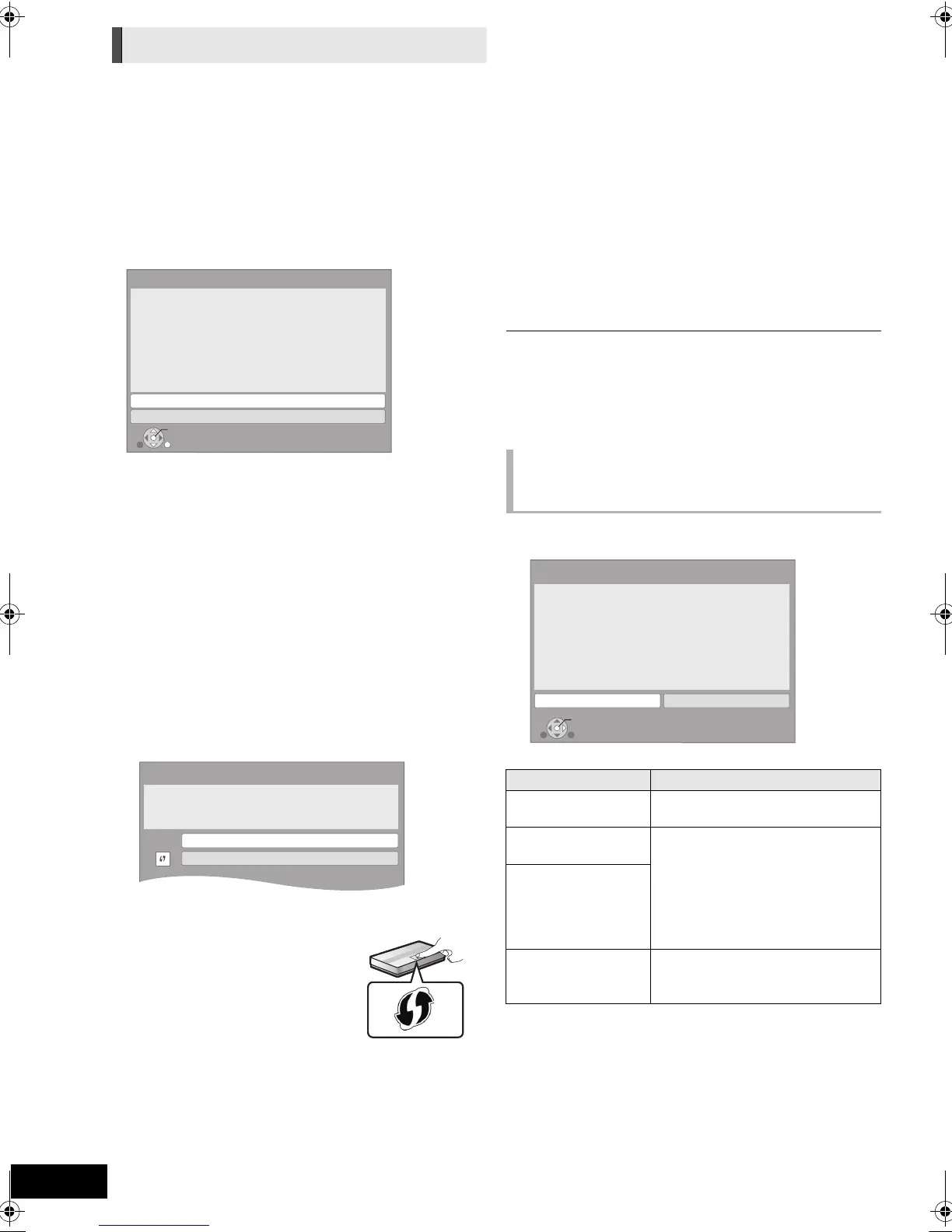
Select “Wired” or “Wireless” and press [OK].
∫ “Wired” connection
Follow the on-screen instructions to make your connection
settings.
≥ When you experience problems (> right)
∫ “Wireless” connection
Before beginning wireless connection setup
≥ Obtain your network name (SSID
*1
).
≥ If your wireless connection is encrypted please be sure
that you know your encryption key.
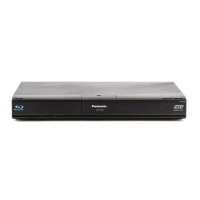
Select “WPS (PUSH button)” or “Search for
wireless network” and then follow the
on-screen instructions and make the settings.
WPS (PUSH button):
If your Wireless router supports WPS
(PUSH button), you can easily perform
the settings by pressing WPS button on it.
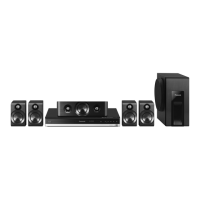
WPS (Wi-Fi Protected Setup) is a
standard that facilitates settings relating to
the connection and security of wireless
LAN devices.
1 Press WPS button or corresponding button of Wireless
router until the lamp starts flashing.
≥ For details, refer to the operating instruction of Wireless
router.
2 Press [OK].
Search for wireless network:
≥ When you select “Search for wireless network”, the available
wireless networks will be displayed. Select your network
name and press [OK].
– If your network name is not displayed search again by
pressing the red button on the remote control.
jStealth SSID will not be displayed when you select “Search
for wireless network”. Enter manually by using “Manual
setting”.
(Press [HOME] > select “Others”> select “Setup”> select
“Network” > [OK] > select “Network Settings” > [OK] >
select “Wireless Settings” > [OK] > select “Connection
Setting”> [OK]> select “Manual setting”> [OK])
≥ If your wireless network is encrypted, Encryption Key input
screen will be displayed.
Input the encryption key of your network.
*1
An SSID (Service Set IDentification) is a name used by wireless LAN to
identify a particular network. Transmission is possible if the SSID matches
for both devices.
*2
Wi-Fi Protected Setup-compatible Wireless router may have the mark.
[BTT362]
Wireless Settings
Network Easy Setting
OK
RETURN
Network Easy Setting
Wired
Wireless
Select a connection mode.
Current setting : Wired
LAN cable connection:
Connect a LAN cable to the unit and select "Wired."
Wireless LAN connection:
Select "Wireless."
Wireless Settings
Select a connection method to wireless access point.
Please refer to the operating instructions of your wireless
access point about connection methods.
Search for wireless network
WPS (PUSH button)
When you experience
problems with settings
Display Check the following
A conflict with other
devices occurred.
≥ Please wait a few moments, and
then try again.
A time out error
occurred.
≥ Setting of the Wireless router for
MAC Address etc.
≥ The signal may be weak.
≥ The SSID and the encryption key
of the Wireless router.
≥ Please wait a few moments, and
then try again.
An authentication
error or a time out
error occurred.
A device error
occurred.
≥ If there is no improvement in
symptom, consult your dealer.
OK
Wireless Settings
Failed to complete.
A conflict with another device occurred.
Do you want to configure wireless network connection
setting again ?
Yes No
SCBTT362_262_EB_VQT3M52_eng.book 20 ページ 2011年1月25日 火曜日 午後8時22分



 To Next Page